

Appearance
Video Clips (Pro)
A clip is a part of a video with a start time and an end time. When a player uses a clip, it plays only that part, so you can show one highlight from a long recording without editing or uploading a new file.
Pro feature
Video clips require FluentPlayer Pro. In the free version, the Clip panel shows an Upgrade to Pro button instead of the clip settings.
Why Use Clips?
- Share a highlight. Show the two minutes of a webinar that answer one question.
- Reuse one video. Put different parts of the same video on different pages.
- Keep viewers focused. Skip the intro or the closing talk.
How Clips Work
Clips belong to the video, not to the page. You can add up to 50 clips to one video. Each place you show that video then picks which clip to play, or plays the full video.
When a player plays a clip, it starts at the clip's start time and stops at its end time. The progress bar covers only the clip.
Create a Clip
- Open the video in the Player Editor, or select a FluentPlayer block on any page.
- In the Block tab of the right sidebar, expand the Clip panel.
- Turn on Enable Clips.
- Click Add Clip. A new clip card appears, named Clip 1.
- Type a name for the clip in the name field, or keep the default.
- Set the Start and End times. You can drag the handles on the timeline, or type a time such as
1:30and press Enter. - Save or update the page.
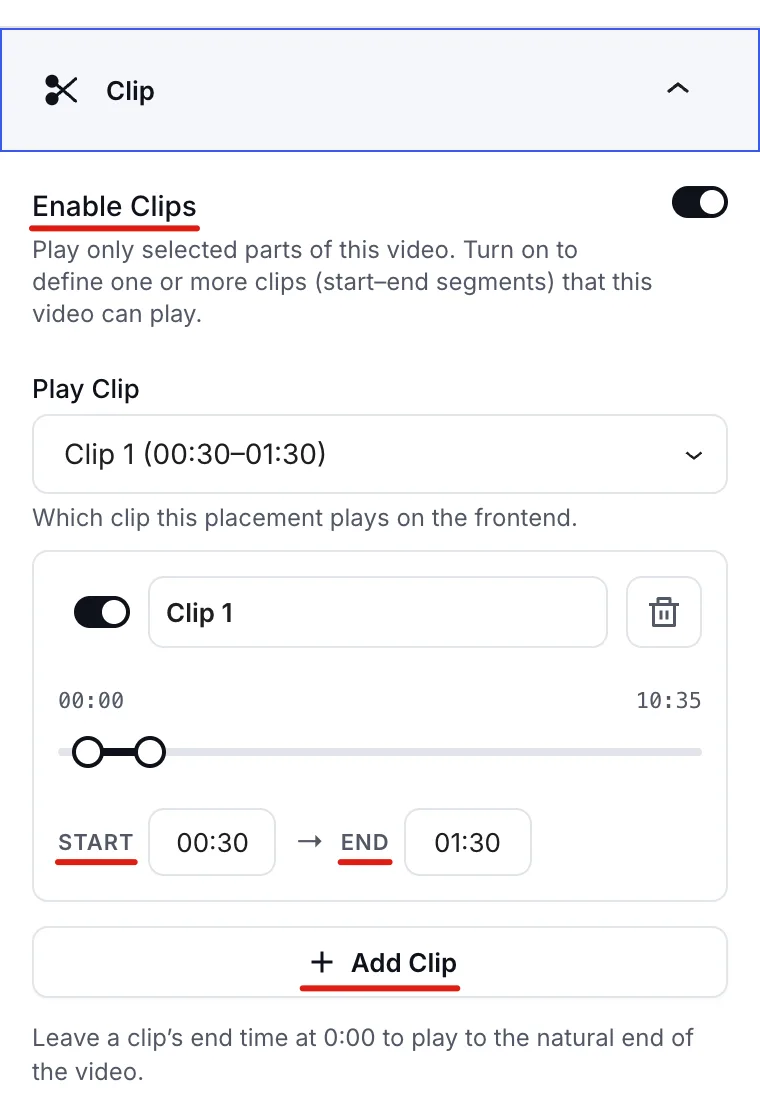
To add more clips, click Add Clip again. Each clip card has its own on/off toggle, so you can turn a clip off without deleting it. To remove a clip, click the delete icon on its card and confirm with Delete.
Play to the end
Leave a clip's End time at 0:00 to play from the start time to the natural end of the video.
Changes apply everywhere
Because clips are saved on the video, editing or deleting a clip changes it on every page that shows the video.
Choose Which Clip a Player Plays
Once a video has at least one clip turned on, the Clip panel shows a Play Clip dropdown. It sets which clip this placement plays on your site. Media default is only offered when the video is placed in a block on a page or post, not in the video's own editor.
- Media default: plays the video's default clip (see below).
- Full video: ignores the clips and plays the whole video.
- A clip by name: plays that clip. Each option shows the clip's name followed by its start and end times.
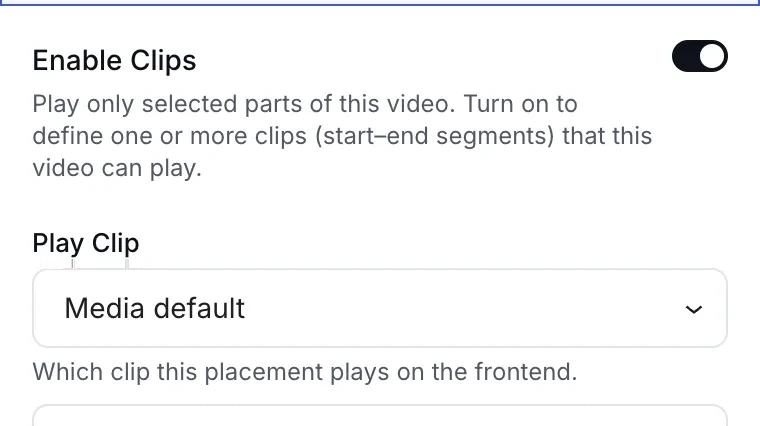
The default clip
The default clip is the one a video plays when a placement doesn't choose one:
- If you picked a clip in Play Clip inside the Player Editor, that clip is the default.
- If the video has only one clip turned on, that clip is the default.
- If the video has several clips and you haven't picked one, the full video plays.
In the Player Editor, the Play Clip dropdown has no Media default option, because you're setting the default there.
If a placement points to a clip that you later delete or turn off, it falls back to the default clip.
Set a Clip in the Shortcode
You can also set a clip directly in the shortcode with the start_clip and end_clip attributes. They work with both [fluentplayer] and [fluentmedia].
text
[fluentplayer id="129" start_clip="1:30" end_clip="3:45"]| Attribute | Description |
|---|---|
start_clip | Where the clip starts. |
end_clip | Where the clip ends. Leave it out to play to the end of the video. |
Both attributes accept seconds (90), minutes and seconds (1:30), or hours, minutes and seconds (1:05:30).
A few rules apply:
- The shortcode clip replaces any clip chosen for the video in the editor.
- If
end_clipis not later thanstart_clip, the clip plays to the natural end of the video. - If both values are empty or not valid times, the player uses the video's default clip.
- Times longer than one week are ignored.
Clip vs start time
The start attribute only sets where playback begins. Viewers can still seek back and watch the rest. Use start_clip and end_clip when you want the player to show only that part.
Share a Link to a Clip
Viewers can copy a link that opens the player on the same clip. Right-click the player while it plays a clip and choose Copy Link to This Clip.
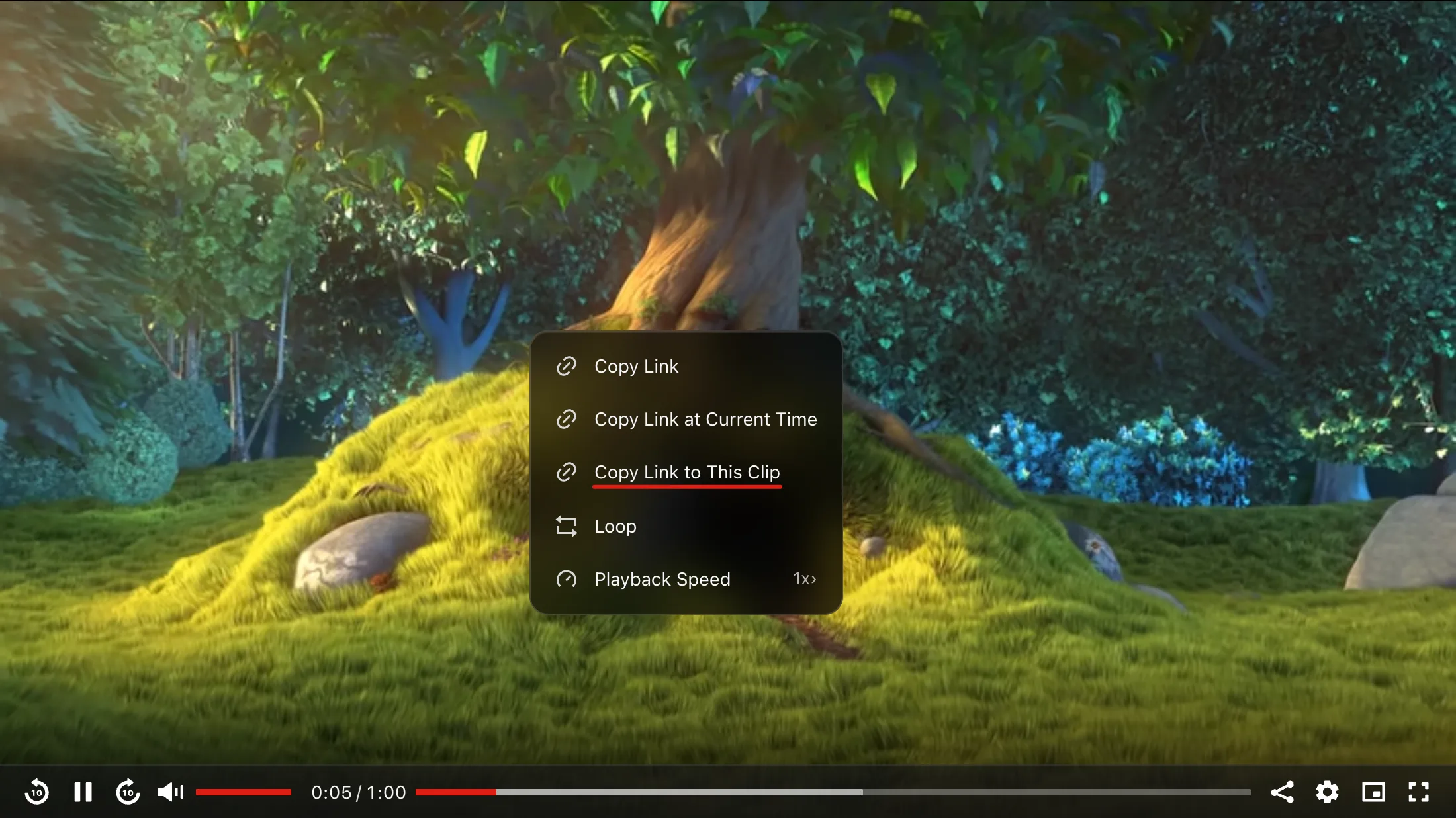
This menu item appears only when:
- The player is playing a clip.
- The video is not a live stream.
- Copy Link At Current Time is turned on in the preset's Context Menu settings.
The copied link is the page address with a few extra values added to the end:
text
https://example.com/demo-page/?flp_r=<player>&flp_t=90&flp_e=225flp_ridentifies which player on the page the link is for.flp_tis the start time in seconds.flp_eis the end time in seconds.
When someone opens the link, the page scrolls to that player and it plays only that part of the video. To send people to a single moment instead of a range, use Copy Link At Current Time or timestamp links.
Clips in Playlists
Playlists respect clips. Each video in a playlist plays its own default clip. If a video has no clips turned on, or several clips with none picked as the default, the playlist plays the full video.
To control which part of a video a playlist plays, open that video in the Player Editor and pick a clip in Play Clip.
Limits
- Up to 50 clips per video.
- A clip's start time must be earlier than its end time.
- Clip links don't work for live streams.
- If a placement replaces the video's source (for example with the shortcode's
source_urlattribute), the editor's clip choice no longer applies, because it's a different video.