

Appearance
Media vs Block Tabs
When you select the FluentPlayer Media block in the WordPress editor, the right sidebar (Inspector) displays two distinct tabs: Media and Block. While both tabs are used to manage the same video, they control different aspects of your content.
Media Tab
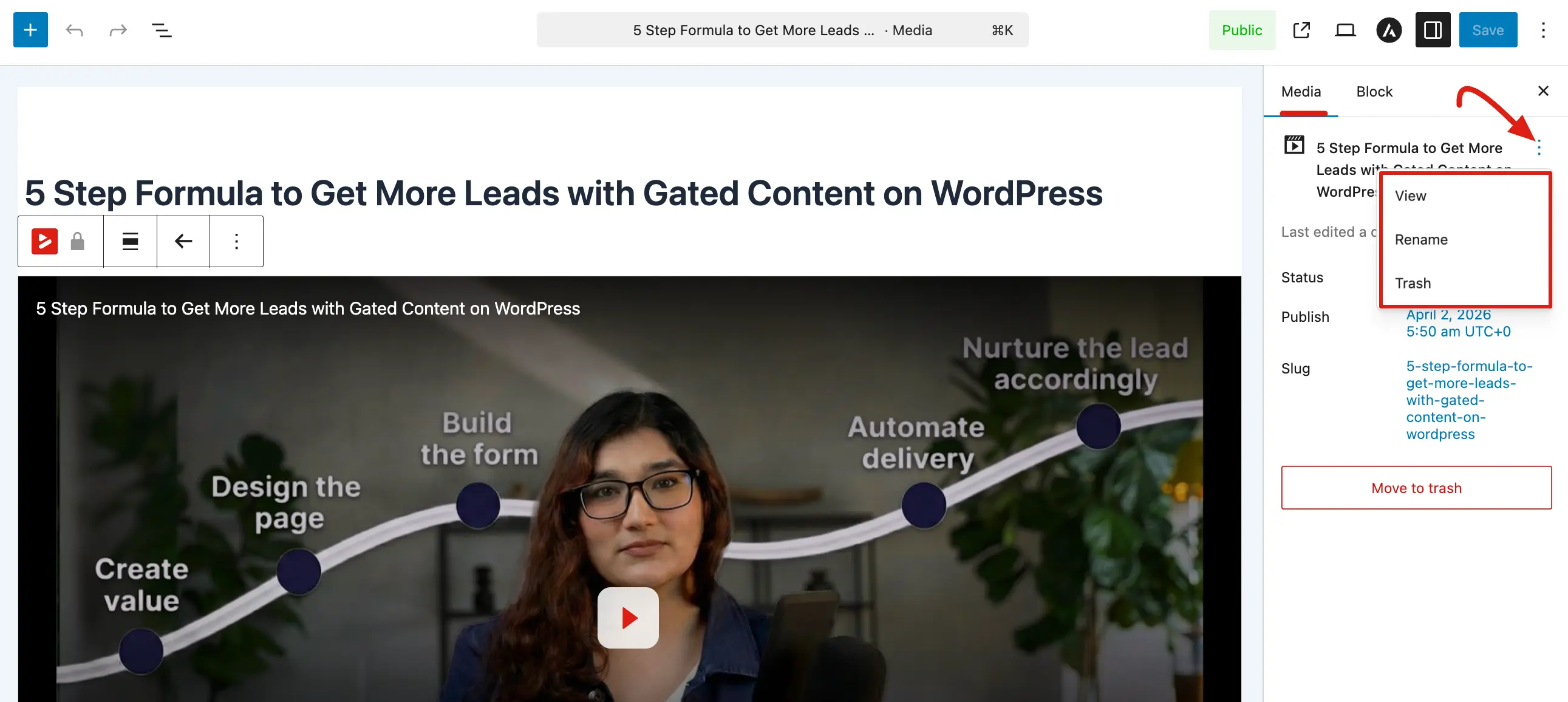
The Media tab focuses on the high level details and "document level" settings of your video entry in the database. Think of this as the administrative home for the video record.
- Media Context: It provides information about the saved media item, such as its Status (e.g., Published) and the Publish date.
- Permalink & Slug: You can view or edit the video's Slug, which determines its dedicated URL.
- Record Actions: This tab includes high level actions that affect the entire media record, such as the Trash button.
- Menu Options: A three dot menu allows you to quickly View, Rename, or Trash the media item.
NOTE
If you are using the dedicated editor (FluentPlayer → Media), this tab ensures the information in your media list matches what you see on the screen.
Block Tab
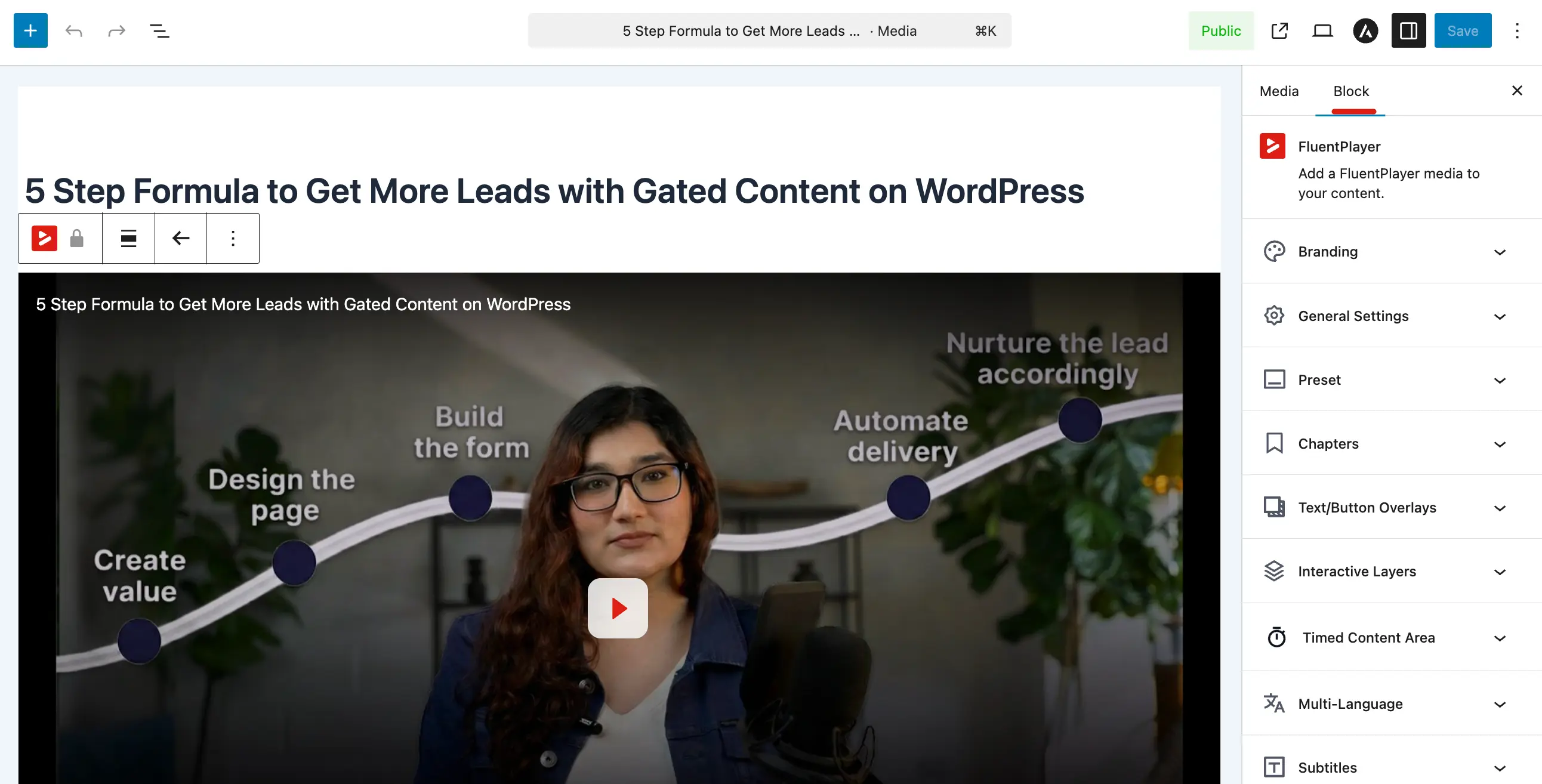
The Block tab is where you will spend most of your time customizing the actual playback experience and appearance of the player.
- Player Configuration: This tab holds all the visual and interactive settings for the embed.
- Customization Panels: You can access specific panels to manage Branding, General Settings, Presets, Chapters, Overlays, and Interactive Layers.
- Advanced Features: This is also where you configure Multi-Language support, upload Subtitles, and generate Timestamp Links.
Which Tab Saves What?
Understanding how your changes are stored ensures your video looks correct everywhere it is embedded.
- Media Settings: Changes made in the Block tab are saved directly to the Media ID. This means any other page using that same Media ID will automatically pick up your new styling and settings.
- Post Association: When adding a video to a standard post, the block saves the association with that specific Media ID.
- Live Updates: Saving updates the media record everywhere it is embedded via the plugin's background system.
Use the Media tab to manage the "identity" of your video (titles, slugs, and status) and the Block tab to design the "experience" (colors, buttons, and interactivity). Always remember to click Save or Update to ensure your changes go live on the front end.
Related pages
- General Settings — title, poster, autoplay, and aspect ratio in the Block tab
- Preset — pick the player skin and control layout
- Interactive Layers — add forms, email capture, CTAs, and hotspots