

Appearance
Playlist Appearance, Spacing, and Behavior
After choosing a playlist layout, FluentPlayer Pro lets you fine-tune how the playlist looks and behaves on the front end. These settings control the visual style and operational settings of the playlist container, sidebar, or grid surrounding the video player.
Where to Find These Options
To customize these features, go to Fluent Player → Playlists in your WordPress dashboard and open your playlist item. On the right-hand sidebar under the Block tab, you can access and configure the Appearance, Typography, Spacing, and Behavior panels.
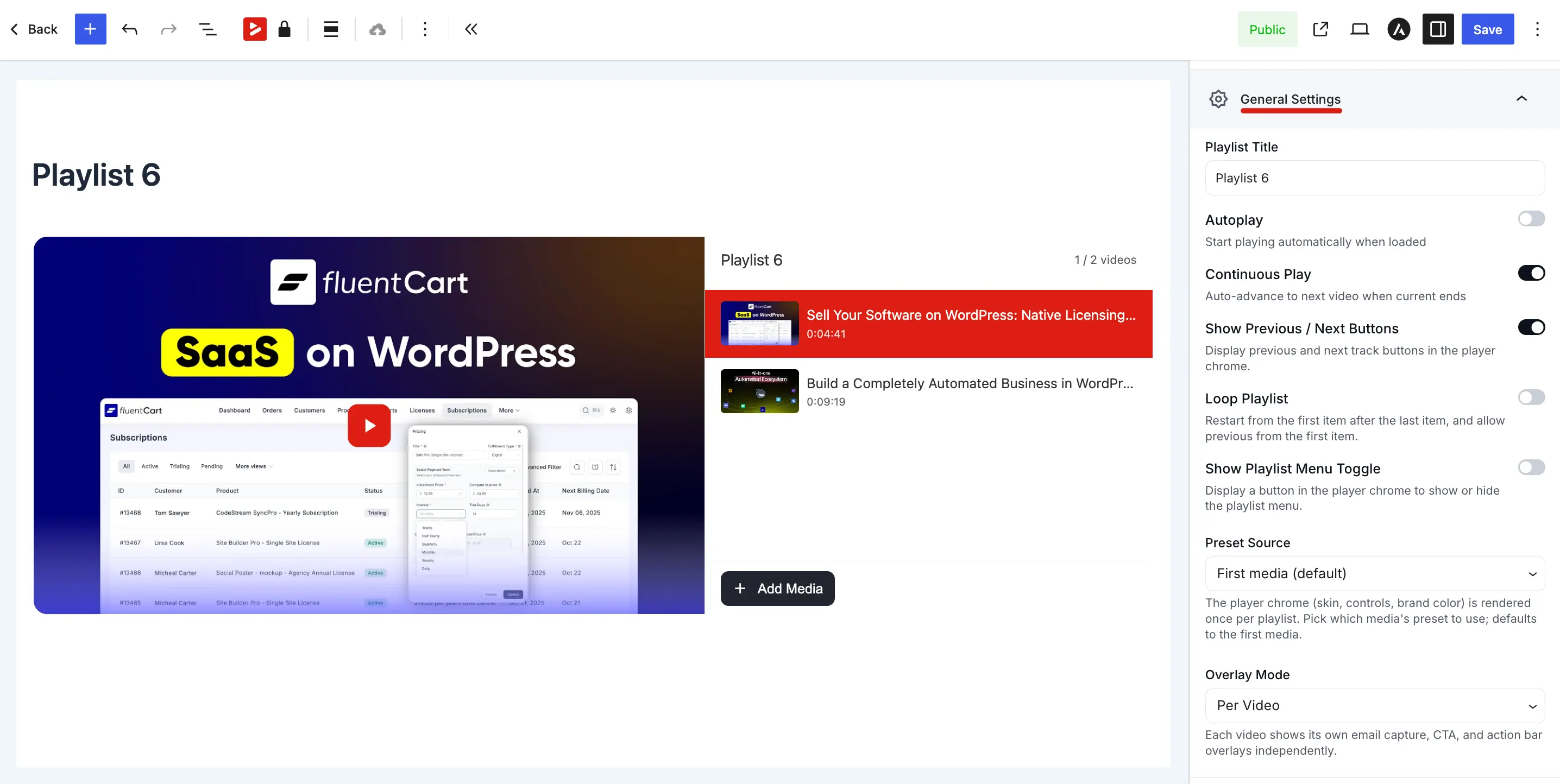
General Behavior and Display
Playlist Title: Enter or update the title of your playlist for internal organization and display.
Autoplay: Toggle this switch on to start playing the first video automatically when the page loads.
Continuous Play: Enable this to automatically advance to and play the next video in the queue as soon as the current video ends.
Loop Playlist: Switch this on to jump back and restart the playlist from the first video after the last video finishes.
Show Previous / Next Buttons: Toggle this on to display navigation control arrows in the player chrome so viewers can click through tracks.
Show Playlist Menu Toggle: Show or hide a dedicated menu button in the player chrome that lets viewers collapse or expand the playlist list area.
Preset Source: Choose a specific media item's preset from the dropdown menu. The playlist will copy that video's look, controls, player skin, and brand color. If left unselected, it defaults to your global site presets.
Overlay Mode: Choose between Per Video (each video displays its own email captures, CTAs, and action bars as it plays) or Selected Video (applies one chosen video's interactive layers across the entire playlist duration).
Playlist visibility
Like media items, a playlist can be public or private. Private playlists are not accessible on their dedicated playlist URL to visitors without edit permission, the same way media visibility works.
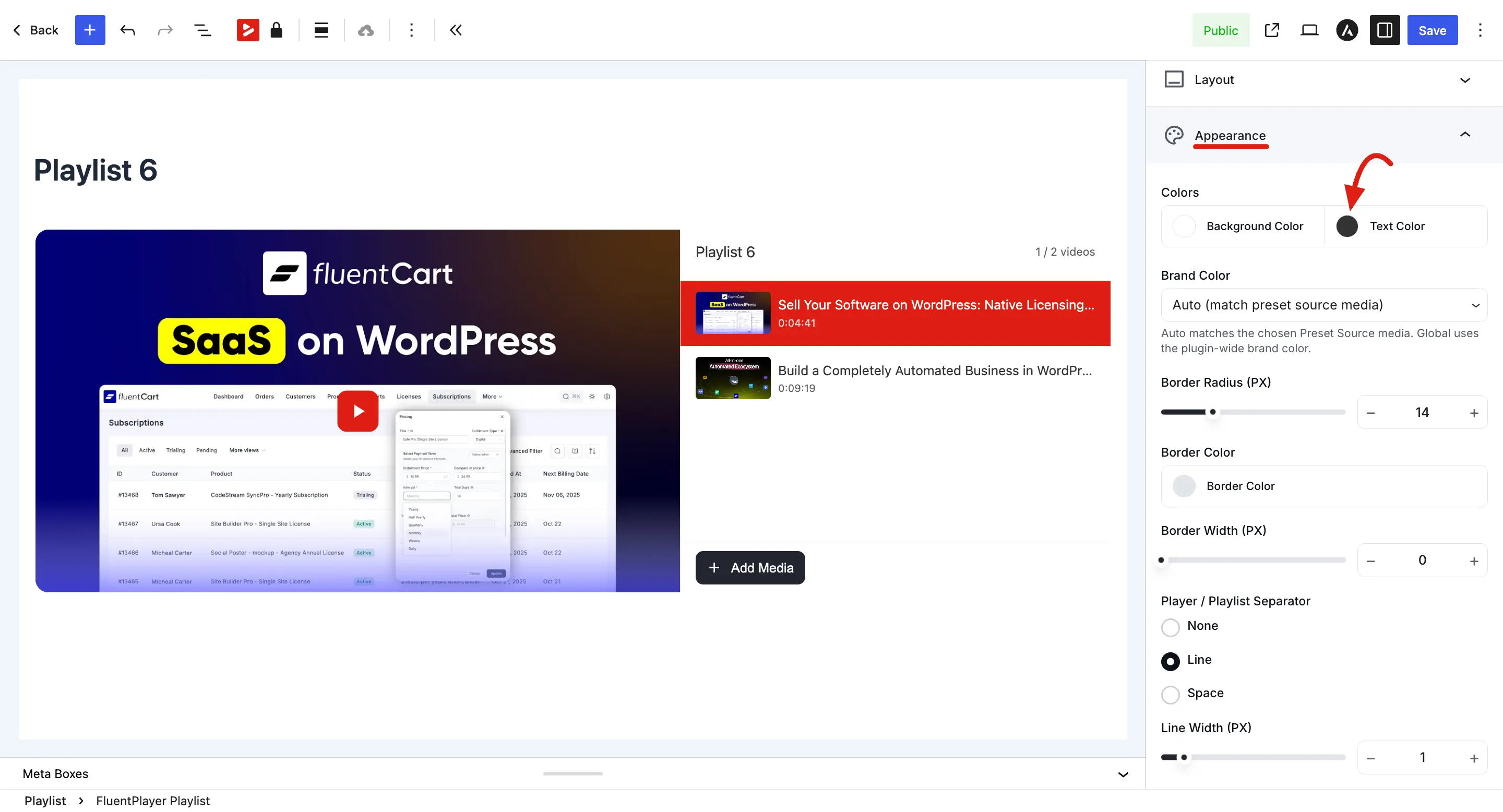
Appearance Styles
Control the playlist frame's colors, borders, separator, and shadow so it matches your site.
Background Color: Select a custom background color for the playlist list or grid area.
Text Color: Pick the color for all titles, labels, and metadata text in the playlist interface.
Brand Color: Choose Auto (match preset source media) to inherit the accent colors automatically, use global branding settings, or apply a unique custom accent color to this playlist.
Border Radius (PX): Use the slider or input box to set how rounded the playlist container corners are (e.g., 14px).
Border Color: Select a custom color for the outline frame of the playlist container.
Border Width (PX): Set the thickness of your border frame. Setting this to 0 removes the visible border outline entirely.
Player / Playlist Separator: Choose the visual style of the line dividing the player and the sidebar list, selecting from None, Line, or Space.
Line Width (PX): Adjust the slider or type a value to define the thickness of your separator line.
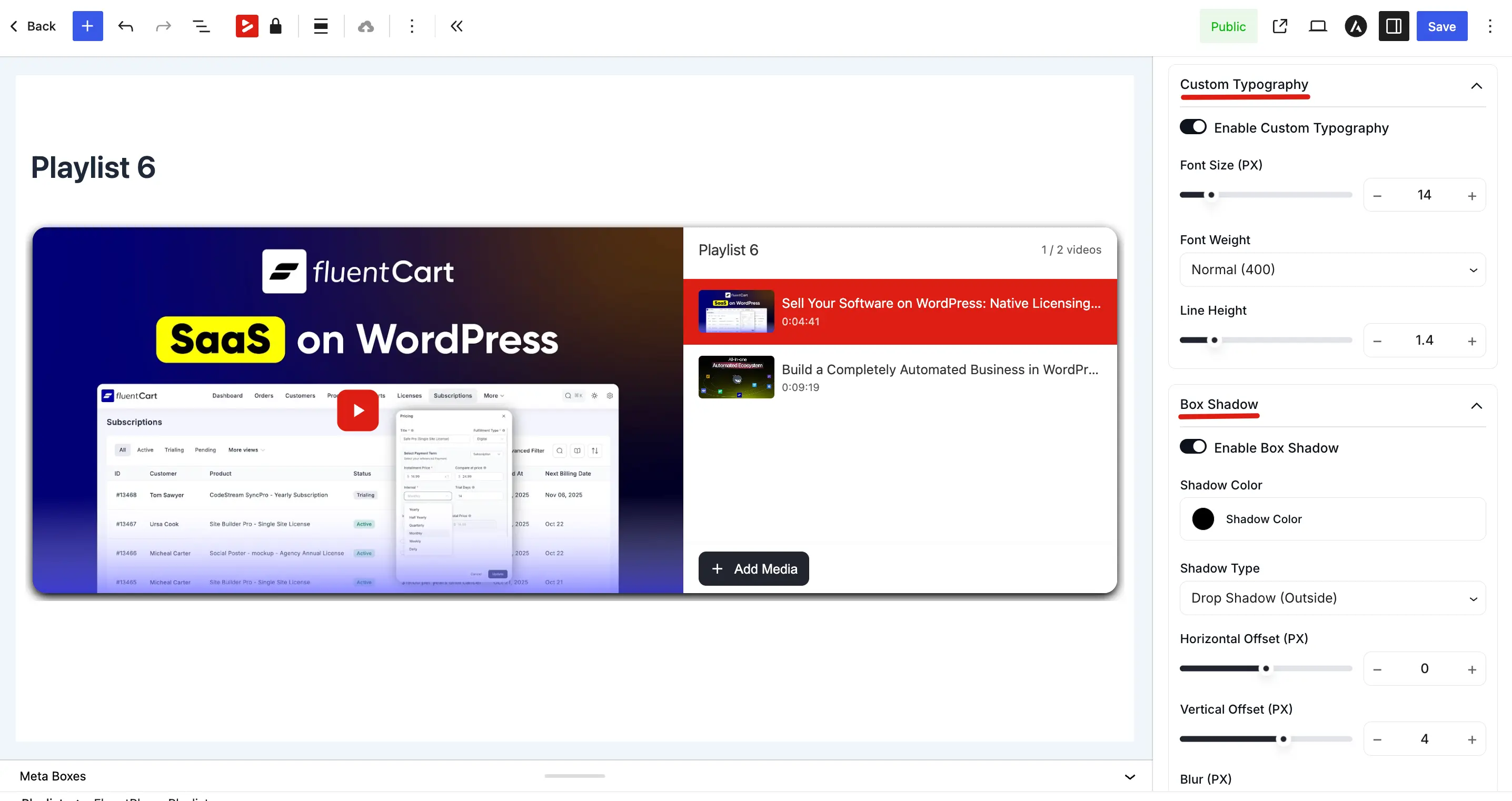
Custom Typography
Optional overrides for playlist text (titles, labels). These controls are nested inside the Appearance panel.
Enable Custom Typography: Enable this switch to the on position to override your standard theme fonts and text settings for the playlist text elements.
Font Size (PX): Move the slider or change the number to set the exact text size for playlist item titles and labels.
Font Weight: Select how thick or bold your text appears from the dropdown menu (e.g., Normal 400 or Bold 700).
Line Height: Use the slider or type a value to adjust the vertical spacing between lines for multi-line video titles.
Box Shadow Layouts
Add an optional shadow to give the playlist container depth. These controls are also nested inside the Appearance panel.
Enable Box Shadow: Enable this master switch on to apply a depth shadow frame around the playlist layout container.
Shadow Color: Click the color box to select your shadow color highlight.
Shadow Type: Pick your shadow projection type, such as Drop Shadow (Outside) or Inset (Inside).
Horizontal Offset (PX): Adjust the slider to move your shadow left or right.
Vertical Offset (PX): Adjust the slider to push your shadow up or down.
Blur (PX): Define how soft, blurred, or sharp the edges of your box shadow container appear.
Spread (PX): Expand or contract the overall scale and boundary limits of your shadow effect.
The appearance and behavior panels provide a comprehensive toolset to customize your video collections. By establishing automated continuous playback, syncing preset skins, and adjusting custom text layouts or box shadows, you can match your playlists perfectly to your website design.