

Appearance
Installation
This page walks you through installing and activating FluentPlayer on your WordPress site. The process takes about two minutes.
Requirements
Before you install, make sure your site meets these requirements:
- WordPress 6.0 or higher
- PHP 7.4 or higher
Not sure about your PHP version?
In your WordPress admin, go to Tools → Site Health → Info → Server. You will see your PHP version listed there.
Installing the Free Plugin
Option 1: From the WordPress plugin directory
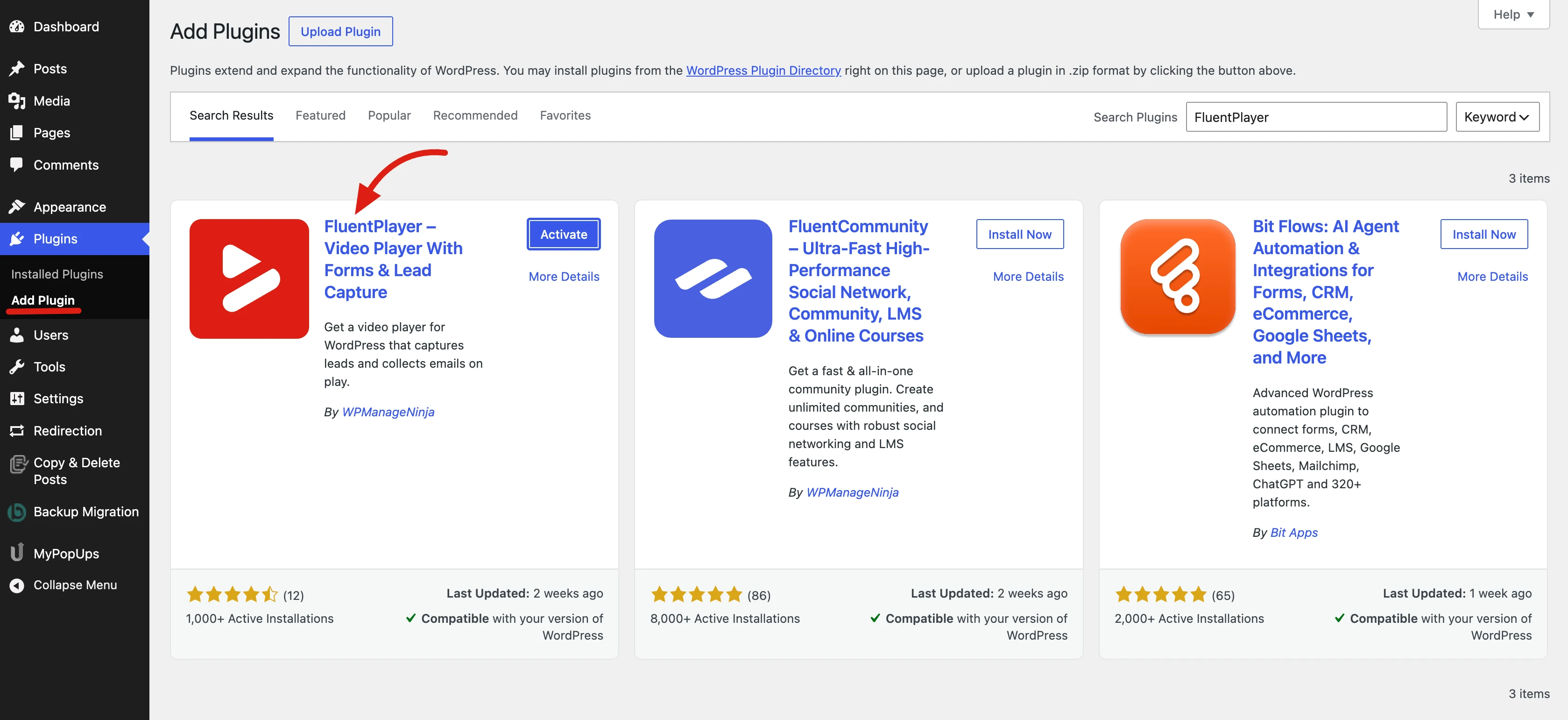
- In your WordPress admin, go to Plugins → Add New.
- Search for FluentPlayer.
- Click Install Now next to FluentPlayer.
- Once installed, click Activate.
Option 2: Upload the zip file
- Download the FluentPlayer zip file from your source.
- In WordPress admin, go to Plugins → Add New → Upload Plugin.
- Click Choose File, select the zip file, and click Install Now.
- Once installed, click Activate.
After activation, you will see a new FluentPlayer menu in your WordPress admin sidebar.
Installing the Pro Plugin
If you have a FluentPlayer Pro license:
- Make sure the free FluentPlayer plugin is already installed and active (Pro requires it).
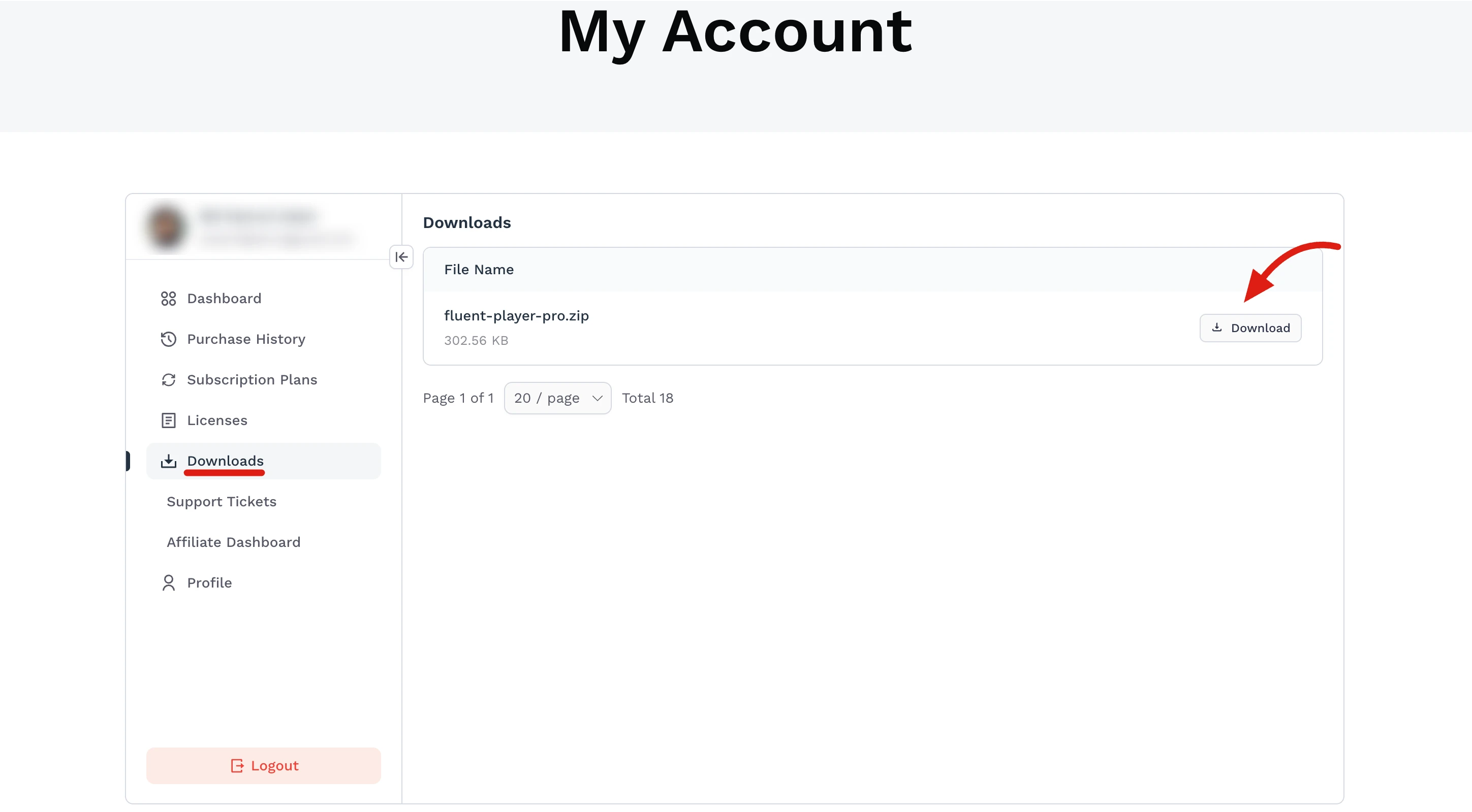
- Download the Pro zip file from your account or purchase page.
- In WordPress admin, go to Plugins → Add New → Upload Plugin.
- Upload the Pro zip file and click Install Now.
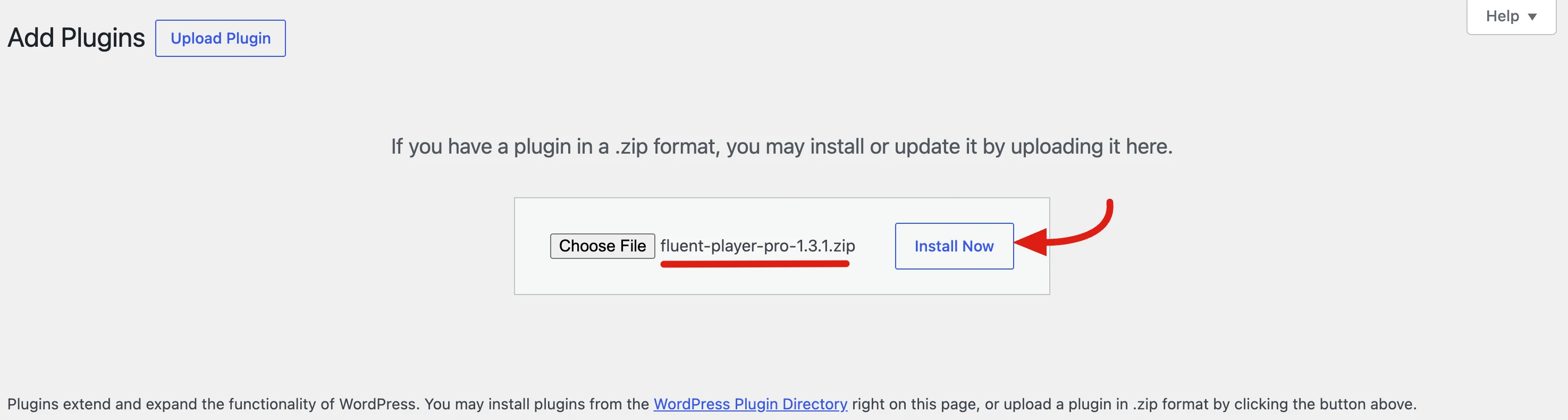
- Click Activate.
After activating Pro, the admin menu label changes to FluentPlayer Pro, and additional features like Playlists, Mux, BunnyCDN, Cloudflare R2 & Stream, timed content in the media block, and Analytics become available.
Important
The Pro plugin will not work without the free plugin. Always keep both plugins active if you are using Pro features.
After Installation
Once FluentPlayer is active, here is what you will see:
- FluentPlayer (or FluentPlayer Pro) in the admin sidebar.
- Inside, you will find:
- Media — List, filter (for example All, Public, Private, Draft), search, and Add Media to create videos.
- Playlists — Create and manage playlists (Pro).
- Analytics — Built-in dashboards when Pro and analytics are enabled.
- Settings — Global options: default preset, branding, analytics, integrations, and more.
- Inside the FluentPlayer app, the top bar shows the fluentPlayer logo, quick switches between Media and Playlists, a Settings (gear) icon that opens the full settings area, and Docs (book icon) for help.
What to Do Next
You are ready to add your first video. Head to Quick Start for a step by step walkthrough.
Troubleshooting
| Problem | Solution |
|---|---|
| FluentPlayer menu does not appear | Deactivate and reactivate the plugin. Clear any caching plugins. |
| "Plugin could not be activated" error | Check that your server meets the PHP 7.4+ requirement. |
| Pro features are not showing | Make sure both free and Pro plugins are active. |
| Conflict with another plugin | Deactivate other plugins one by one to find the conflict. |
If you still have trouble, check the plugin's support page or contact the support team.