

Appearance
FluentCart
The FluentCart layer allows you to sell from inside your video. At the moment you choose, a product card, a subscription offer, a grid of products, or a coupon code appears over the player, so viewers can buy without leaving the page.
Free and Pro
The FluentCart layer is free for single Product and Subscription cards. Products Grid, Subscriptions Grid, and Coupon need FluentPlayer Pro.
What You Can Do
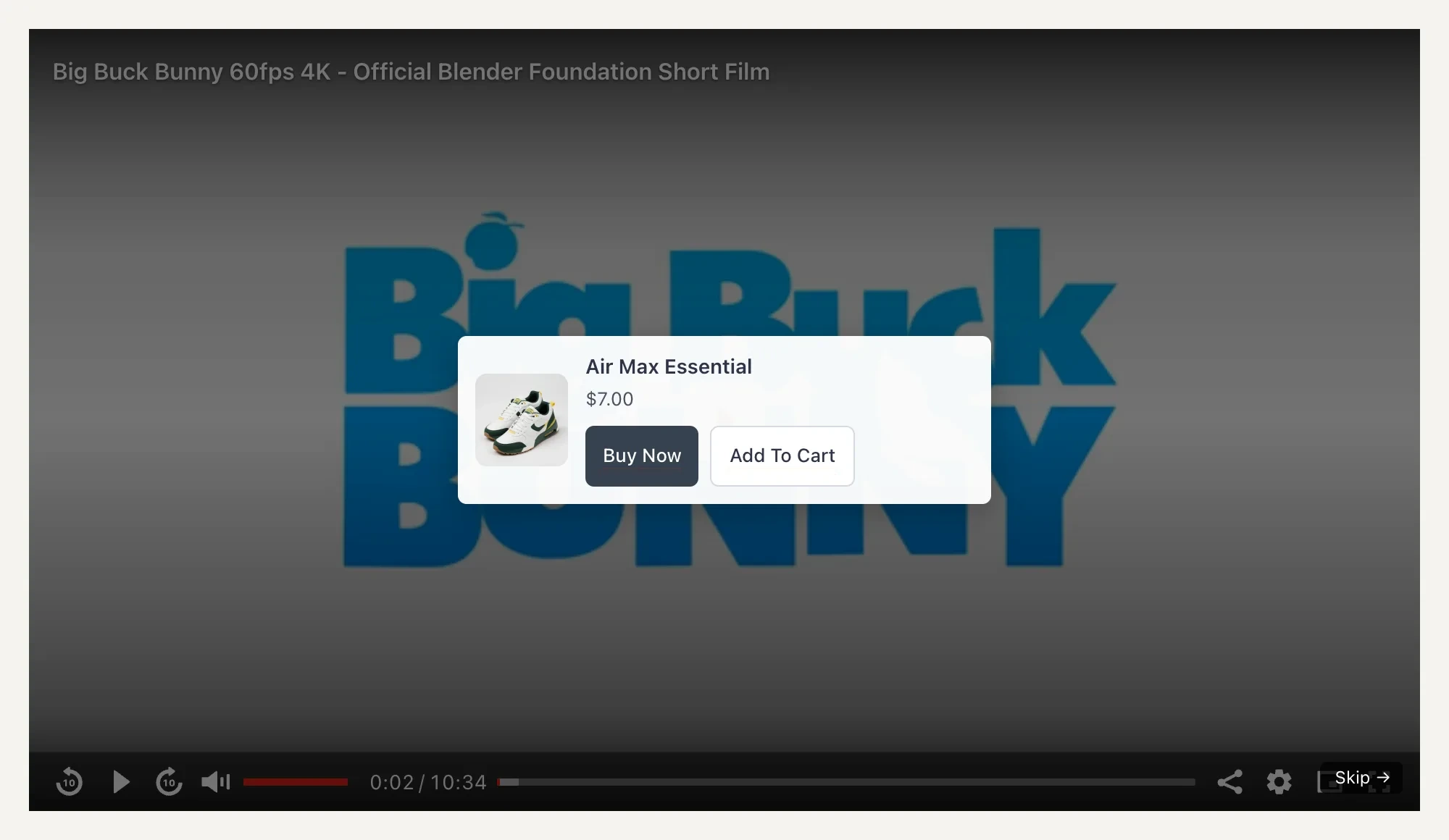
- Sell one product: Show a product card with Buy Now and Add To Cart buttons at a set time in the video.
- Offer a subscription: Show one subscription plan with a Buy Now button.
- Show a grid of products (Pro): Show several products or subscription plans side by side. Viewers page through them.
- Share a coupon (Pro): Show a discount code with a one-click Copy Code button.
Requirements
Make sure the following are in place:
- FluentPlayer is installed and active.
- FluentCart is installed and active on the same site.
- You have at least one published product in FluentCart. For a subscription offer, the product needs at least one subscription variation.
- For a coupon, you have an active coupon in FluentCart.
TIP
If FluentCart is not active, the FluentCart layer is greyed out in the layer list. Its settings show the message "FluentCart is not active. Please install and activate it to sell products from your videos." with an Install FluentCart button.
Step 1: Add the Layer
- Open your video in the editor and select the FluentPlayer block.
- In the Block tab, open the Interactive Layers panel.
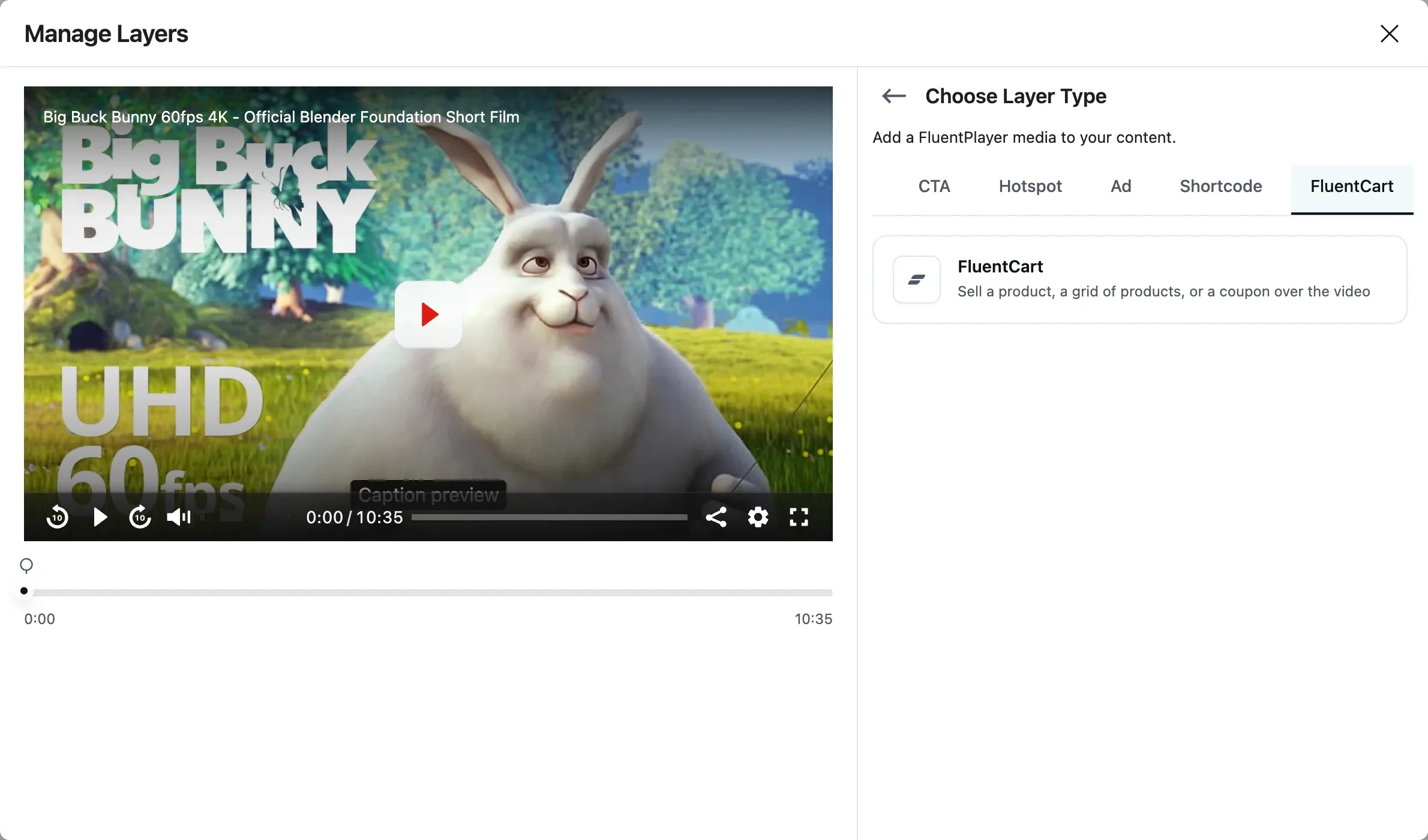
- Click + Add Layer to open the Manage Layers window.
- Click the FluentCart filter, or find FluentCart under All, and select it.
The layer settings open with five sections: Display, Content, Layout, Controls, and Appearance.
Step 2: Set the Timing
In the Display section:
| Setting | What it does |
|---|---|
| Start Time | The hour, minute, and second when the offer appears. |
| Layer Duration (seconds) | How long the offer stays on screen. 0 (the default) keeps it up until the viewer acts on it. |
Step 3: Choose the Offer
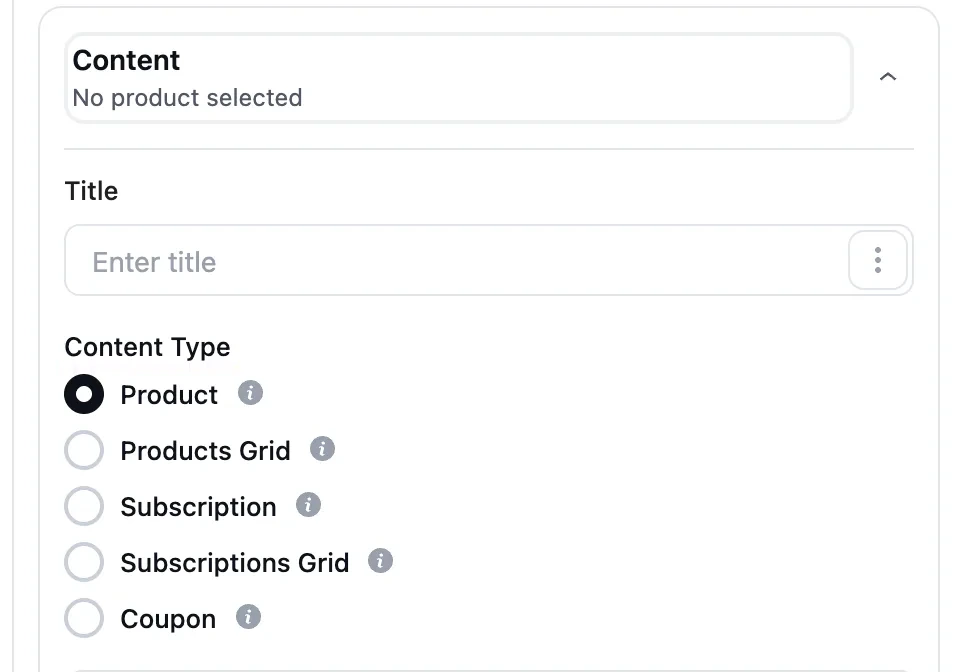
In the Content section, you can add an optional Title. Then pick a Content Type:
| Content Type | What it shows |
|---|---|
| Product | One product card with Buy Now and Add To Cart. |
| Products Grid (Pro) | Several products in a paged grid, each with its own buttons. |
| Subscription | One subscription card. The picker lists only subscription plans. |
| Subscriptions Grid (Pro) | Several subscription plans in a paged grid. |
| Coupon (Pro) | A discount code with a one-click copy button. |
Without Pro, the grid and coupon options read (Pro) and you can't select them.
Product and Subscription
- In Select Product (or Select Subscription), pick the item you want to sell. Only published FluentCart products are listed.
- If the product has more than one variation, choose one under Variation. This decides which variation the buttons add or check out. Leave it on First variation to use the first one.
- Choose which buttons to show:
- Buy Now Button — opens checkout in a new tab, so the video keeps playing. Change its text in Buy Now Label.
- Add to Cart Button — adds the product to the cart in place, without leaving the page. Change its text in Add to Cart Label.
Both buttons are on by default. You must keep at least one of them on.
Subscriptions only use Buy Now
A subscription is checked out, not added to a cart. For Subscription and Subscriptions Grid, only the Buy Now button appears.
The card shows the price of the variation the buttons sell.
Products Grid and Subscriptions Grid (Pro)
- In Select Products (or Select Subscription), pick the items for the grid. You can add up to 12.
- Each card in the grid gets its own buttons, set the same way as for a single product.
- Choose the grid shape in the Layout section (see Step 4).
Coupon (Pro)
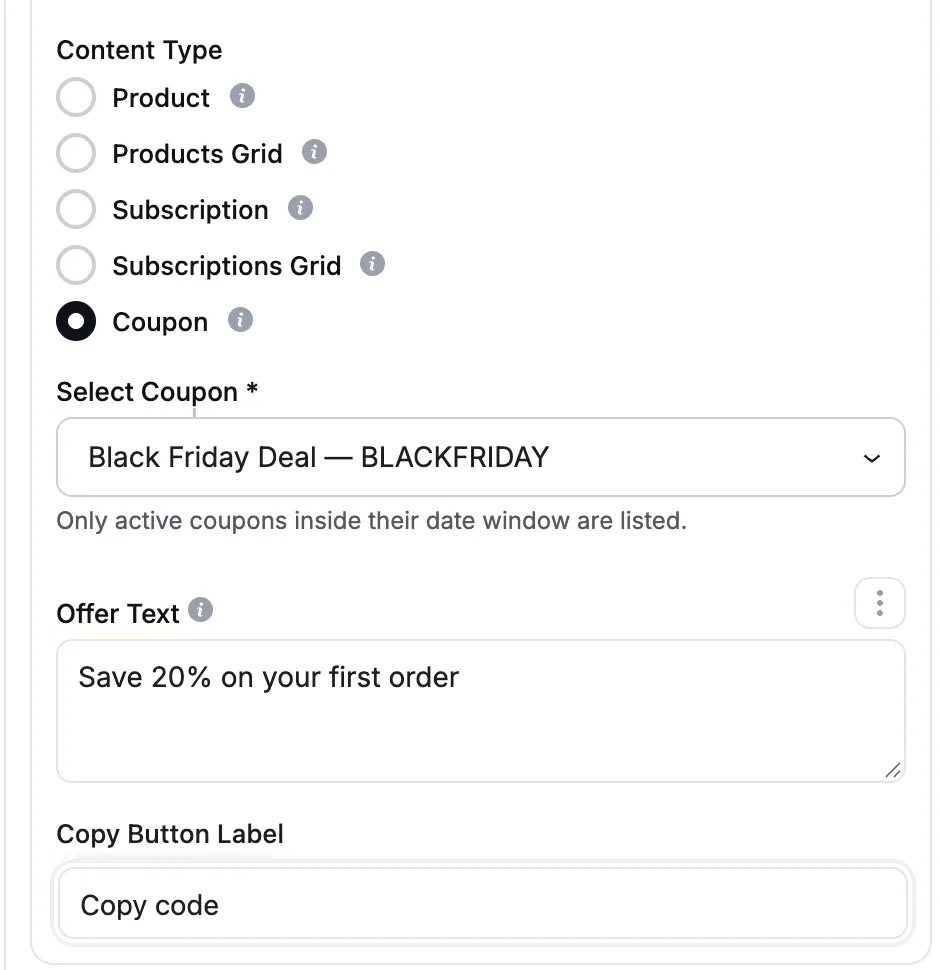
- In Select Coupon, pick a coupon. Only active coupons inside their date window are listed.
- Optional: type your own Offer Text. This replaces the discount line shown above the copy button. Leave it empty to show the coupon's own discount.
- Optional: change the Copy Button Label. The default is Copy Code.
Who can pick a coupon
Coupon codes are sensitive, so only users who can view coupons in FluentCart can list and pick them. Other editors see "You are not allowed to list coupons". They can still move, restyle, or retime a coupon layer that an admin set up.
If a coupon expires or is turned off later, its card stops showing on your video. Viewers never see a code that no longer works.
Step 4: Size and Position
In the Layout section:
| Setting | Default | What it does |
|---|---|---|
| Card Width (%) | 40% | Width of the card as a share of the player width. |
| Card Height (%) | 20% | Minimum height of the card as a share of the player height. A taller card grows to fit its content. |
| Grid Layout | 2 × 2 | Grids only. Choose 1 × 2 (2 cards), 2 × 2 (4 cards), or 2 × 3 (6 cards) per page. Viewers page on to see the rest. |
| Container Padding | 12px | Space between the card edge and its content. |
| Container Border Radius | 6px | Corner rounding of the card. |
| Position | Center | Where the card sits within the player. |
Step 5: Skip and Pause
In the Controls section:
- Allow Skip — lets viewers dismiss the offer. On by default.
- Keep Video Playing — shows the offer over the running video instead of pausing it. Off by default, so the video pauses while the offer is on screen.
Always leave viewers a way out
If you turn off Allow Skip and leave Layer Duration at 0, the offer stays until the viewer buys or adds to cart. With Keep Video Playing off, the video stays paused until then. Set a duration or allow skipping so viewers can always carry on watching.
Step 6: Style the Card
In the Appearance section:
- Color — the Background and Text color of the offer card.
- Buy Now Button, Add to Cart Button, and Copy Button set each button's Background, Text, Border, Border Width, Padding, and Border Radius.
Untouched buttons match FluentCart's own button style.
Save your media or post when you are done.
How the Offer Behaves
- The offer appears at the Start Time you set and stays for the Layer Duration, or until the viewer acts on it or skips it.
- Clicking Buy Now opens FluentCart checkout in a new tab, so your video page stays open.
- If FluentCart is turned off later, the layer simply doesn't show.
- The FluentCart layer doesn't show in videos played inside FluentCommunity.
You can also limit who sees the offer with Advanced Conditions (Pro), like any other interactive layer.
Troubleshooting
The FluentCart layer is greyed out. FluentCart is not active. Activate it in WordPress → Plugins, then reload the editor.
My product isn't in the list. Only published products appear. Search by name to narrow the list. If a saved product was unpublished or deleted, the editor tells you, and the layer keeps its other settings.
My subscription product isn't listed under Subscription. The product needs at least one variation set up as a subscription in FluentCart.
The coupon list is empty. Only active coupons inside their start and end dates are listed. Create or activate one in FluentCart first. If you see "You are not allowed to list coupons", ask an admin to give you coupon access in FluentCart.
The editor says "Could not reach FluentCart." Reload the editor and try again.