

Appearance
Export
The Export feature allows you to download a local copy of all the data collected through your video's email capture overlays. This is an essential tool for keeping backups of your leads or moving your subscriber list to another platform.
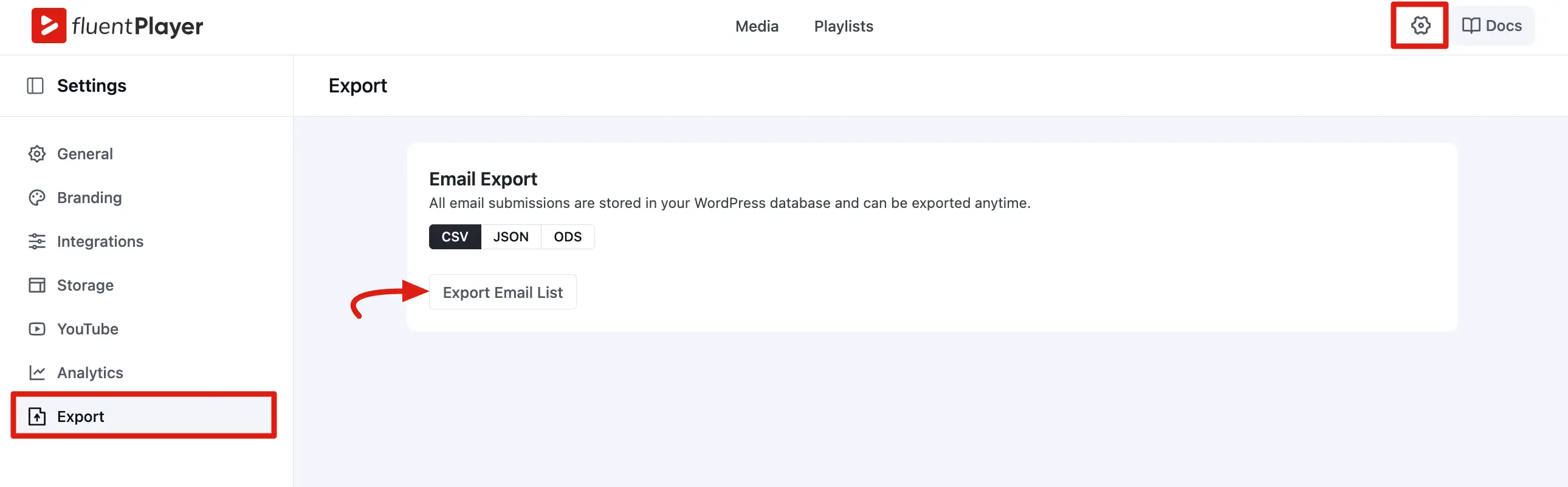
To access this feature, navigate to FluentPlayer → Settings and click on the Export tab.
Good to know
Email capture, storage, and export all work in the free FluentPlayer plugin — your captured leads are never locked behind an upgrade. The Export screen simply turns that stored data into a one-click download.
The Export section lets you download the email addresses (and any other data) collected through FluentPlayer's email capture overlays as a file.
What Data is Exported?
When you run an export, FluentPlayer pulls the raw submission data stored directly in your WordPress database. This includes:
- Email Addresses: The primary contact info submitted by viewers.
- Names: Any name data collected alongside the email.
- Media Source: Which specific video the viewer was watching when they signed up.
- Timestamps: Exactly when the lead was captured.
NOTE
While FluentPlayer can sync leads to external tools like FluentCRM or Mailchimp in real-time, this export serves as a standalone backup of the data stored on your own server.
How to Export Your List
Downloading your lead data is a simple three step process:
Go to Export: Navigate to the Export section within the FluentPlayer Settings. Choose Your Format: Select your preferred file type using the toggle buttons:
- CSV: Best for Excel, Google Sheets, and importing into most CRMs.
- JSON: Ideal for developers or technical API imports.
- ODS: Used for OpenDocument spreadsheets like LibreOffice Calc.
Download: Click the Export Email List button. The file will be generated and downloaded to your computer immediately.
Tips
TIP
When to export: If you use FluentCRM, Mailchimp, or a Webhook provider, leads still sync to that service automatically. Export is best for a local backup, audits, or moving data into another tool in bulk.
Snapshot only: Each download reflects submissions stored at the moment you click Export Email List. Schedule exports regularly if you want an ongoing archive.
No date filter: The Export screen does not filter by date range. Every stored submission in WordPress is included in the file.