

Appearance
Email Providers
Full setup walkthrough
For the complete configuration walkthrough including filters and advanced options, see Global Settings → Email Integrations.
When you use the email capture overlay, the emails your viewers submit need to go somewhere. That "somewhere" is an email provider: a service that stores those emails and lets you send newsletters, automations, or follow ups.
FluentPlayer supports three email providers:
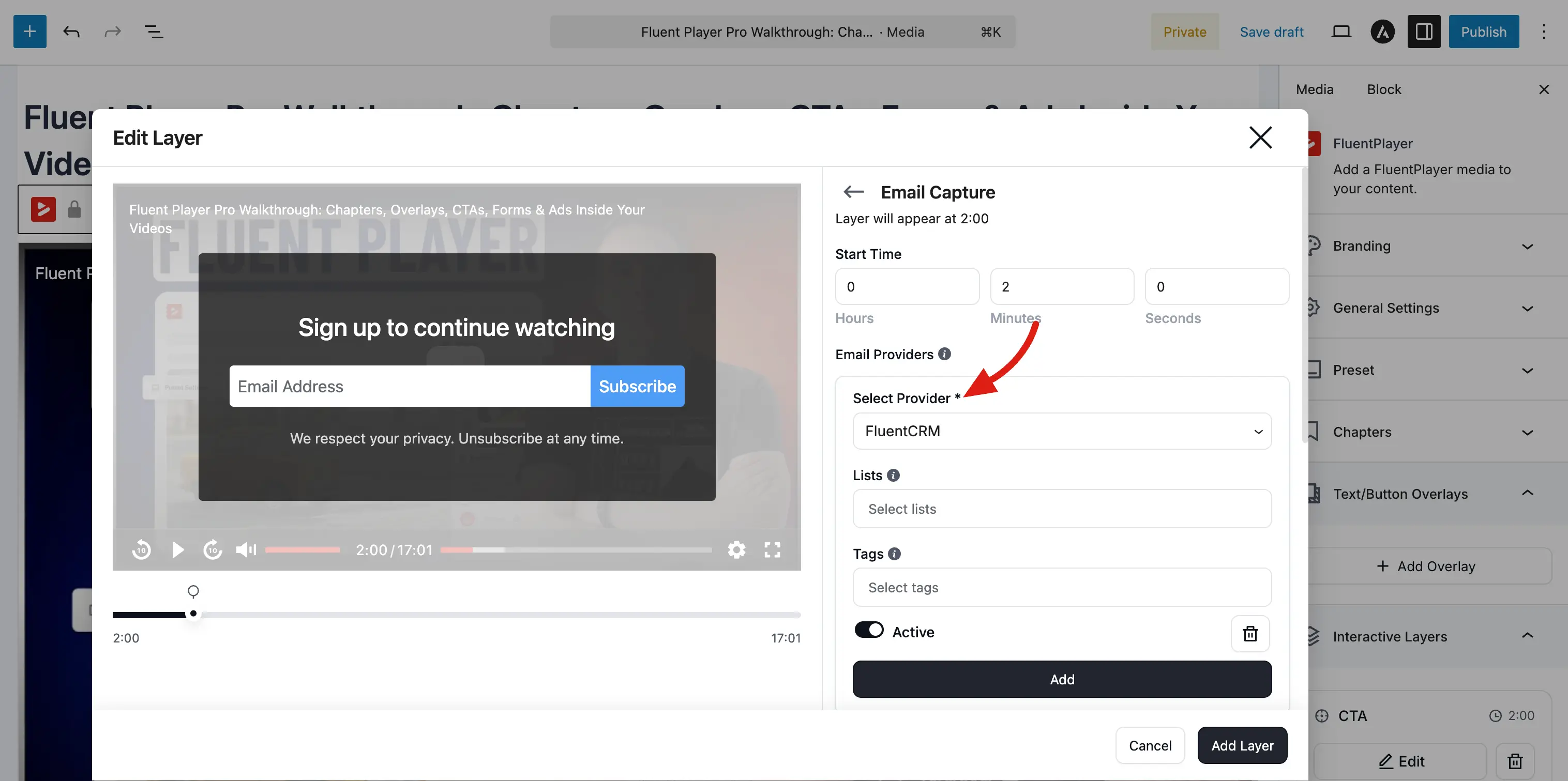
FluentCRM (Free)
FluentCRM is a WordPress CRM and email marketing plugin. Because it runs directly on your WordPress site, the integration requires no API keys and works out of the box once FluentCRM is installed.
What happens when a viewer submits their email:
- A new contact is created (or updated) in FluentCRM.
- You can assign them to specific lists or tags based on your configuration.
- From there, send automated email sequences, broadcast newsletters, and more.
How to set it up:
- Make sure FluentCRM is installed and activated on your WordPress site.
- Go to FluentPlayer → Settings → Integrations.
- Find FluentCRM, click Configure, and enable the integration. The status will update to Enabled.
- Choose which list or tag new contacts should be added to.
- Save.
Best for: Anyone who wants to keep everything on their own WordPress site without relying on external services.
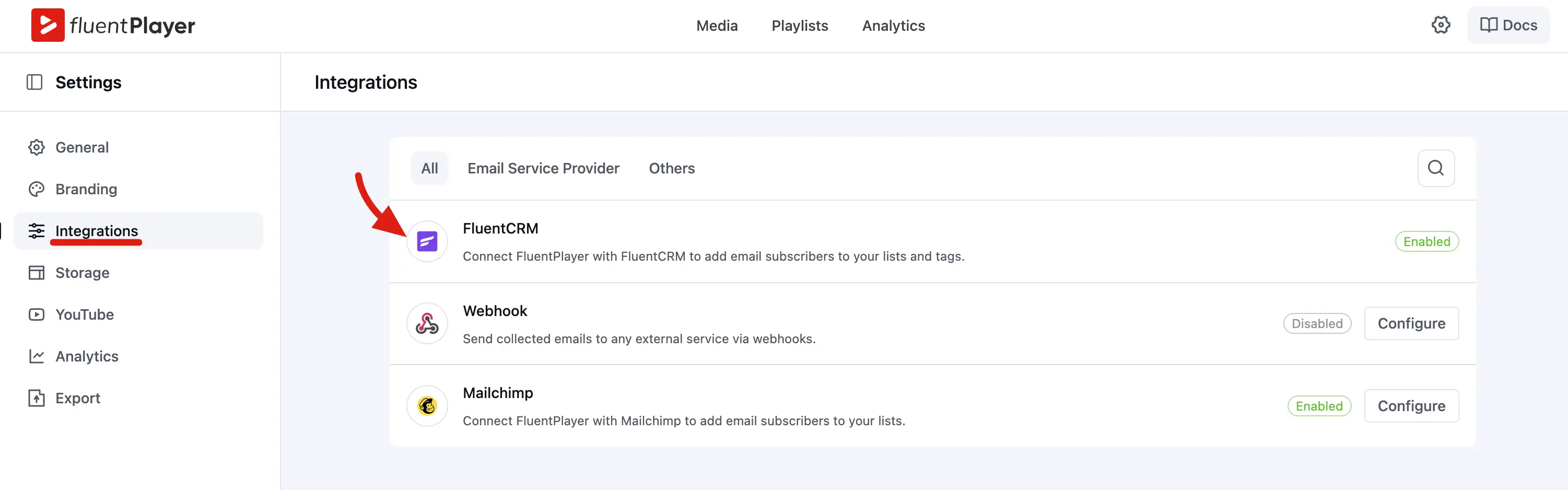
Mailchimp (Pro)
Mailchimp is one of the most widely used email marketing platforms. With FluentPlayer Pro, captured emails go directly to a Mailchimp audience (list) of your choice.
How to set it up:
- Go to FluentPlayer → Settings → Integrations.
- Find Mailchimp, click Configure.
- Enter your Mailchimp API key. You can find this in your Mailchimp account under Account → Extras → API Keys.
- Select the audience (list) where new subscribers should be added.
- Save.
Best for: Users who already run their email marketing through Mailchimp and want subscriber data in one place.
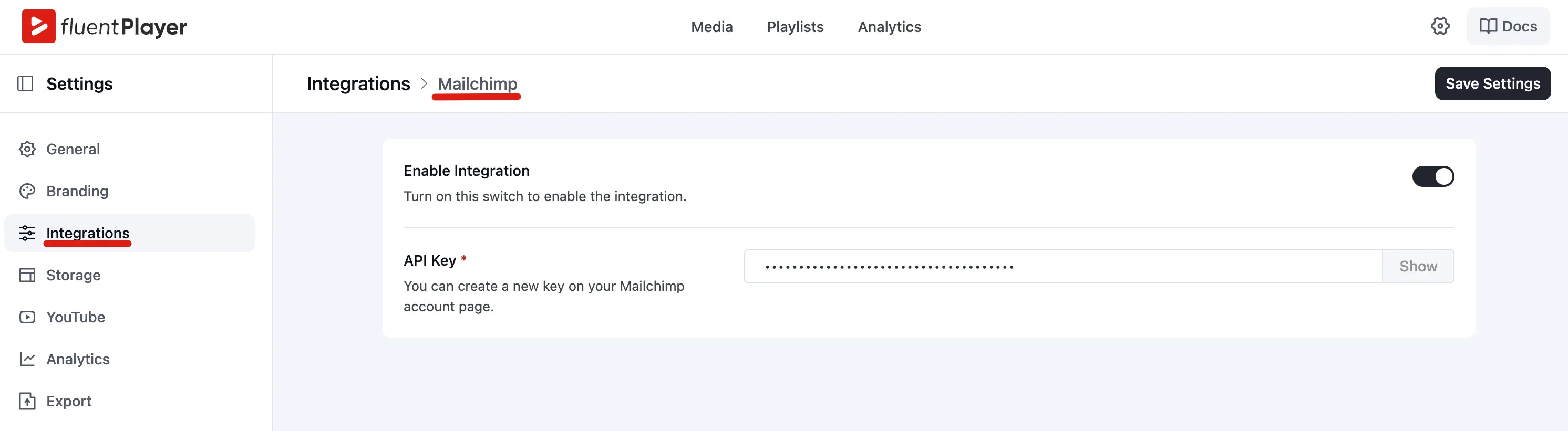
Webhook (Pro)
A webhook sends captured email data to any URL you specify. This is the most flexible option; connect it to any CRM, automation tool, or custom system that supports incoming webhooks.
What happens when a viewer submits their email:
- FluentPlayer sends an HTTP POST request to your webhook URL with the email data as the payload.
- Your system receives the data and processes it however you need.
How to set it up:
- Go to FluentPlayer → Settings → Integrations.
- Find Webhook, click Configure.
- Enter your webhook URL (the endpoint where you want to receive data).
- Save.
Best for: Users who use a CRM or automation platform that supports webhooks, such as Zapier, Make, HubSpot, ActiveCampaign, or any custom API.
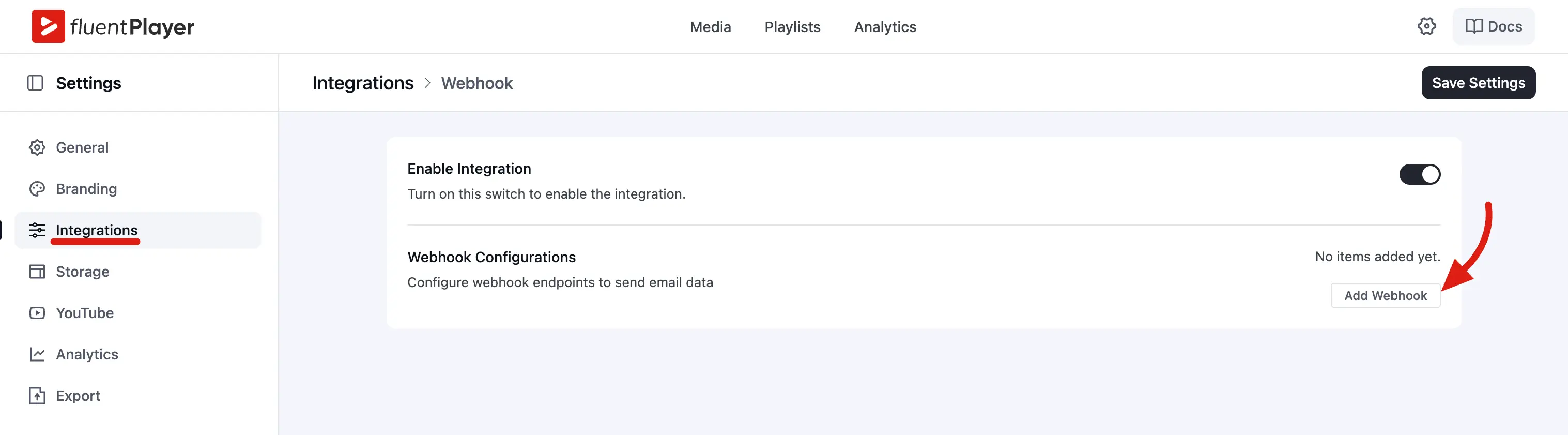
Which Provider Should I Choose?
| Provider | Plugin version | Best for |
|---|---|---|
| FluentCRM | Free | WordPress native email marketing; no external accounts needed |
| Mailchimp | Pro | Existing Mailchimp users who want subscriber data in their audience |
| Webhook | Pro | Any CRM or automation tool that accepts incoming webhook data |
One or more providers
You can attach one or more email providers to a single email capture configuration — each submission is delivered to every provider you add. Use one if you only need a single destination, or several to sync the same lead to multiple tools at once.
Connecting the Provider to Email Capture
After setting up a provider under Settings, open the email capture overlay configuration for your media item or preset and select the provider there. This tells FluentPlayer where to route captured emails.