

Appearance
Chapters (Block sidebar)
Chapters allow you to break your video into labeled sections, much like YouTube chapters. This helps viewers navigate long videos and jump straight to the parts they find most interesting.
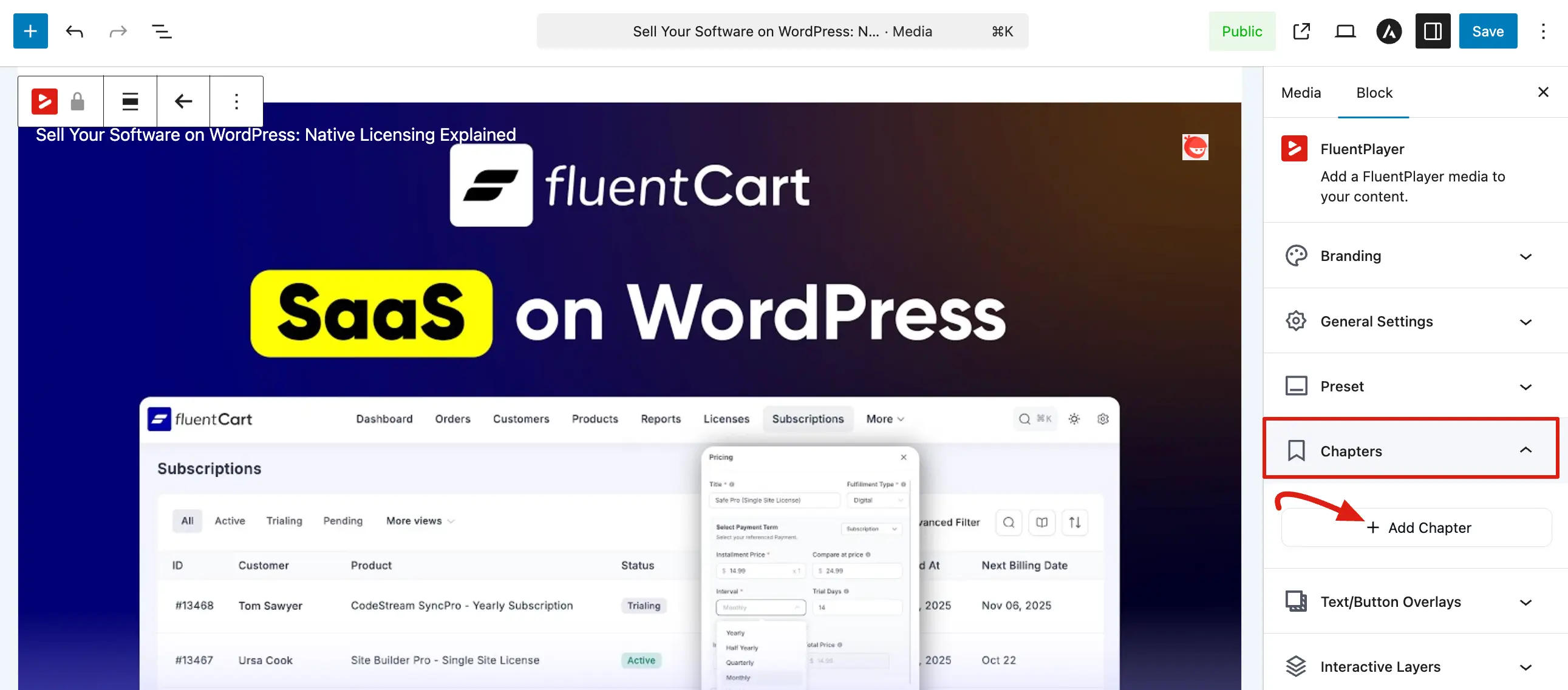
To manage your video markers, select the FluentPlayer block and open the Chapters panel in the Block tab.
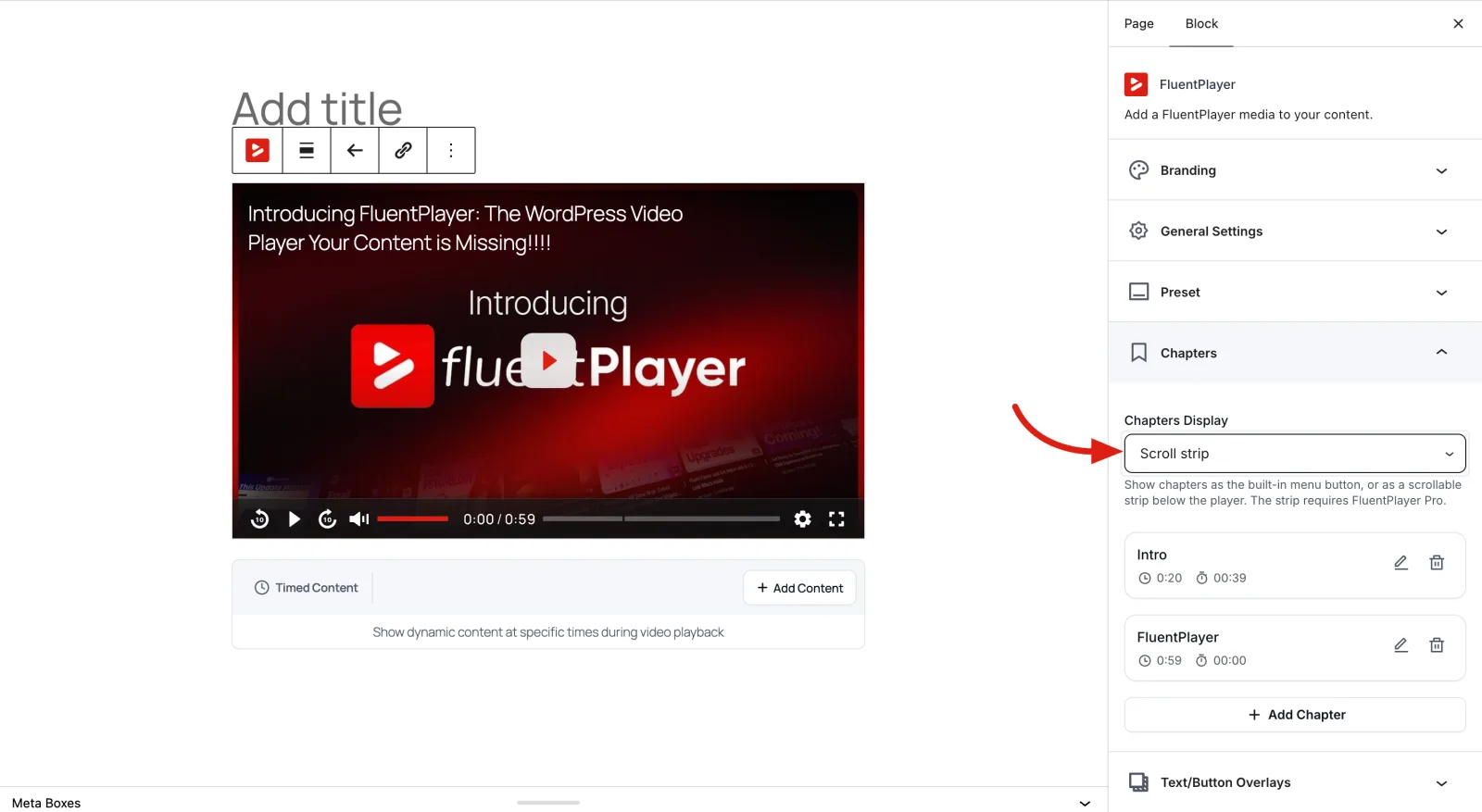
Chapters Display
The Chapters Display dropdown, at the top of the Chapters panel, controls how viewers see your chapters on the front end. It only appears once the video has at least one chapter.
| Option | What viewers see |
|---|---|
| Menu button (default) | A chapters button in the player's control bar. Clicking it opens a list they can pick from. Everything stays inside the player. |
| Scroll strip (Pro) | A horizontally scrollable strip of chapters sitting directly below the player, visible without clicking anything. |
Scroll strip requires Pro
Menu button works in the free version. Scroll strip needs FluentPlayer Pro — on the free version, selecting it falls back to the menu button. Your chapters still work either way; only how they are displayed changes.
Which should you use? The menu button keeps your layout compact and is the right default for most videos. The scroll strip makes chapters immediately obvious, which suits long tutorials or course lessons where you want viewers to see upfront that the video is broken into sections.
What the scroll strip looks like
With Scroll strip selected, viewers see a Chapters heading and the chapter count directly beneath the player, followed by a row of chapter buttons showing each start time and title.
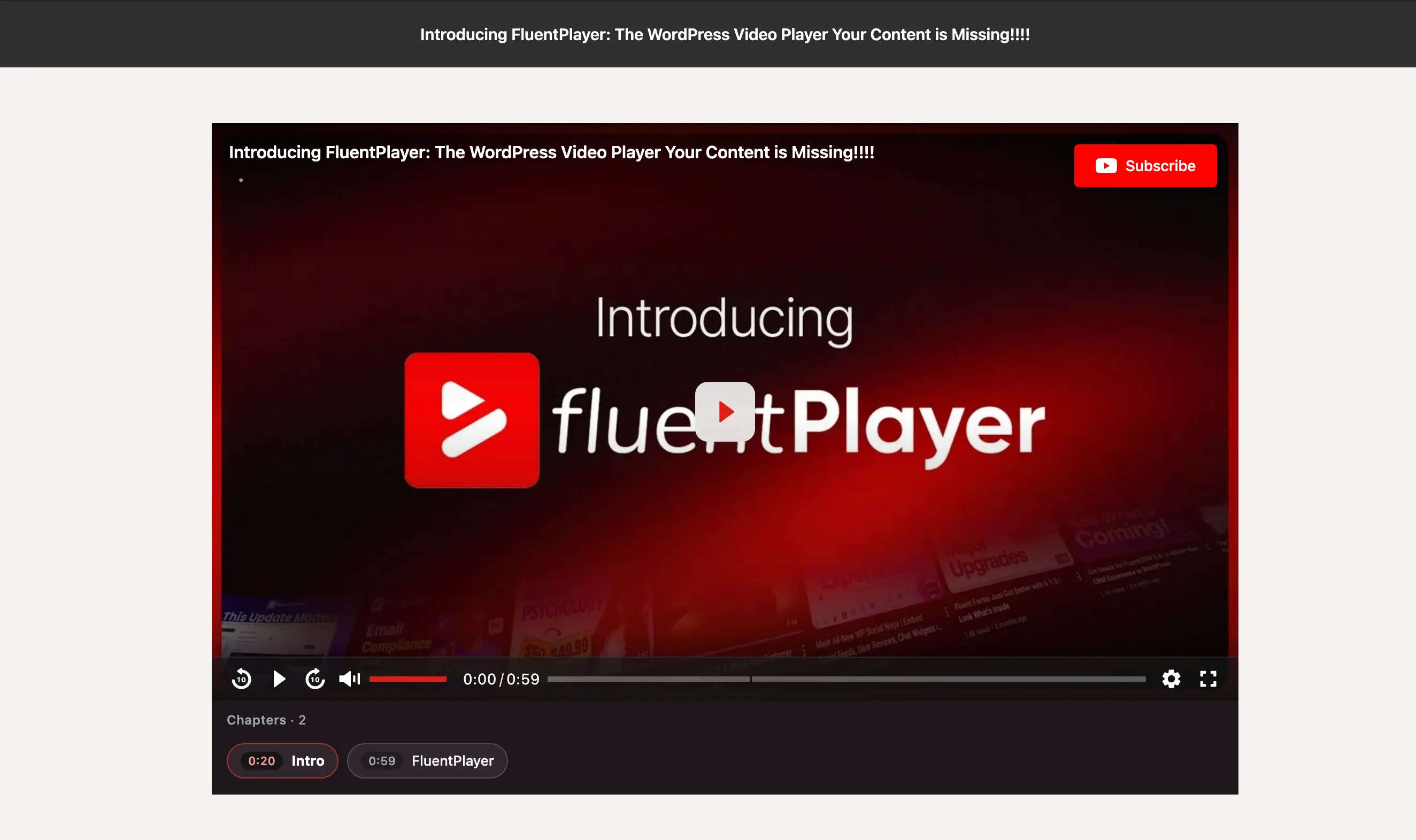
The chapter currently playing is highlighted, and the row updates as the video moves from one chapter to the next. Viewers can click any chapter to jump to it, and the arrows at each end scroll through the list when there are more chapters than fit across the player.
The two are mutually exclusive
When the scroll strip is showing, the in-player chapters button is hidden — you get one or the other, never both. The strip renders below the player, not inside it, so leave room for it in your layout.
Adding a Chapter
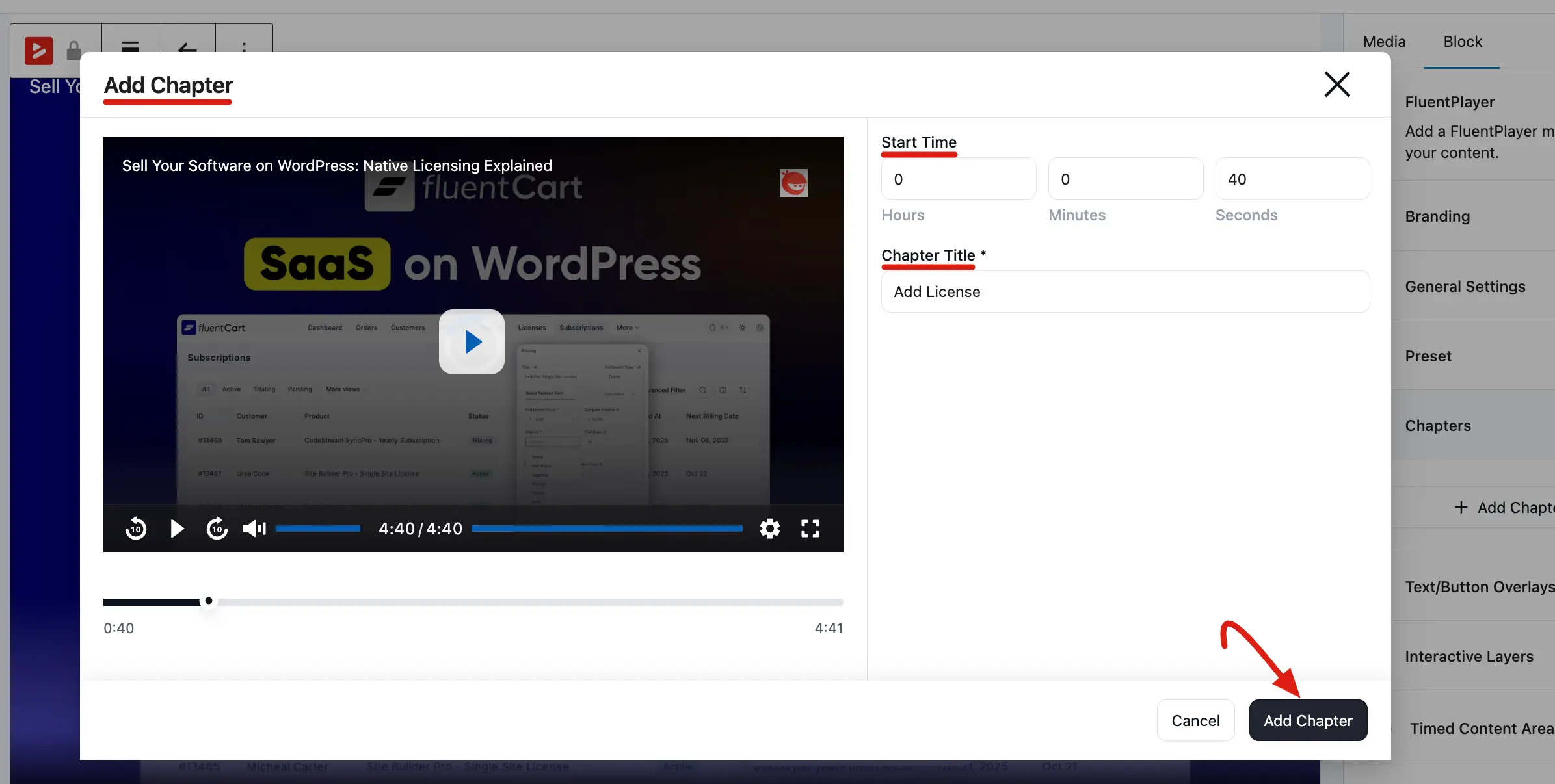
Click the + Add Chapter button to create a new chapter. A popup window will appear where you can set up the chapter details.
- Start Time: Enter the exact time (Hours, Minutes, and Seconds) where the new chapter should begin.
- Chapter Title: Add a clear and descriptive name for the chapter (e.g., "Introduction" or "Introduction").
- Video Preview: Use the preview player to move through the video and make sure your selected time is correct.
After completing all the fields, click Add Chapter to save your changes.
Importing chapters from Vimeo
If the video is hosted on Vimeo and you already added chapters there, click Import from Vimeo instead of retyping them. The chapters come in as normal FluentPlayer chapters that you can edit or remove like any others.
If you see "No chapters found on this Vimeo video yet", start the preview player first so the video data loads, then try the button again.
Managing Your Chapters
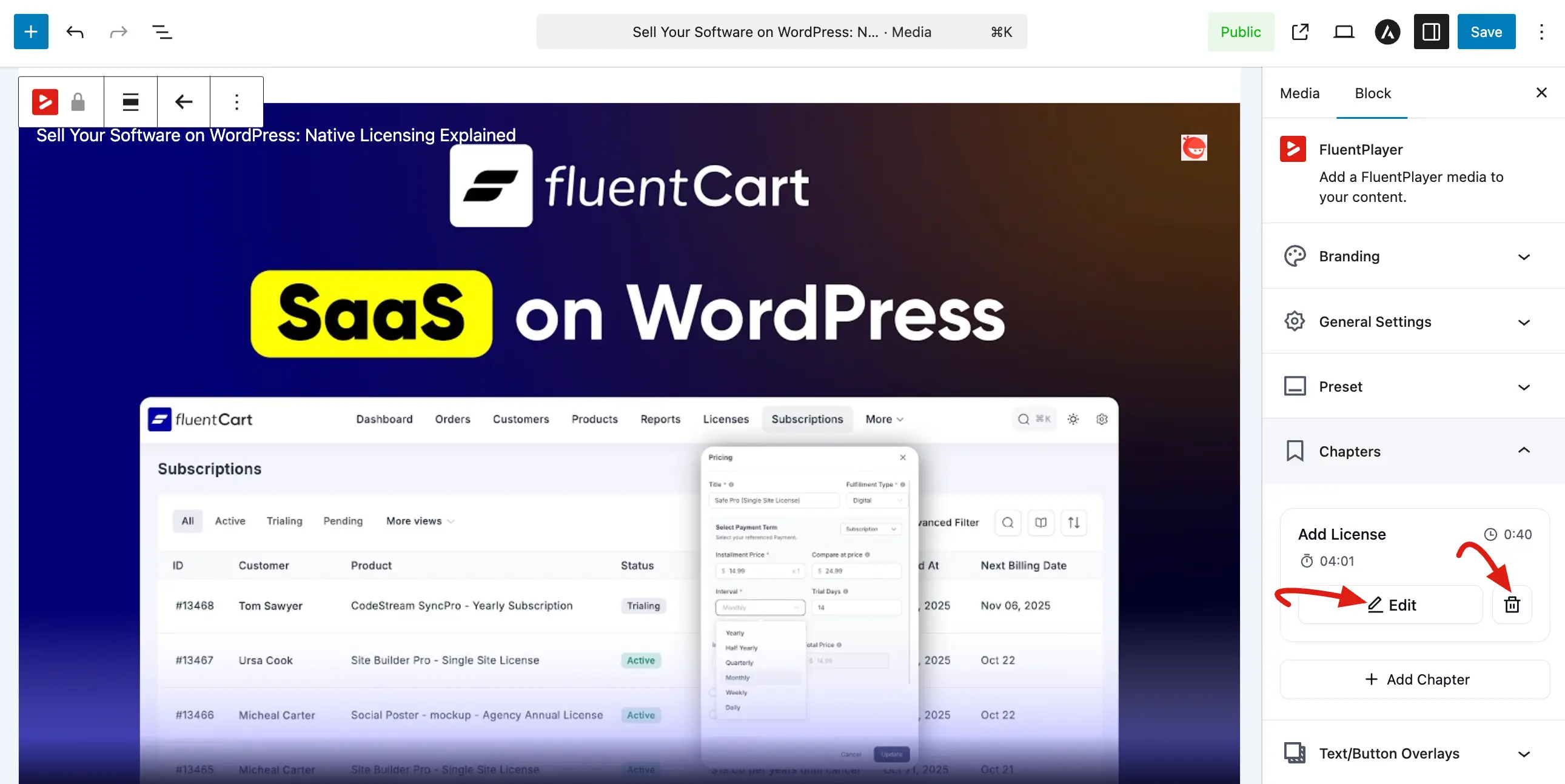
Once you have added chapters, they will appear in a list within the Chapters panel. From here, you can easily organize your video's structure:
- Edit: Click the Edit button on any chapter to modify its title or start time.
- Remove: Use the Trash/Delete icon to remove a chapter from the list.
- Time Display: The panel clearly shows the start time and title for every marker you have created.
Important Rules
- Sequential Timing: Ensure your start times increase in order (e.g., 0:01, 4:40, etc.) so the timeline makes sense for the viewer.
- First Chapter: It is common practice to set your first chapter at 0:00 to label the beginning of your video.
- Automatic Duration: Each chapter automatically ends when the next one begins, or when the video reaches the end.
Chapters turn a long, daunting video into a collection of easy to digest segments. By taking a few minutes to label your content, you provide a much better experience for your viewers and help them find the information they need faster.