

Appearance
Google Analytics (Pro)
FluentPlayer can send video interaction events directly to your Google Analytics 4 (GA4) property. This helps you understand how visitors are interacting with your videos such as when they play, pause, finish, or reach certain progress milestones.
Pro feature
The Google Analytics integration requires FluentPlayer Pro. Your GA4 account is free, but FluentPlayer only sends video events when Pro is active. Without Pro, the Analytics settings page shows an upgrade prompt and no events are sent.
FluentPlayer Analytics vs Google Analytics
Inside FluentPlayer, you may see two analytics options they are not the same thing:
- FluentPlayer Analytics is a built-in analytics system. It stores analytics data inside your WordPress site and shows it in the FluentPlayer dashboard. See Built-In Analytics (Pro).
- Google Analytics sends video events to your own Google Analytics account. You use this if you want video event data to appear in Google Analytics.
These two are separate. You can enable Google Analytics even if FluentPlayer's own analytics is disabled.
Before You Start
To use Google Analytics tracking in FluentPlayer, you need:
- A Google Analytics 4 property
- A video added through FluentPlayer
- Access to your WordPress dashboard
- Your GA4 Measurement ID (only required if your site does not already have GA4 installed)
What FluentPlayer Sends to Google Analytics
When Google Analytics is enabled, FluentPlayer sends the following custom events to GA4:
| Event name | When it fires |
|---|---|
play | A viewer starts playing the video |
pause | A viewer pauses the video |
ended | A viewer reaches the end of the video |
progress_25 | A viewer reaches 25% of the video |
progress_50 | A viewer reaches 50% of the video |
progress_75 | A viewer reaches 75% of the video |
progress_100 | A viewer reaches 100% of the video |
Custom event names
These are not the same as Google Analytics's default video event names. In GA4, look for the FluentPlayer event names listed above not GA4's built-in video events.
FluentPlayer also sends extra data with each event:
- Video ID
- Video title
- Current playback time
- Video duration
- Video provider
- Video URL
Which Setup Option Should You Choose?
There are two ways to connect FluentPlayer with Google Analytics:
- Option 1: Use existing Google Analytics tag: Choose this if GA4 is already installed on your site via your theme, another plugin, or Google Tag Manager.
- Option 2: Add your GA4 Measurement ID: Choose this if your site does not have GA4 installed. FluentPlayer will load the GA4 tag for you using your Measurement ID.
Option 1: Use an Existing Google Analytics Tag
Use this method if Google Analytics is already added to your website.
Step 1: Open FluentPlayer Settings
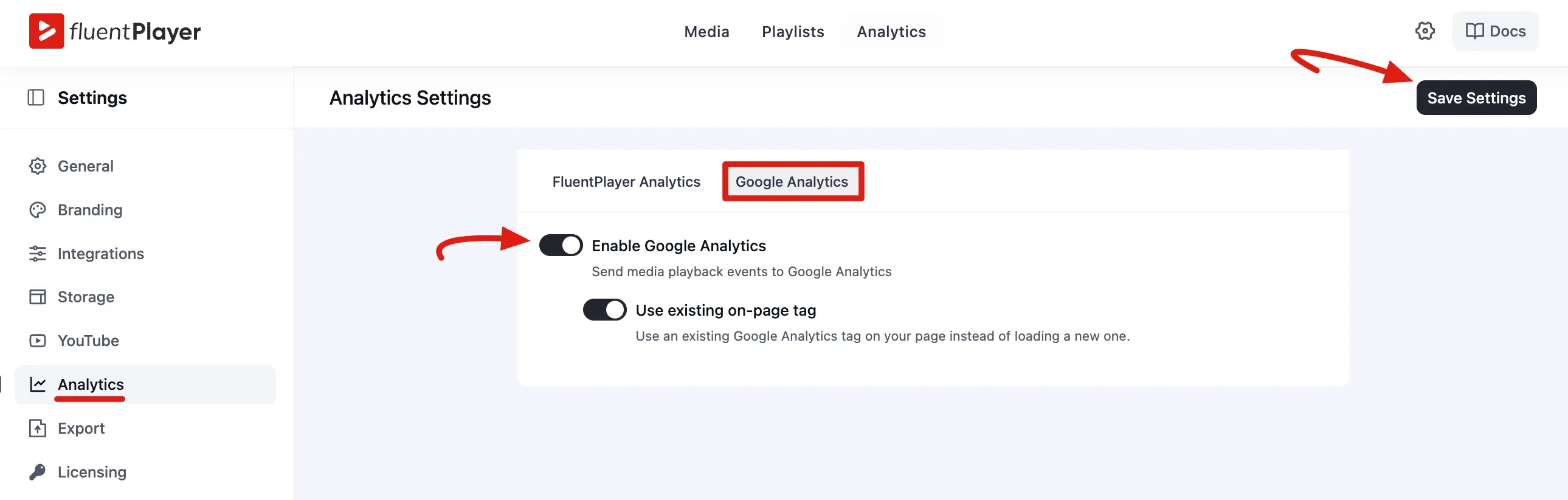
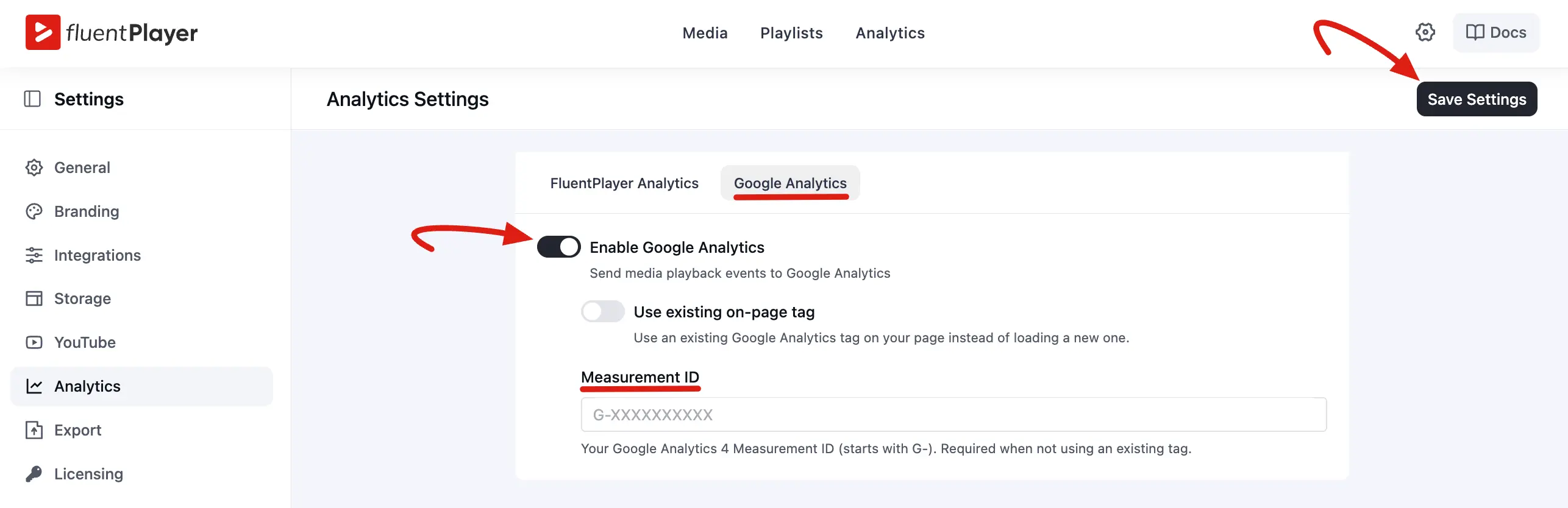
From your WordPress dashboard, go to FluentPlayer → Settings → Analytics, then open the Google Analytics tab.
Step 2: Enable Google Analytics
Turn on Enable Google Analytics. This allows FluentPlayer to send video events to Google Analytics.
Step 3: Keep "Use Existing On-Page Tag" Enabled
Make sure Use existing on-page tag is turned ON.
This tells FluentPlayer: "Do not load the GA4 tag. Use the one that is already available on this website."
Step 4: Save the Settings
Click the Save Settings button. Now, open a page where a FluentPlayer video is published. Play, pause, and watch part of the video. FluentPlayer should now send video events to your existing GA4 setup.
Option 2: Add Your GA4 Measurement ID
Use this method if Google Analytics is not already installed on your website.
Step 1: Set Up a Data Stream in GA4
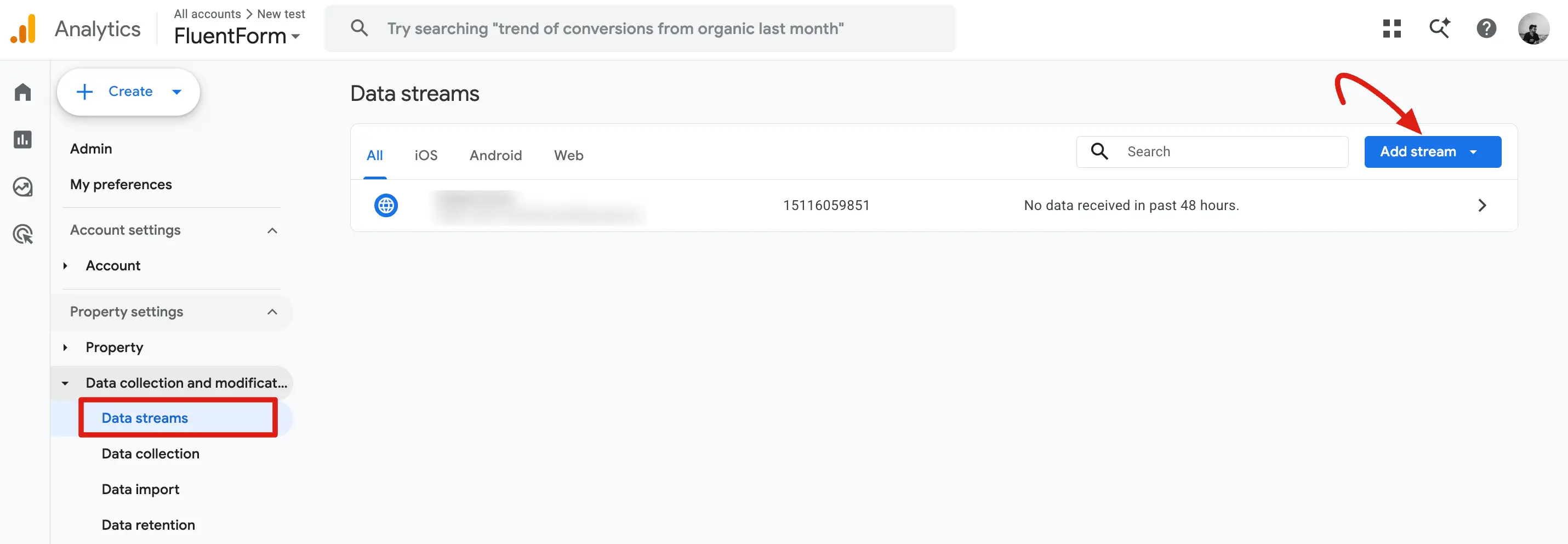
- Open Google Analytics and go to your GA4 property.
- In the left sidebar, click Admin (gear icon at the bottom).
- Under the Property column, click Data Streams.
- Click Add stream → Web.
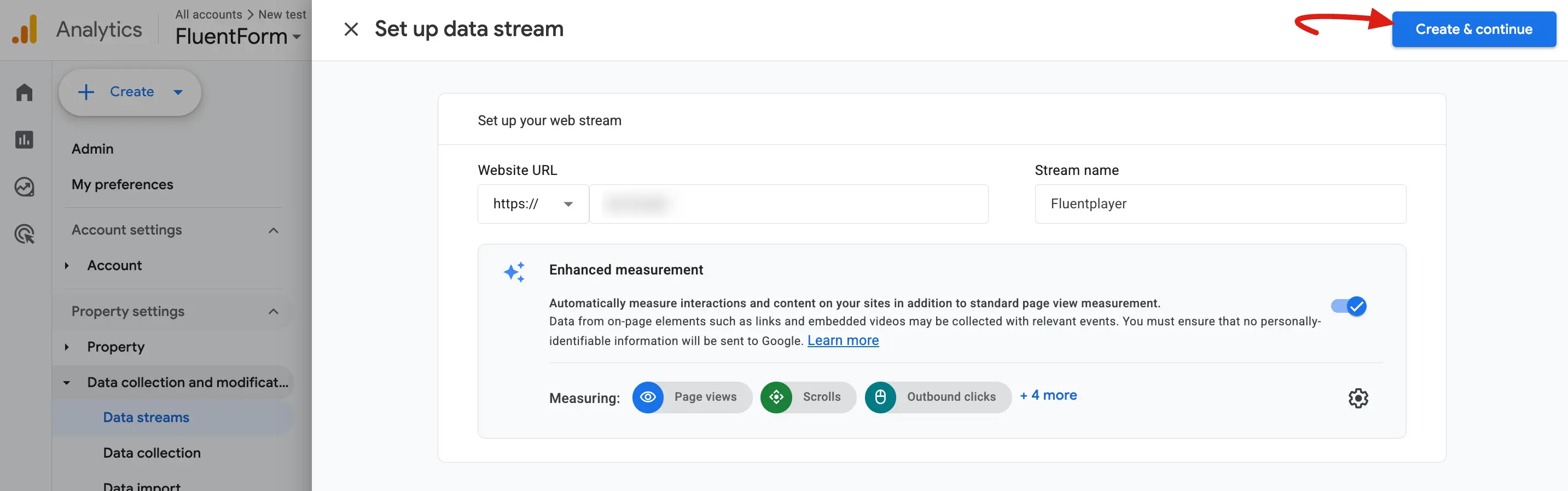
- Enter your Website URL and a Stream name (for example, "My WordPress Site").
- Click Create stream.
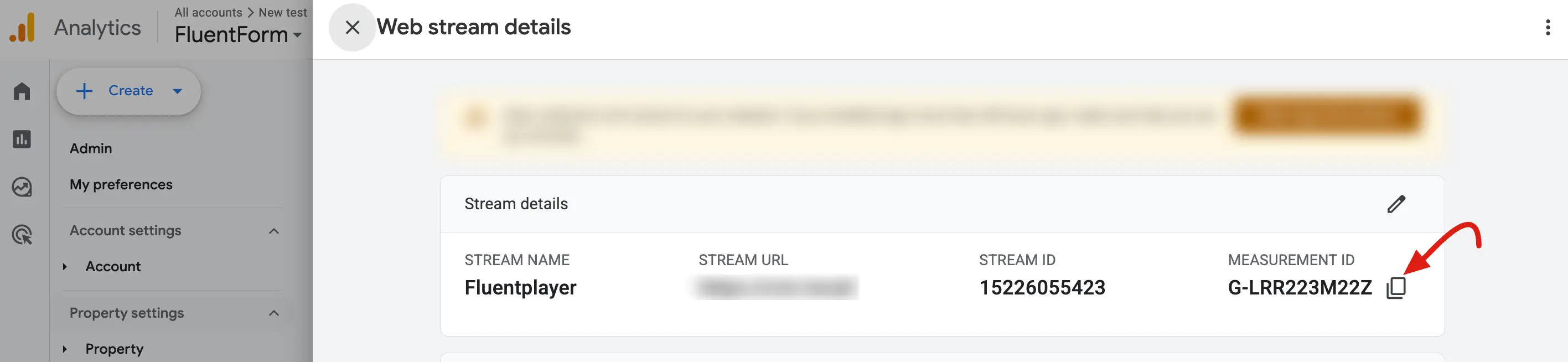
Copy the Measurement ID you will paste it into FluentPlayer in the next step.
Step 2: Open FluentPlayer Settings
From your WordPress dashboard, go to FluentPlayer → Settings → Analytics, then open the Google Analytics tab.
Step 3: Enable Google Analytics
Turn on Enable Google Analytics.
Step 4: Turn Off "Use Existing On-Page Tag"
Make sure Use existing on-page tag is turned OFF. When you turn this off, a Measurement ID field will appear.
Step 5: Paste Your Measurement ID
Enter the G-XXXXXXXXXX Measurement ID you copied from GA4.
Step 6: Save the Settings
Click Save. FluentPlayer will now load the GA4 tag automatically on every page.
Step 7: Test a Video
Open a page where a FluentPlayer video is published. Play, pause, and watch part of the video. Then check GA4 to confirm events are being received.
How to Check If It's Working
Method 1: Check the Realtime Report
In Google Analytics, open the Reports → Realtime report.
Play a video on your WordPress site, then look for events named play, pause, ended, or progress_25 in the Event count by Event name card.
Realtime data usually appears within seconds.
Method 2: Wait for Standard Reports
Standard GA4 reports may take 24–48 hours to show the same event data. If you do not see events immediately in regular reports, check the Realtime report first.
Recommended Setup
| Situation | Recommended settings |
|---|---|
| Your site already has Google Analytics | Enable Google Analytics: ON · Use existing on-page tag: ON |
| Your site does not have Google Analytics | Enable Google Analytics: ON · Use existing on-page tag: OFF · Measurement ID: your G- ID |
This avoids loading the Google Analytics tag more than once.
Important Notes
- Do Not Add Google Analytics Twice: If your site already has FluentPlayer load the GA4 tag (Option 2), do not also add it through your theme or another plugin. Adding GA4 more than once may cause duplicate events or confusing tracking.
If GA4 is already installed, always use Use existing on-page tag (Option 1).
- Google Tag Manager Users: If your site uses Google Tag Manager only, FluentPlayer may not be able to send events automatically. FluentPlayer sends events through the
gtag()function. If Google Tag Manager does not provide that function on the page, ask your site developer or analytics person to confirm whetherdataLayeris available on your site.
Troubleshooting
I enabled Google Analytics, but no events appear in GA4
Check the following:
- Make sure FluentPlayer Pro is active.
- Make sure Enable Google Analytics is turned on.
- Make sure you saved the settings.
- Open a page with a FluentPlayer video and actually play the video.
- Check the GA4 Realtime report first — it is available immediately on the site.
- If using an existing tag, make sure the Measurement ID starts with
G-.
I am using "Use existing on-page tag," but events are not tracking
This usually means FluentPlayer cannot find the existing Google Analytics tag on the page. Check:
- Is Google Analytics actually installed on the site?
- Is it on the specific page with the video?
- Is it the wrong Google Tag Manager setup?
- Did the caching or optimization plugin block the Google Analytics scripts?
I entered the Measurement ID, but tracking still does not work
Check:
- The Measurement ID is copied correctly.
- It starts with
G-. - Use existing on-page tag is turned off.
- There is no caching or optimization plugin blocking Google Analytics scripts.
- Browser ad blockers are not blocking the tag.
I see page views in Google Analytics, but not video events
Video events are only sent when visitors interact with FluentPlayer videos. To test properly:
- Open a page with a FluentPlayer video.
- Play the video.
- Pause the video.
- Watch at least 25% of the video.
- Check GA4 Realtime events.
A cookie consent plugin is blocking events
If your website blocks Google Analytics until the visitor accepts cookies, FluentPlayer video events may also be blocked before consent. Accept cookies first, then play the video again.