

Appearance
Preset (Block sidebar)
The Presets panel is where you define the overall "look and feel" of your video player. Instead of adjusting every single button and color for every video, you can choose a preset to instantly apply a professional skin and a pre configured set of controls.
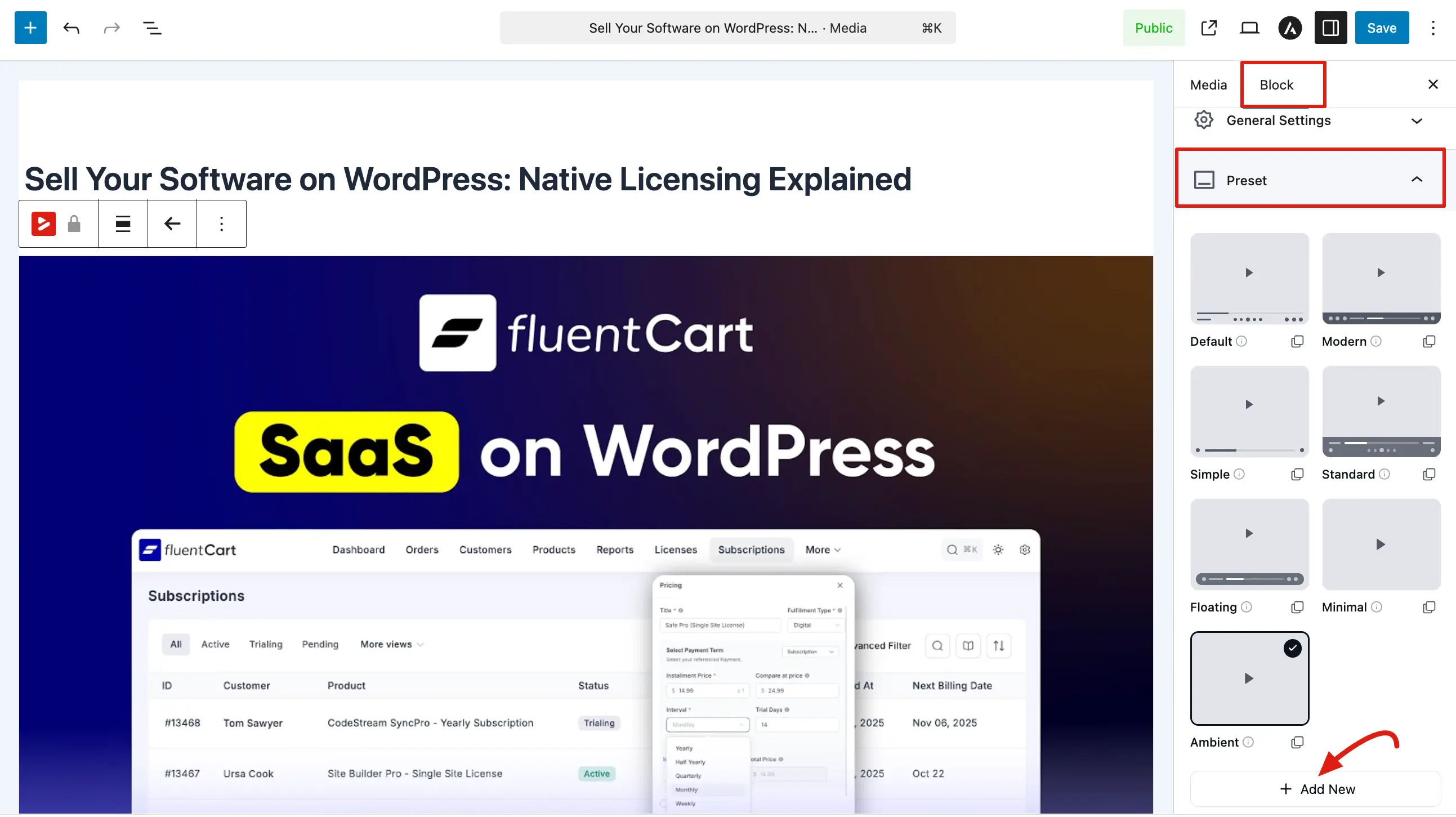
To find these options, go to FluentPlayer → Media, open your video, and look for the Preset section under the Block tab.
Choosing a Visual Style
FluentPlayer provides a visual grid of built-in styles. Simply click a thumbnail to apply that look to your player:
- Default: This is a balanced and familiar layout that works well for most use cases. It provides all standard controls in a clear and user friendly way, making it a safe choice if you want a reliable and professional look without extra customization.
- Modern: The Modern style offers a clean and updated design with a sleek appearance. It is ideal if you want your video player to match a contemporary website design and provide a polished viewing experience.
- Simple: This preset keeps things minimal by focusing only on essential controls. It reduces visual distractions, helping viewers stay focused on the video content itself.
- Standard: The Standard style follows a traditional video player layout with clearly visible controls. It feels familiar to most users, making it easy to use without any learning curve.
- Floating: In this style, the player controls appear as overlays on top of the video. This gives a more modern feel while keeping the interface less cluttered and maximizing the video viewing area.
- Minimal: The Minimal preset removes extra elements and keeps the interface very light. It is perfect when you want a clean look with very few controls visible, especially for distraction free viewing.
- Ambient (Pro): This style creates a more immersive viewing experience by blending the player visually with its surroundings. It is useful when you want to give your video a more engaging and visually appealing presentation.
Creating a Custom Preset
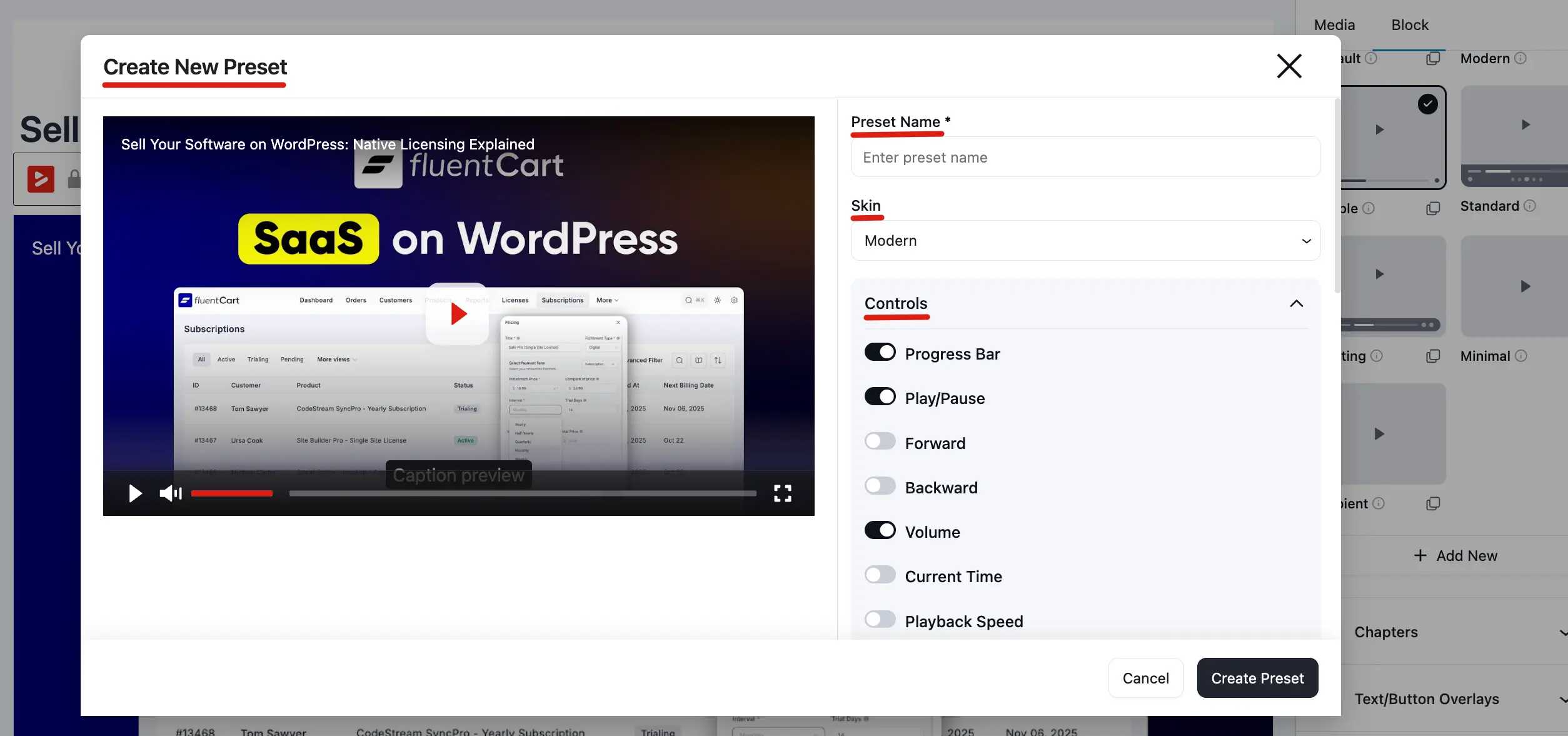
If the built in styles don't fit your needs, you can create your own by clicking the + Add New button. This opens a powerful editor where you can customize every detail. For a full walkthrough, see Creating Custom Presets.
1. Basic Identity
- Preset Name: Give your custom style a unique name for future use.
- Skin: Select the base layout (Modern, Classic, Simple, Floating, or Minimal).
2. Player Controls
The Player Controls section allows you to choose exactly which buttons and features are available to your viewers. By toggling these options, you can create a simple, distraction free player or a fully featured interface.
The following controls are available for your custom preset:
- Progress Bar: Displays the video timeline and allows users to scrub through the video.
- Play/Pause: The essential button to start or stop video playback.
- Forward / Backward: Adds buttons to quickly skip ahead or jump back by a few seconds.
- Volume: Provides a slider or button to adjust the audio level.
- Current Time: Shows the elapsed time and total duration of the video.
- Playback Speed: Let viewers speed up or slow down the video (e.g., 1.5x or 2x).
- Settings Menu: Adds a gear icon for users to access advanced options like quality or speed.
- Fullscreen: Allows the viewer to expand the video to fill their entire screen.
- Picture In Picture: Enables a pop out player so users can watch while browsing other parts of the page.
- Captions Toggle: Adds a button for viewers to turn subtitles or closed captions on and off.
Built-In Presets
FluentPlayer ships with seven built-in presets (six free; the Ambient preset requires Pro):
| Preset | Character |
|---|---|
| Default | Balanced default layout |
| Modern | Contemporary styling |
| Simple | Minimal chrome |
| Standard | Classic control bar |
| Floating | Floating style controls |
| Minimal | Very light UI |
| Ambient (Pro) | Ambient / atmospheric styling |
Click a preset to select it; the active preset shows a checkmark or border.
Per Preset Actions
| Action | Purpose |
|---|---|
| Duplicate (icon on a preset) | Creates a copy you can customize—useful as a starting point for a custom look. |
| + Add New | Creates a new custom preset (availability may require FluentPlayer Pro or a sufficient plan). |
Custom presets appear in the same grid and can be chosen for any media item.
How Preset Interacts with Other Panels
- Preset sets the baseline for skins, controls, and many style related options.
- General settings, Branding, and other Block panels override specific parts of the preset when you change them here.