

Appearance
Timestamp Links (Block sidebar)
Timestamp Links are powerful shortcode snippets that allow you to create clickable text to jump to a specific second in your video. These are perfect for "Skip to" navigation in blog posts, course notes, or help documentation.
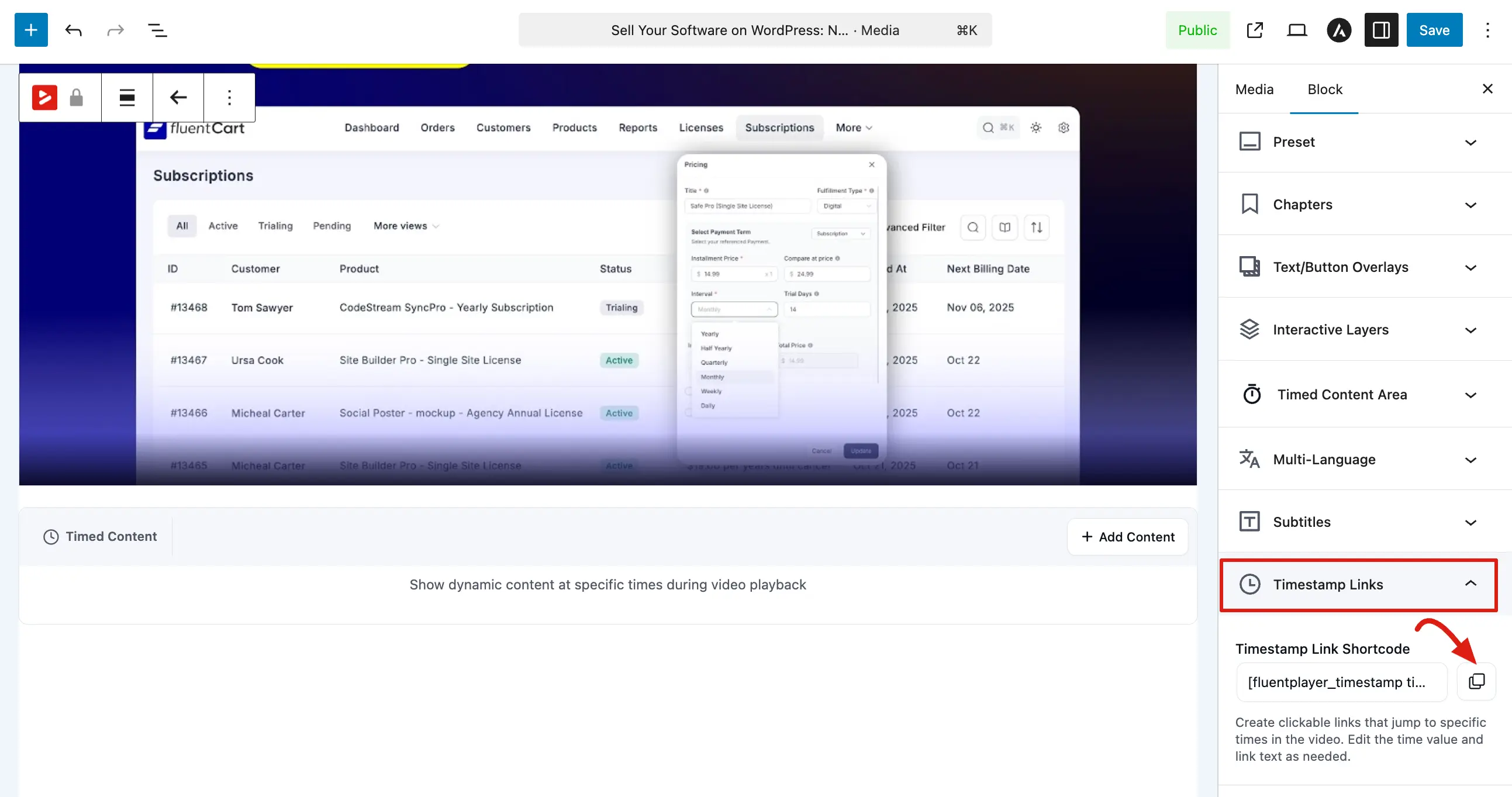
To find these snippets, select the FluentPlayer block and open the Timestamp Links panel in the Block tab.
How to Generate a Link
The UI provides a pre filled shortcode to save you time and prevent errors:
- Timestamp Link Shortcode: This field contains the full shortcode, including the correct Media ID for your specific video.
- Copy Icon: Click the copy icon on the right side of the shortcode box to instantly save the code to your clipboard.
- Shortcode Format: The generated code looks like this:
[fluentplayer_timestamp time=""].
Exact attribute names match Shortcode embed (time, media_id, inner content for the link label).
Customizing the Shortcode
Once you have copied the code, you can customize it for your specific needs:
- Setting the Time: Enter the exact jump time inside the
time=""attribute. You can use minutes:seconds(e.g., 1:30)or total seconds(e.g., 90). - Adding Link Text: Place your desired label between the opening and closing tags.
Example: [fluentplayer_timestamp time="2:15" media_id="129"]Watch the Demo[/fluentplayer_timestamp].
Where to Use Timestamp Links
You can paste these shortcodes into almost any area of your WordPress site:
- Block Editor: Paste them into a Shortcode block or a standard Paragraph block.
- Classic Editor: Simply paste the code directly into the text editor.
- Widgets: Use them in Text or Custom HTML widgets in your sidebar or footer.
Related pages
- Chapters — in-player section markers viewers can click
- Shortcode Embed — full reference for the shortcode attributes