

Appearance
Muted Preview
Muted Preview turns the video itself into the thumbnail. It loops silently in place, and the moment a visitor clicks, it starts again with sound. Instead of a still poster image, viewers see the video already moving before they commit to watching it.
Turning it on
Open the media in the Player Editor, then in the Block tab find General Settings → Autoplay Mode and choose Muted Preview.
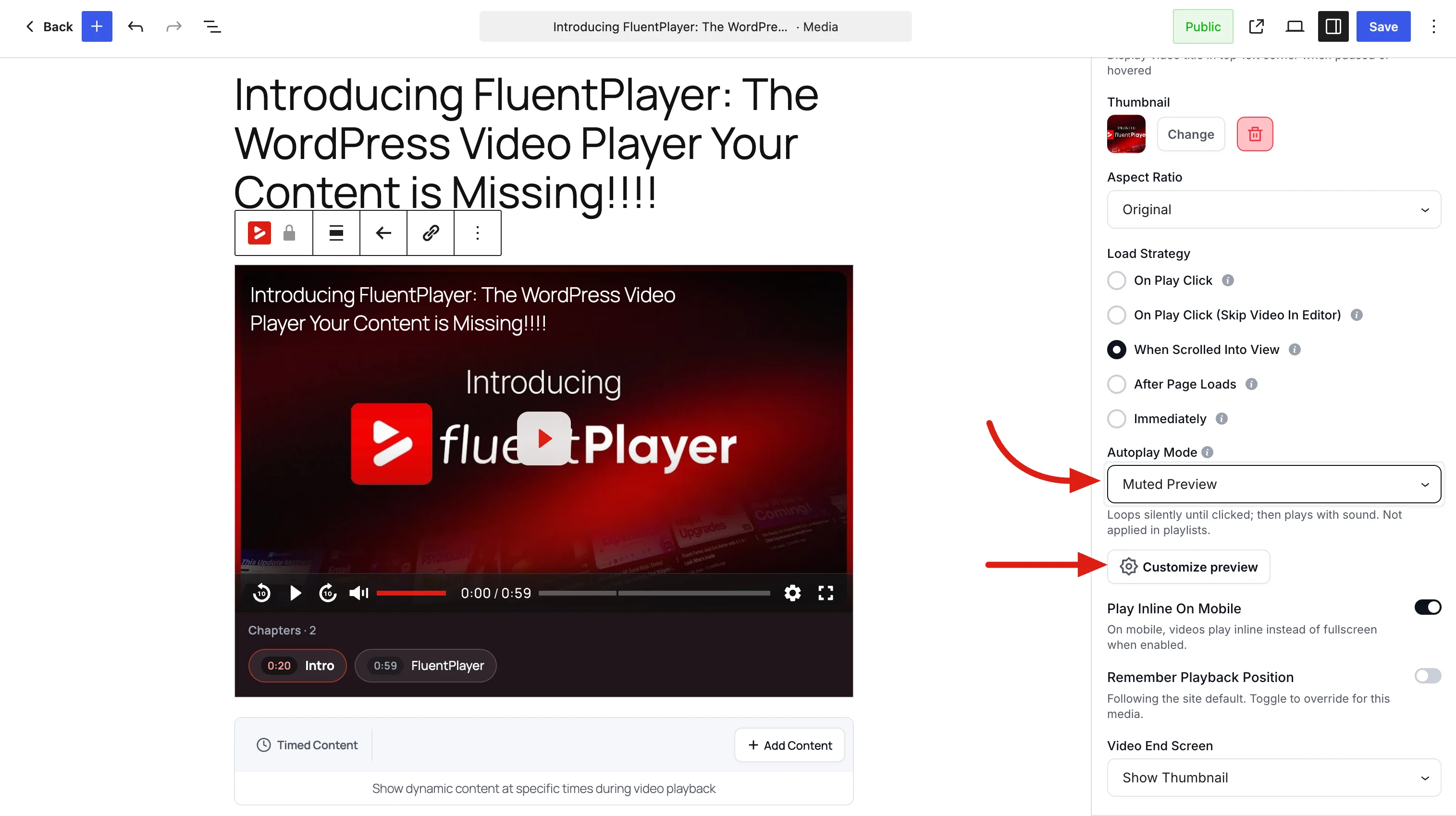
Autoplay Mode is a single choice, so picking Muted Preview replaces Autoplay with Sound or Muted Autoplay rather than stacking with them.
Not available in playlists
Muted Preview applies to a single embedded player. It is ignored inside a playlist (Pro), and the option is hidden when you edit a playlist item.
Customizing the preview
Click Customize preview, just under the Autoplay Mode dropdown, to open the preview settings.
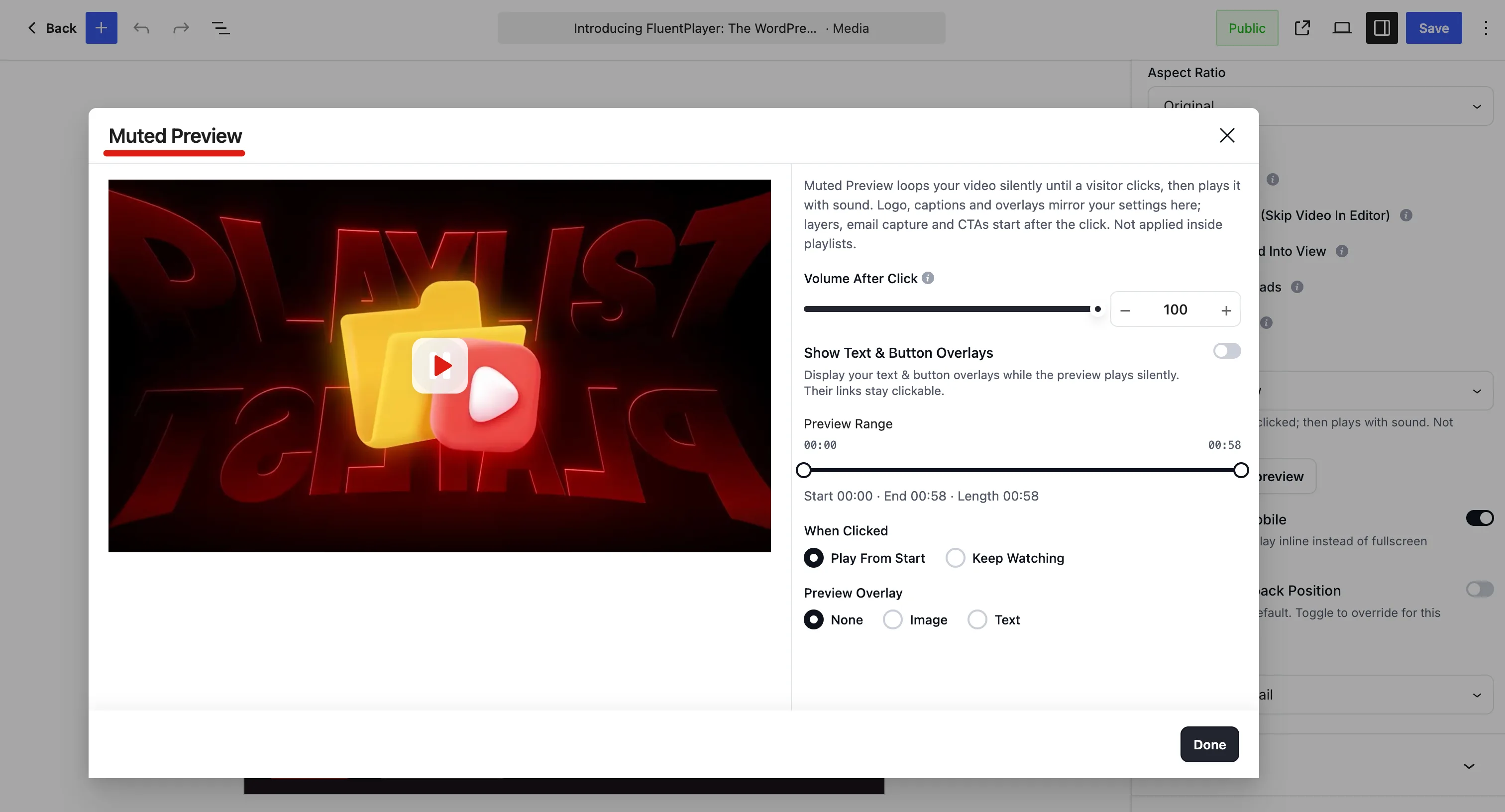
Volume After Click
Sets how loud the video is when the viewer clicks for sound. The default is 100, and you can set anything from 10 to 100 in steps of 5.
Lower it when a video would otherwise be jarring at full volume — background footage on a landing page, for example.
Show Logo During Preview (Pro)
Keeps your player logo on screen while the preview plays silently, with its link still clickable. This toggle only appears when a logo is actually configured, either in global Branding or in the media's own Branding panel.
Preview Captions (Pro)
Shows subtitles while the preview plays silently. Because a muted preview has no sound, captions are often the only way a viewer can follow what is being said before they click.
Appears only when the media has subtitles attached.
Show Text & Button Overlays (Pro)
Displays your text and button overlays (Pro) during the silent preview, with their links still clickable. Useful when an overlay is the reason someone would click at all.
Appears only when the media has overlays scheduled inside the preview range.
Preview Range (Pro)
Loops only a chosen slice of the video instead of the whole thing. Drag the two handles to set a start and end point; the dialog shows the resulting Start, End, and Length below the slider.
Pick the most striking few seconds rather than a slow opening — a short, well-chosen loop reads better as a poster than a full-length replay.
When Clicked (Pro)
Decides where playback goes when the visitor clicks:
| Option | Behavior |
|---|---|
| Play From Start | Restarts the video from the beginning. The default. |
| Keep Watching | Continues from wherever the silent loop had reached. |
Keep Watching suits a preview range that starts at the beginning, so the video simply gains sound. Play From Start suits a preview taken from the middle, so nobody misses the opening.
Preview Overlay (Pro)
Places an image or a line of text on top of the preview — a logo, a badge, or a short prompt such as "Click to watch".
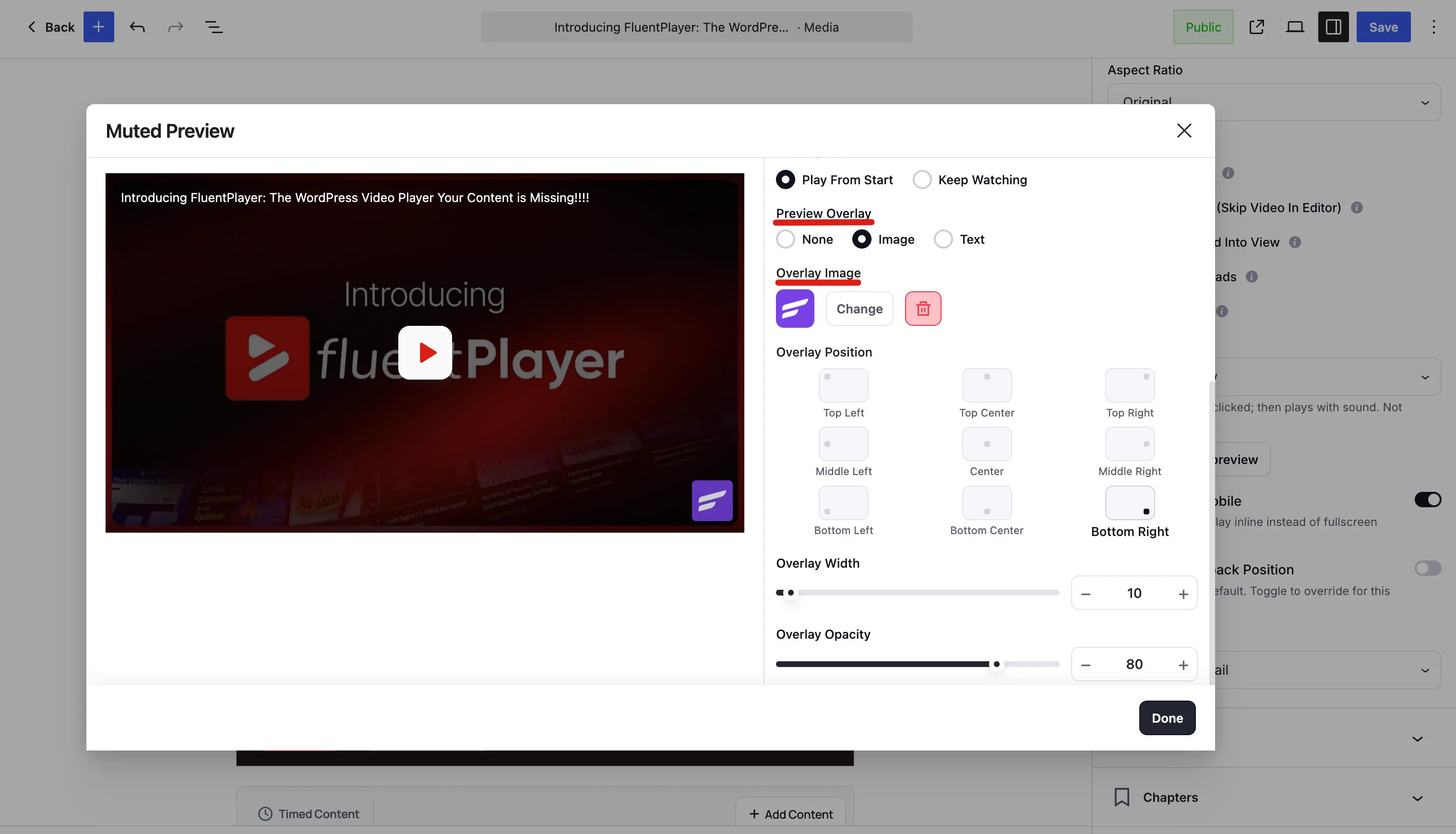
Choose None, Image, or Text, then adjust:
| Control | Notes |
|---|---|
| Overlay Image | Pick an image from your media library. Use a PNG with a transparent background so it sits cleanly over the video. |
| Overlay Position | Nine placements, from Top Left through Center to Bottom Right. |
| Overlay Width | Percentage of the player width, from 5 to 100. Defaults to 40. |
| Overlay Opacity | From 10 to 100. Defaults to 100. Lower it when the overlay competes with the footage. |
Text overlays accept smartcodes, so you can pull in dynamic values the same way you do elsewhere in the editor.
Free vs Pro
The Muted Preview mode itself, Volume After Click is available in the free version. The remaining customizations are Pro. In the free version they appear in the dialog as cards you can click to learn more.
Using it in a shortcode
The shortcode can switch a player into Muted Preview directly:
[fluentplayer id="123" autoplay="preview"]autoplay="muted" selects Muted Autoplay instead, and autoplay="true" autoplays with sound.
When to use it
Muted Preview works best where a moving thumbnail earns attention that a static poster would not:
- Landing pages, where a looping product shot does more than a play button.
- Course and lesson listings, giving a glimpse of the lesson before someone commits.
- Article headers, where the video supports the story but should not start talking on its own.
It is a poor fit when the opening seconds are a title card or a slow fade, since a silent loop of nothing much is worse than a well-chosen poster image. In that case either set a Preview Range (Pro) over a stronger moment, or use a poster image instead.
Because the preview is silent and starts on its own, it also sidesteps the usual autoplay problem: browsers block sound until the visitor interacts with the page, and a muted loop never asks them to.
When it falls back to a normal player
Muted Preview steps aside where a silent autoplaying loop would be wrong, and the player renders as an ordinary click-to-play embed instead. That happens when:
- the visitor's system asks for reduced motion, so an endless loop is never forced on someone who has asked not to see moving content;
- the media is audio rather than video;
- the source is a live or continuous stream rather than an on-demand video.
You do not need to configure any of this — the setting can stay on, and each visitor gets whichever behavior suits them.
What visitors see
While the preview loops, the video plays silently and without controls, acting as a live poster. Your player logo stays visible if you use one, and its link stays clickable.
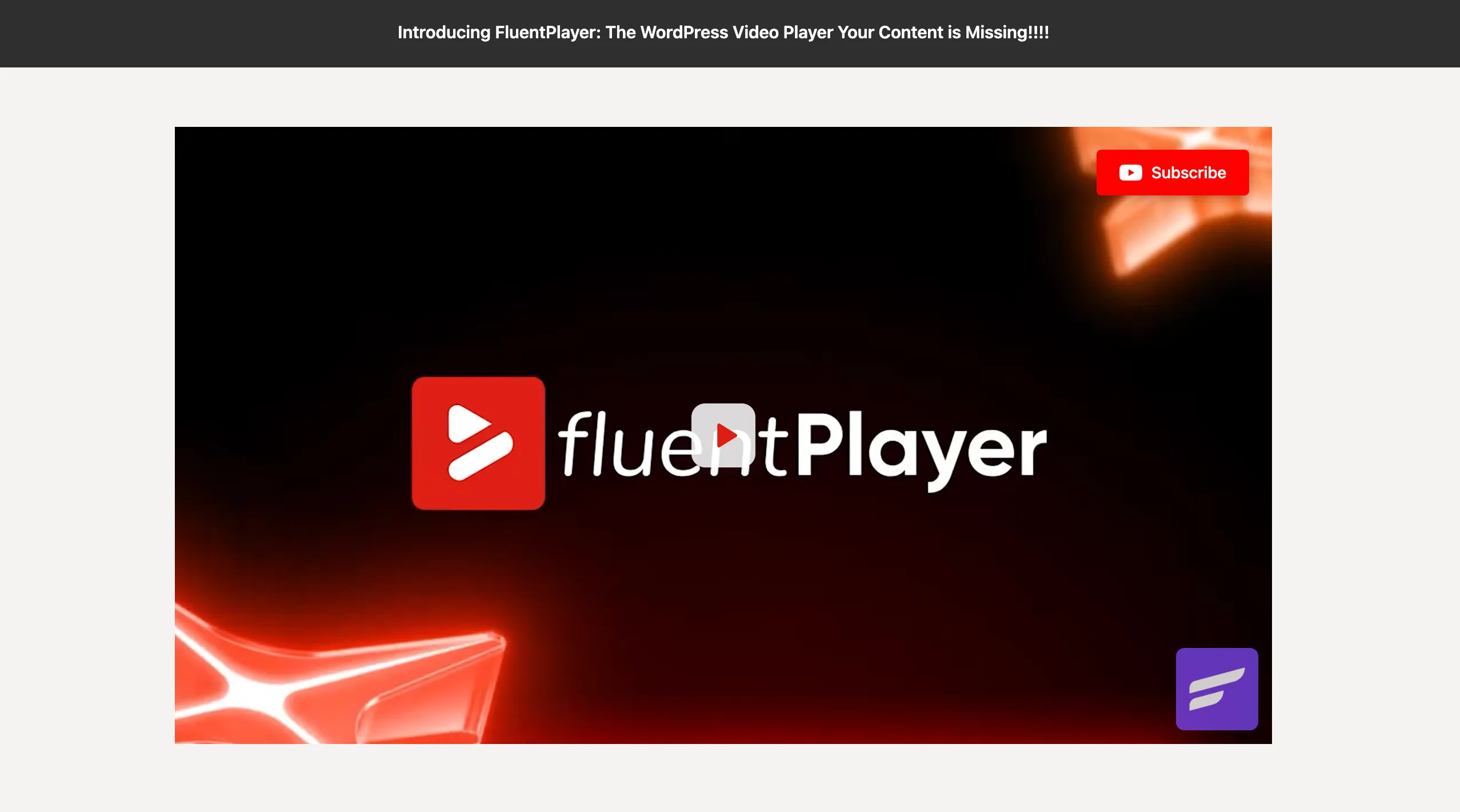
When the visitor clicks — or focuses the preview and presses Enter or Space — the player switches to normal playback with sound, and the full interface comes back: controls, chapters, and everything else your player is configured to show. The overlay they activate is a real button, labelled Play with sound for screen readers.
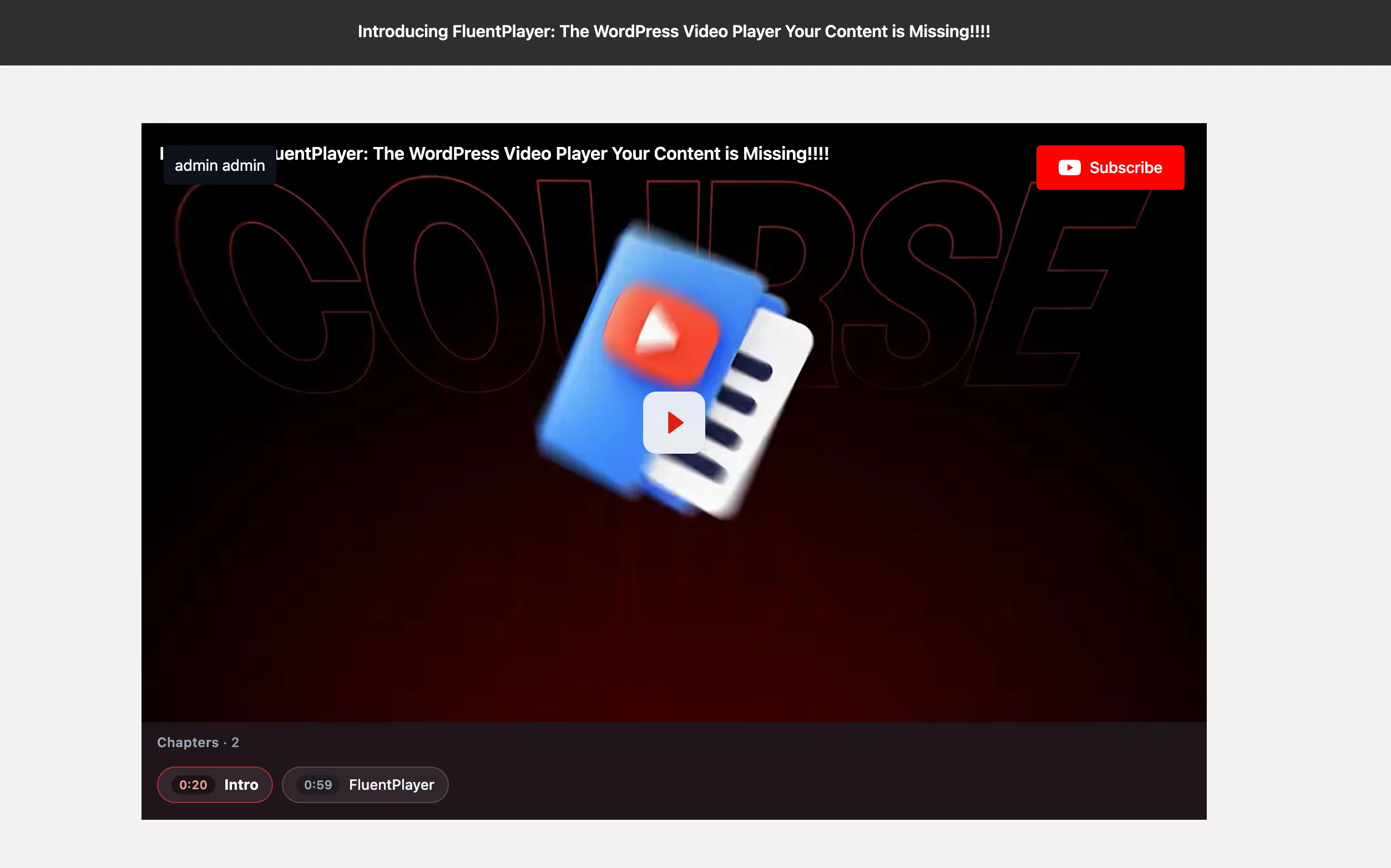
Nothing else runs while the preview loops. Interactive layers, email capture, and CTAs all wait, so a silent loop never interrupts someone who has not chosen to watch yet.
Tracking waits too. Analytics, watched milestones, Google Analytics events, and Remember Playback Position all stay dormant until the viewer converts to full playback. A silent loop is meant to catch attention rather than count as a view, so your engagement figures reflect people who actually chose to watch instead of every page that happened to scroll past.