

Appearance
BunnyCDN Storage (Pro)
BunnyCDN Storage (Edge Storage) allows you to host your video files on Bunny.net’s global infrastructure instead of your own WordPress server. This is an ideal solution for self hosted videos, as it offloads the storage and bandwidth burden, ensuring your site remains fast while providing a high performance playback experience for your viewers.
Pro feature
BunnyCDN Storage integration requires FluentPlayer Pro.
When to Use Bunny Storage
- You already have pre encoded video files (for example, MP4 files in the right quality).
- You want simple, cheap file hosting with CDN delivery.
- You do not need automatic encoding into multiple quality levels.
For most users, Bunny Stream is the better choice because it handles encoding automatically. Use Bunny Storage when you have specific files you want to host as is.
How to Connect BunnyCDN Storage
To integrate your Bunny storage zones with FluentPlayer, follow these steps:
1. Get Credentials from BunnyCDN
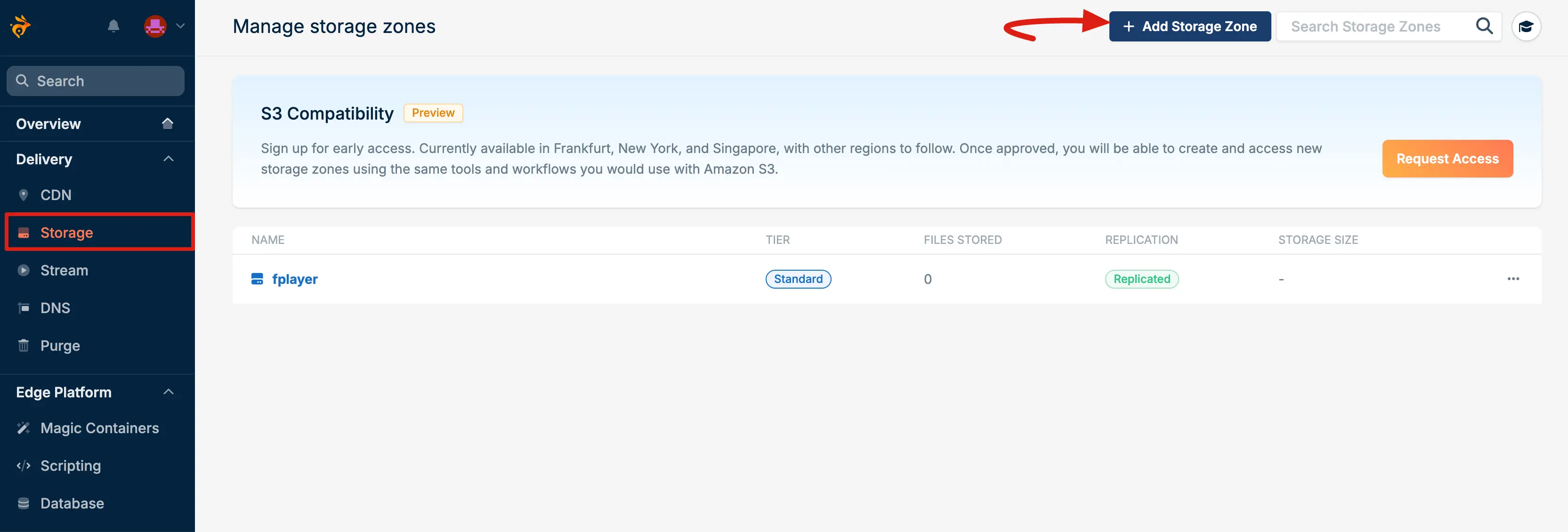
First, log into your Bunny account, then go to Storage from the left sidebar and click on Add Storage Zone.
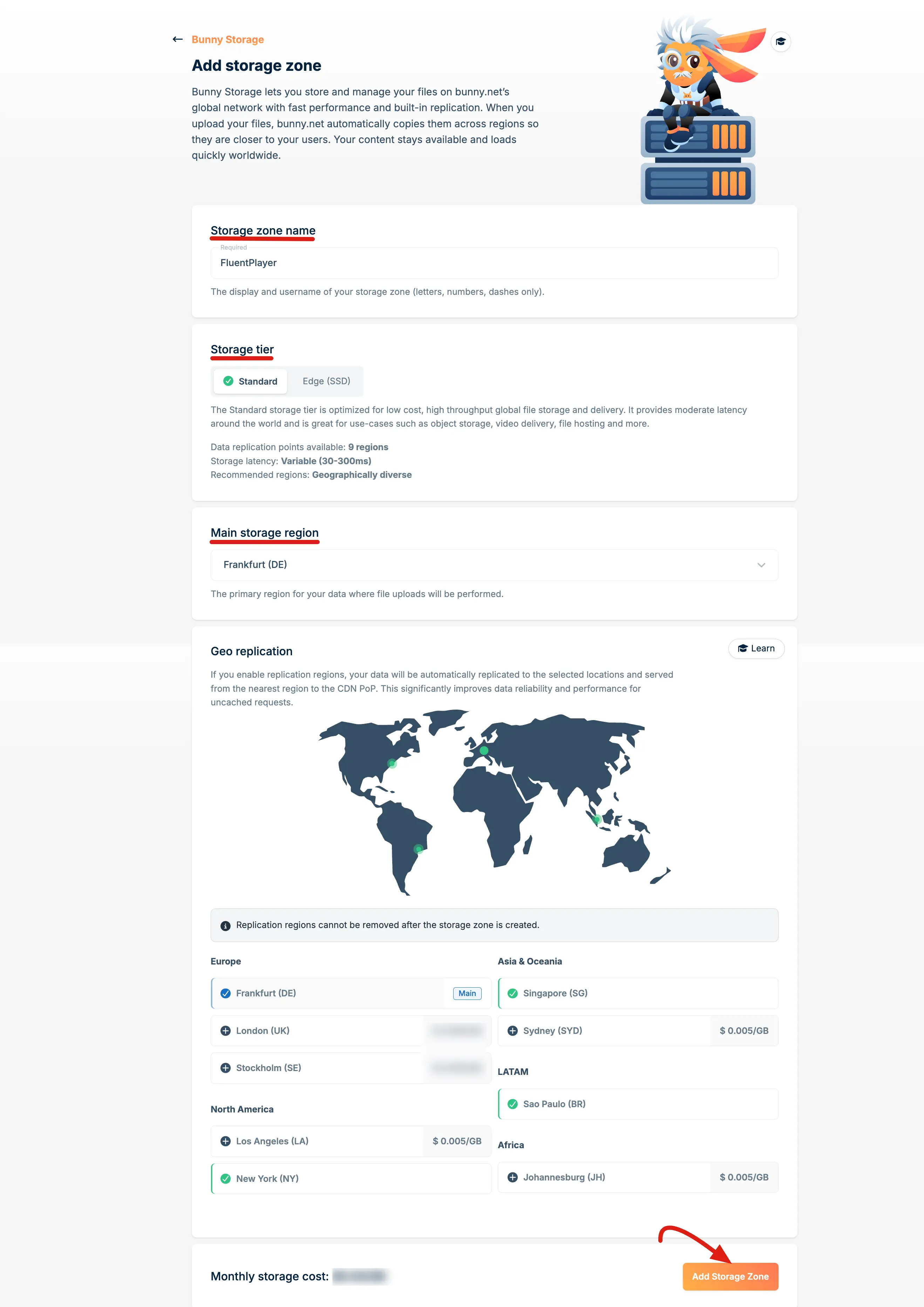
A popup will appear to set up the Storage Zone settings. Now choose your preferred Storage Tier (Standard). Then, select the Main Storage Region based on your users’ location. Finally, click on the Add Storage Zone button.
NOTE
Keep track of the Main Storage Region you select, as you’ll need this information later when configuring BunnyCDN with FluentPlayer.
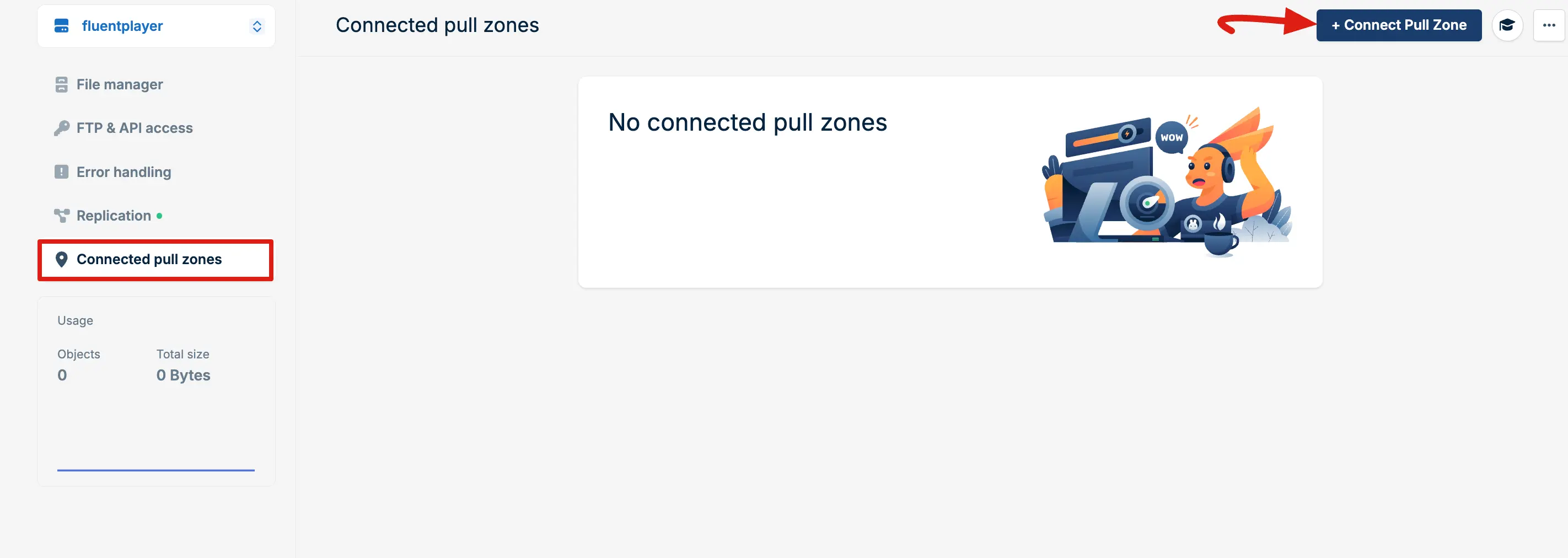
Connect Pull Zone
Go to the Storage Zone you just created, then select Connected Pull Zones from the left sidebar and click on the + Connected Pull Zone button.
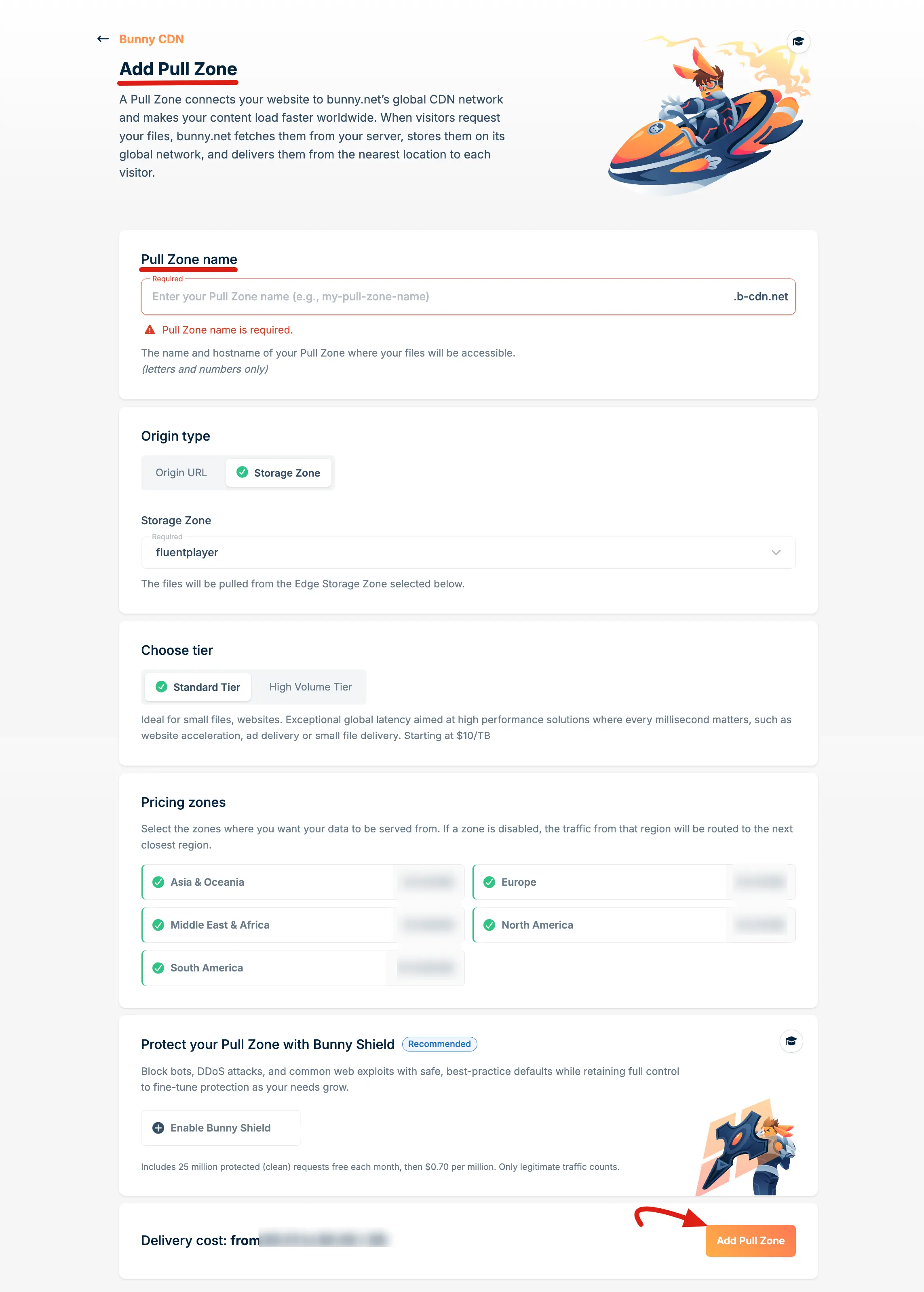
A Pull Zone setup popup will appear. Start by entering a name for your Pull Zone. Then, set the Origin Type to Storage Zone and select your created Storage Zone from the dropdown.
Next, choose a Tier based on your needs. Once everything is set, click Add Pull Zone to save your configuration.
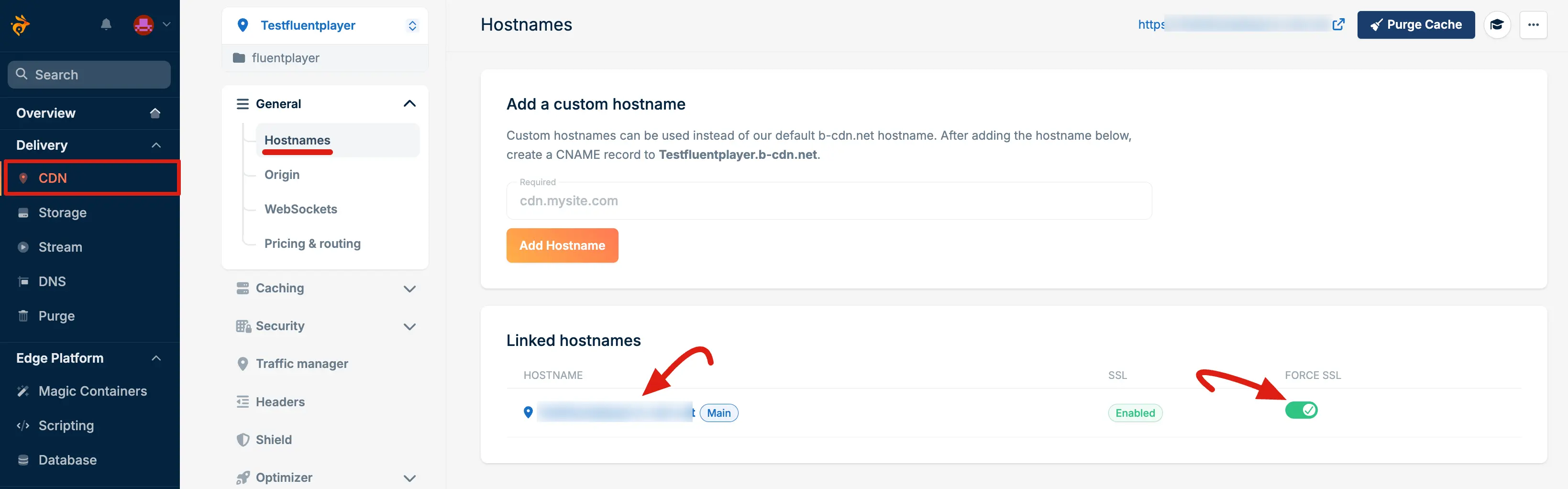
You will now see your Pull Zone Hostname. Enable the Linked hostnames and copy this hostname and keep it for later use. This hostname is your BunnyCDN public URL, which you will need to enter in the FluentPlayer Bunny configuration settings.
Authentication Key
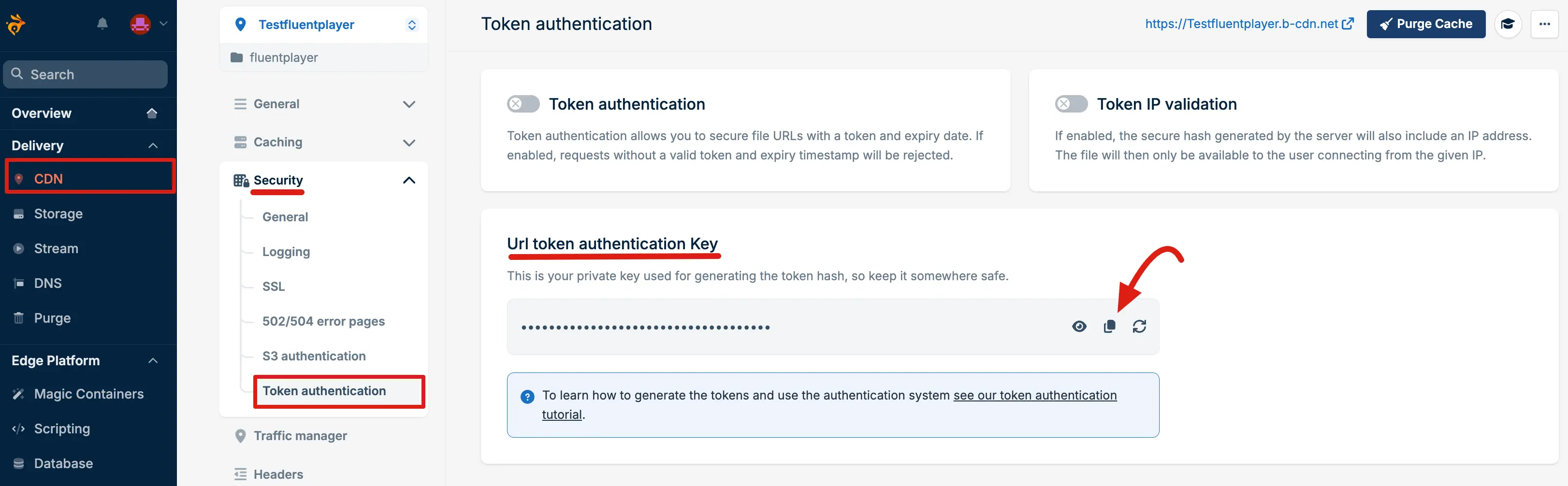
Go to the Token authentication under the Security. Now, copy the Url token authentication key for FluentPlayer settings storage use.
API & Credentials
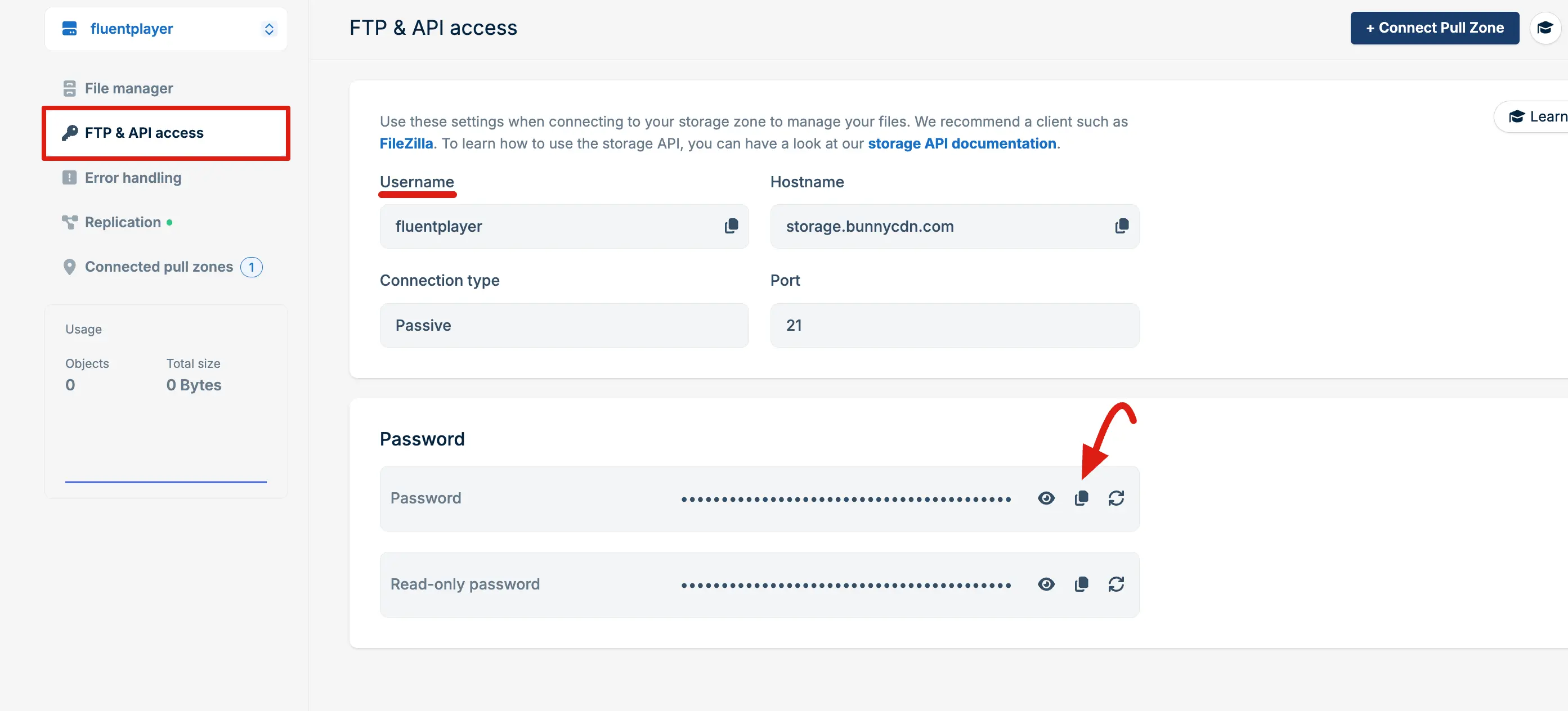
Go to the Storage Zone you created and open the FTP & API Access tab from the left sidebar. Here, you will find your Username and Password. Copy both for later use.
NOTE
The Username is your BunnyCDN Storage Zone name and the Password is your BunnyCDN API key.
2. Configure FluentPlayer Settings
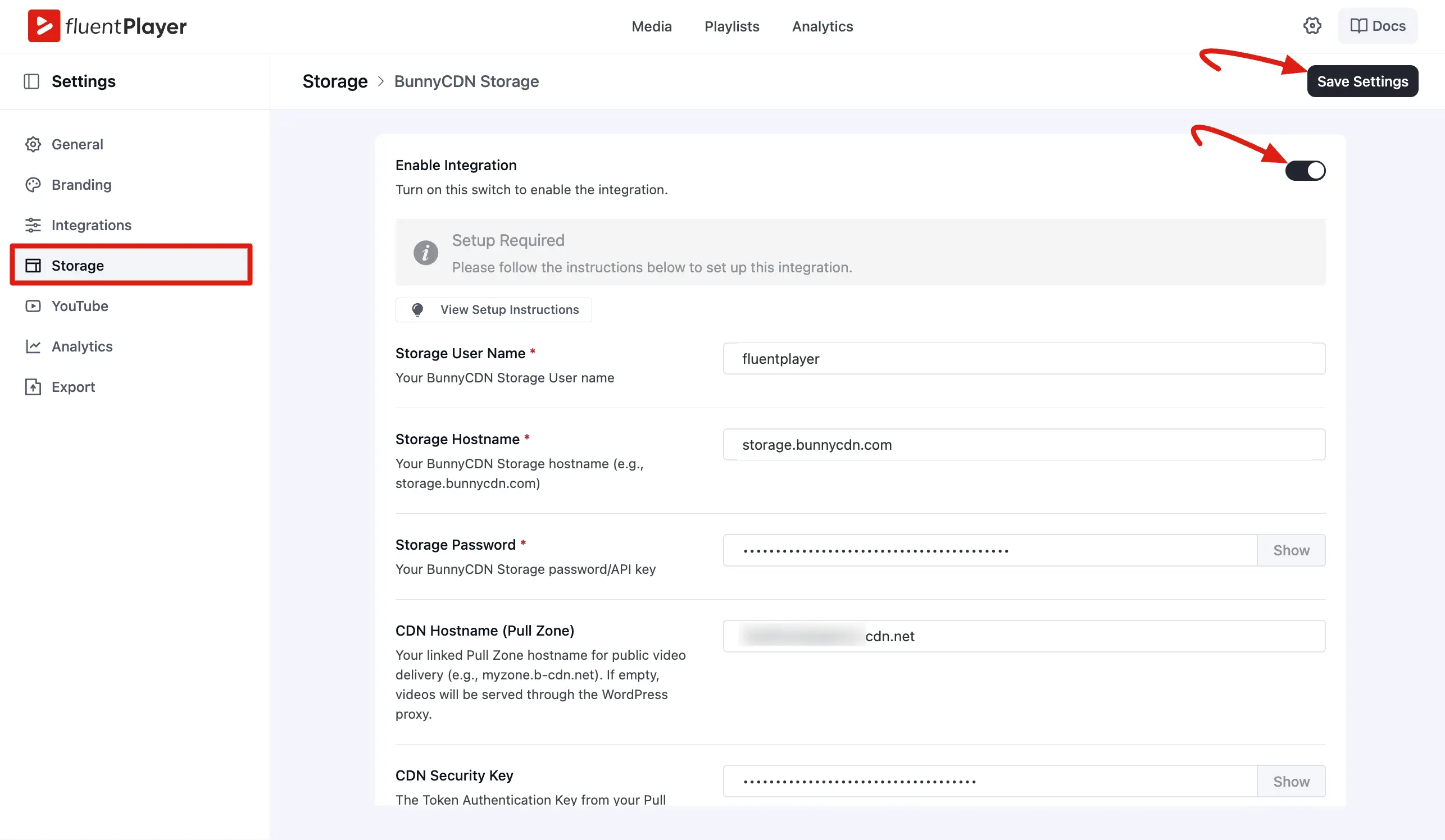
In your WordPress dashboard, navigate to FluentPlayer → Settings → Storage.
Under the BunnyCDN Storage section:
- Toggle Enable Integration to turn it on.
- Enter your Storage User Name (your BunnyCDN storage username).
- Enter the Storage Hostname (e.g., storage.bunnycdn.com).
- Enter your Storage Password / API Key.
- Provide your CDN Hostname (Pull Zone) for video delivery.
- (Optional) Enter your CDN Security Key if token authentication is enabled.
Finally, click Save Settings to connect FluentPlayer with your BunnyCDN storage.
3. Adding a Video from Bunny Storage
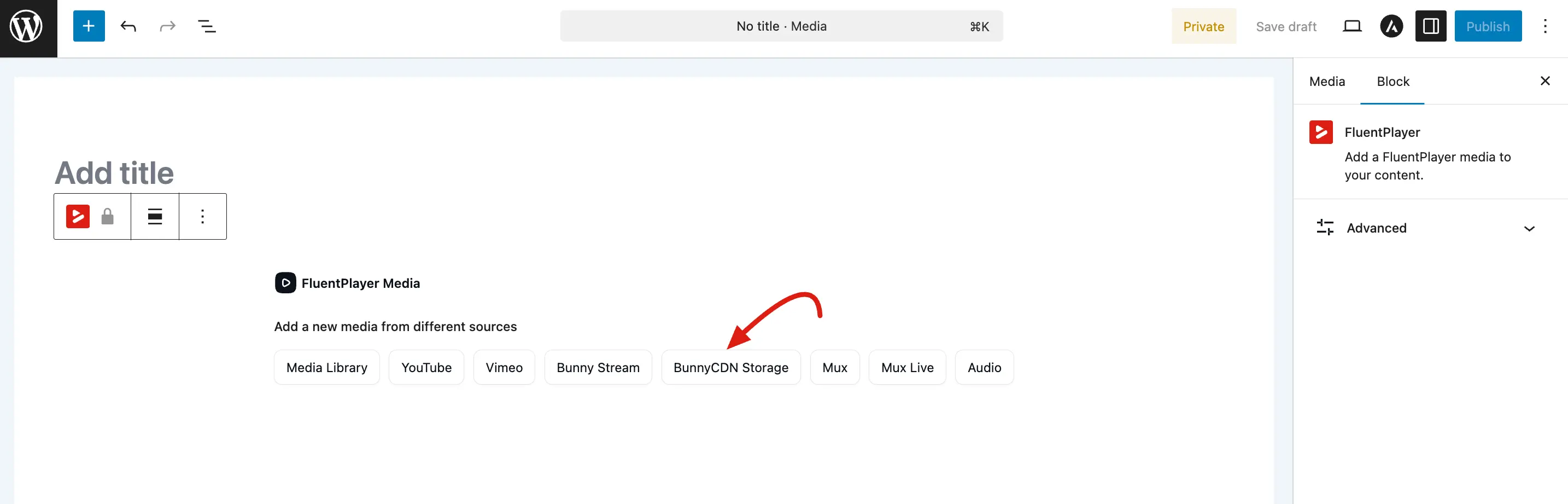
- Navigate to FluentPlayer → Media and click Add Media.
- Choose Bunny Storage as the source type.
Managing Files from WordPress
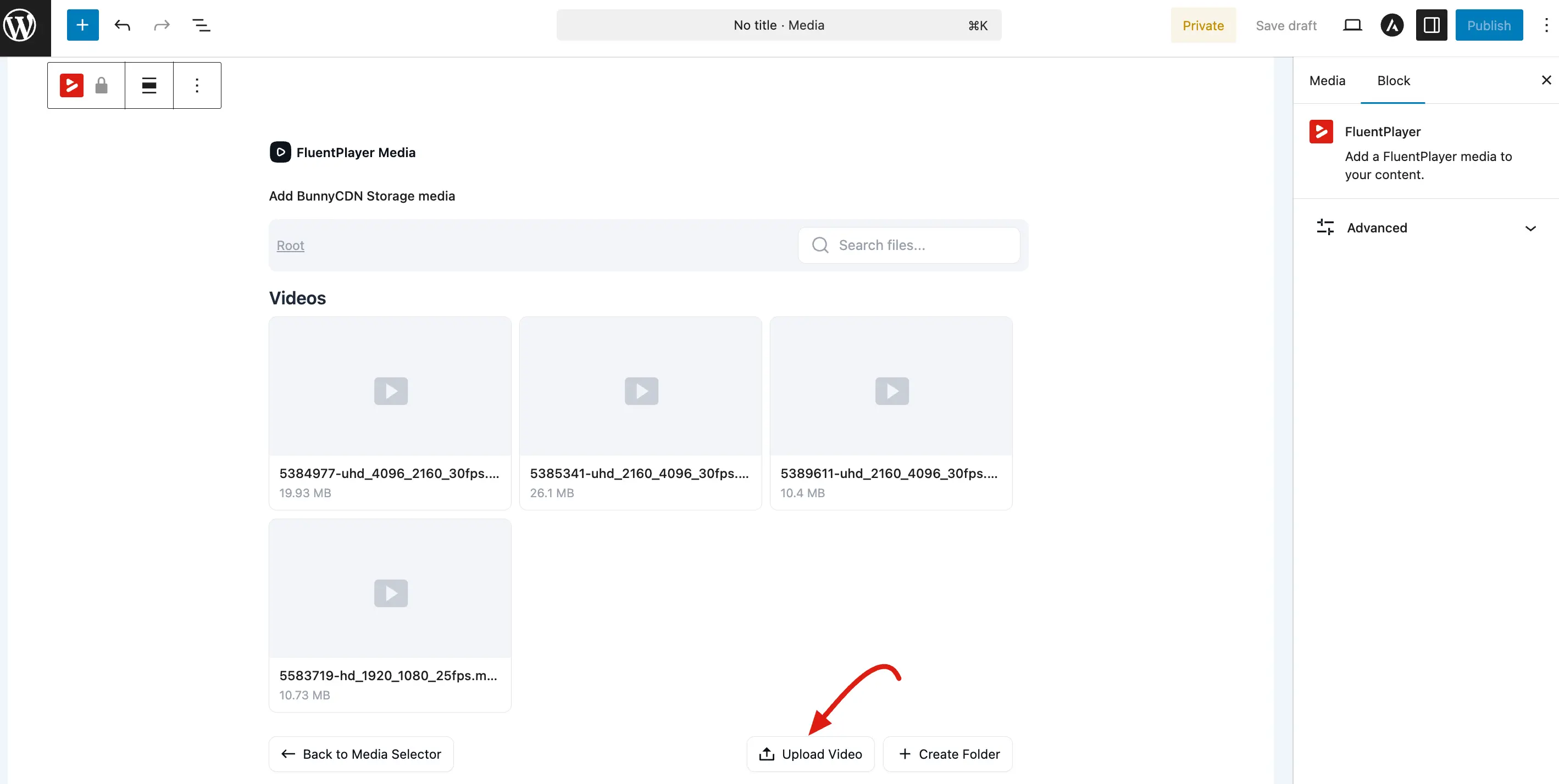
From the Bunny Storage browser inside FluentPlayer you can:
- List all files in your storage zone.
- Upload new files directly from WordPress.
- Create folders to keep large libraries organized.
- Delete files from the storage zone.
This lets you manage your hosted files without leaving WordPress.
4. Adding Audio from Bunny Storage
Bunny Storage supports audio files alongside video. The steps are the same — only the media type changes.
- Navigate to FluentPlayer → Media and click Add Media.
- Set the media type to Audio.
- Choose Bunny Storage as the source type.
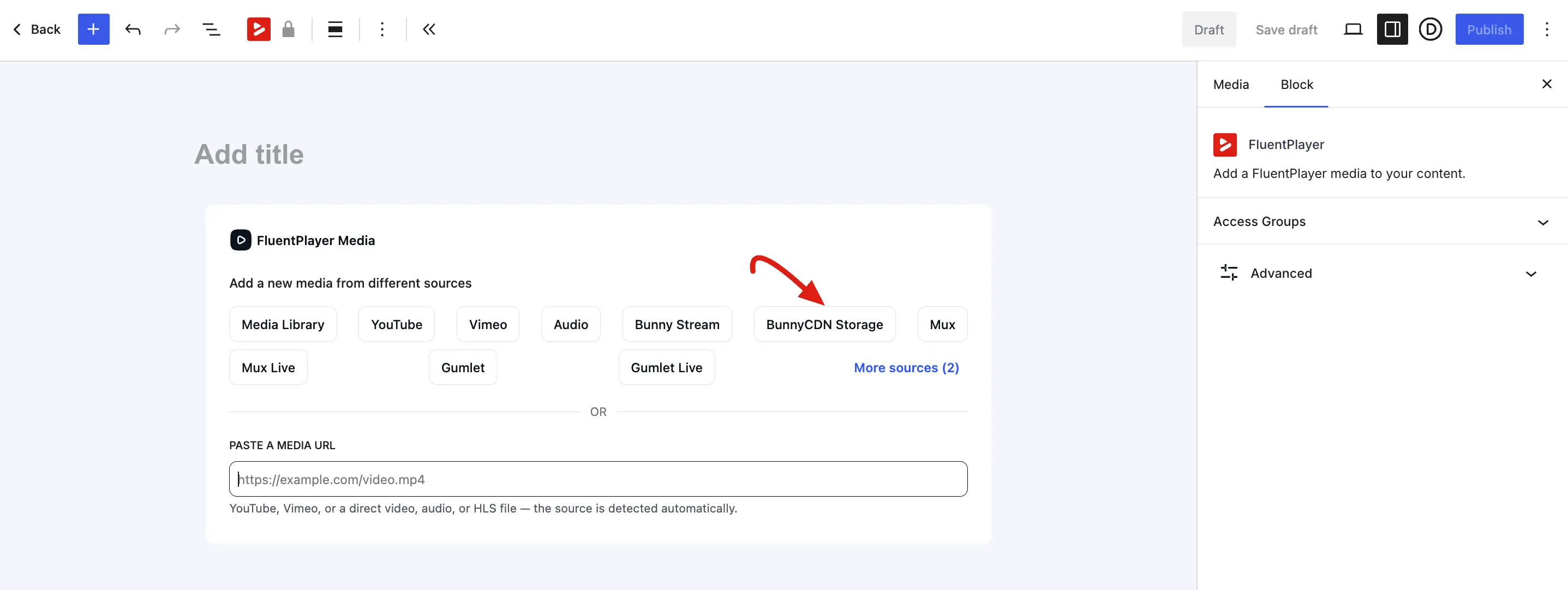
- Browse your storage zone to select an existing audio file, or click Upload to send a new file directly from WordPress.
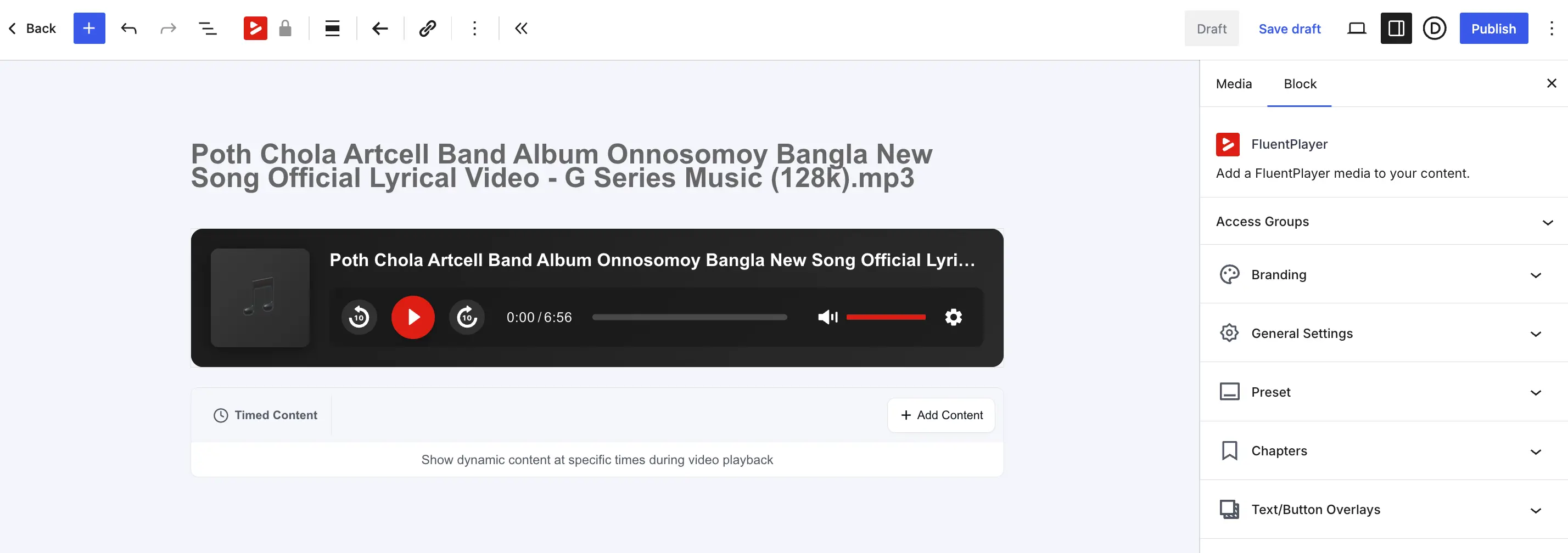
- Save the media item. FluentPlayer switches to the audio-optimized player layout automatically.
TIP
You can also paste a direct Bunny Storage audio URL into the Paste a Media URL field and FluentPlayer will detect the provider automatically.
How playback works
When a visitor watches a Bunny Storage video, the player does not always hit your storage zone directly. FluentPlayer can serve the file through a streaming proxy endpoint, which fetches the video from your storage zone and streams it to the viewer. This keeps your storage credentials private and lets FluentPlayer apply access control.
If you enabled token authentication on your pull zone and entered a CDN Security Key during setup, FluentPlayer signs the delivery URLs so they cannot be shared or hotlinked beyond their validity window.
TIP
Use Bunny Stream when you want automatic encoding into multiple qualities. Use Bunny Storage (this page) when you have ready-to-play files and want simple, secured file delivery through the CDN.