

Appearance
Timed Content Area (Block sidebar)
The Timed Content Area is a Pro exclusive feature that allows you to display dynamic content directly beneath your video player. This region is perfect for showing lesson notes, download buttons, or supplementary information that syncs with your video.
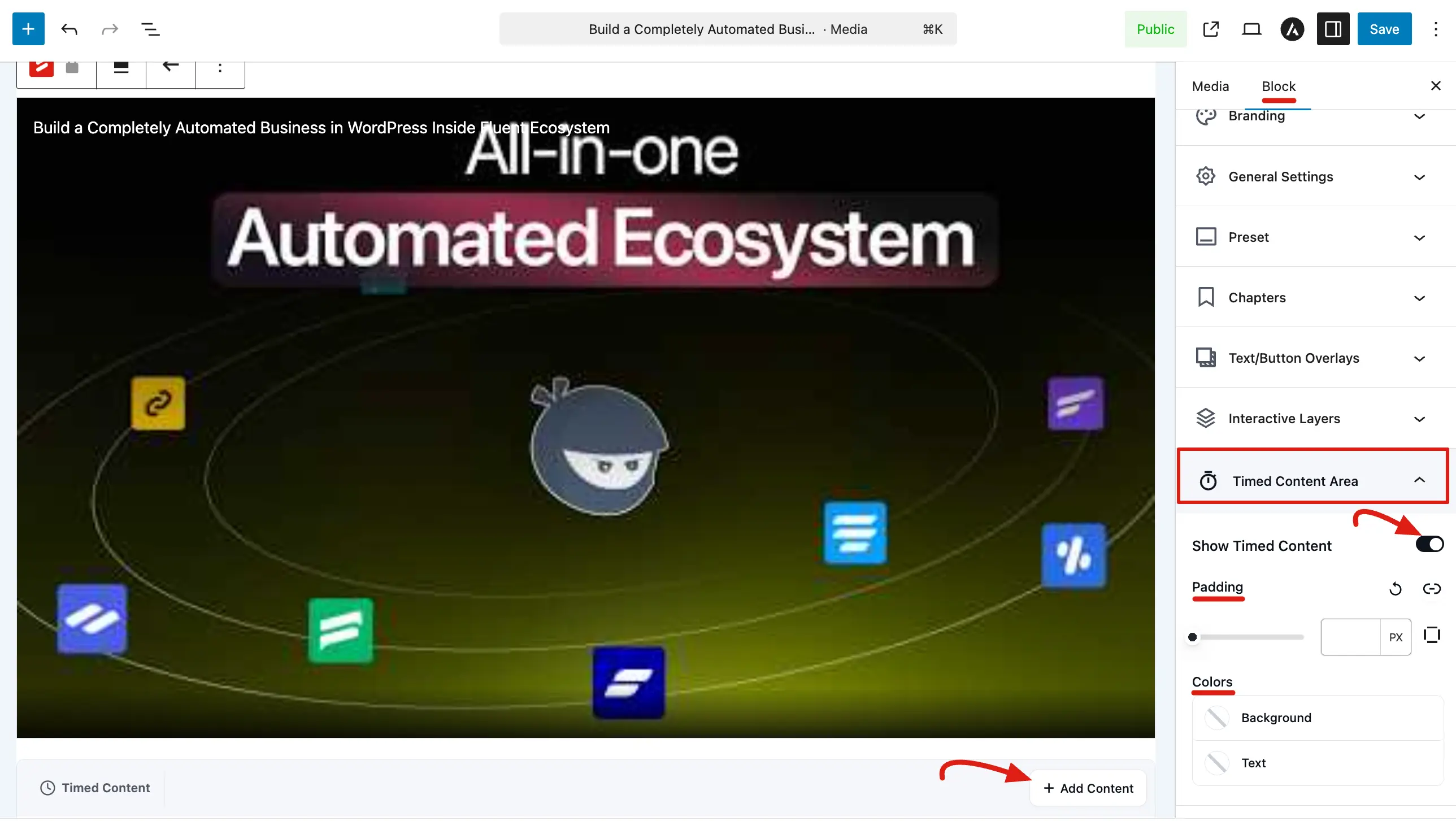
To configure this feature, go to FluentPlayer → Media, open your media item, and navigate to the Timed Content Area panel under the Block tab.
Pro feature
This feature is available only in FluentPlayer Pro.
Enabling the Timed Content Area
Before adding content, you must activate the region for your specific video:
- Show Timed Content: Toggle this switch to the ON position to reveal the content area below the player.
- Visual Controls: Once enabled, the player interface will display a new "Timed Content" section where you can begin building your layout.
Design and Styling
You can customize the appearance of the timed content region to match your website's design:
- Padding: Use the slider to adjust the space around your content. You can set this in pixels (PX) and use the Reset icon to return to default values.
- Background Color: Click the color circle to pick a background for the entire timed content region.
- Text Color: Choose a default color for any text placed inside this area.
Adding Dynamic Content
The Timed Content Area functions like a "mini" editor inside your media entry:
- Add Content: Click the + Add Content button within the Timed Content box to insert new elements.
- Inner Blocks: You can add various Gutenberg style blocks, such as paragraphs, lists, and buttons.
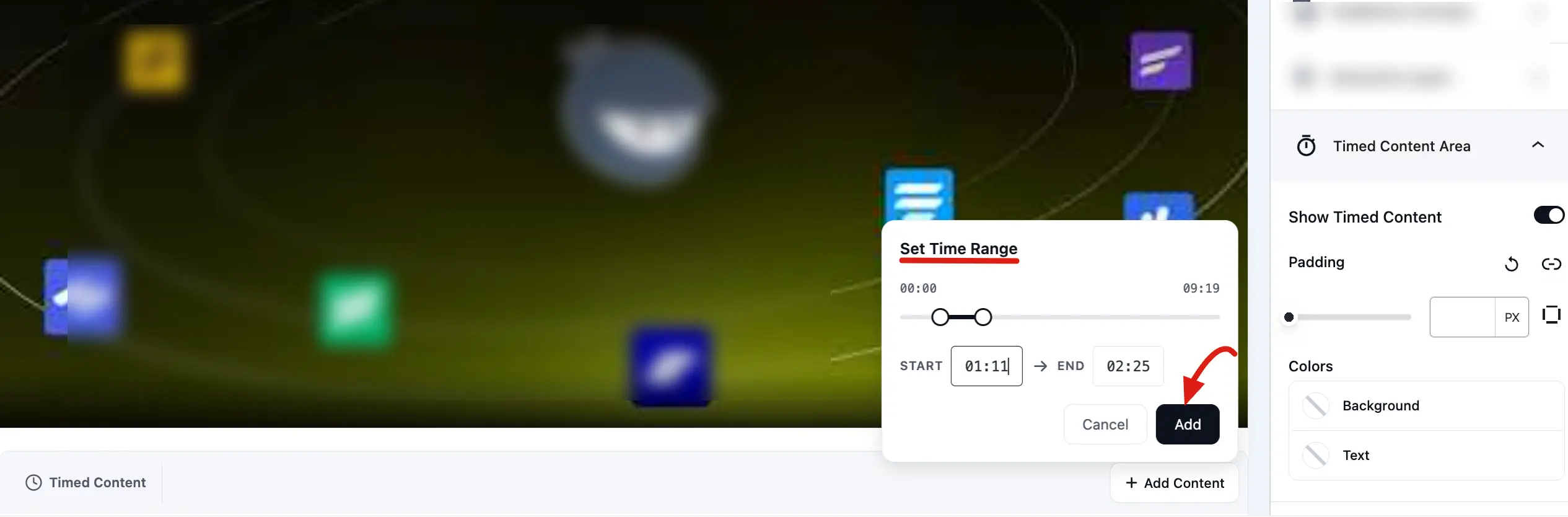
- Timing Control: These blocks are designed to be shown at specific times during video playback, making them perfect for "revealing" a resource at the exact moment it is mentioned in the video.
The Timed Content Area turns a simple video into a structured learning or marketing experience.
Related pages
- Editor Overview — back to all Block sidebar panels
- Interactive Layers — timed forms, CTAs, and hotspots on top of the video