

Appearance
Import from All-in-One Video Gallery
Already using All-in-One Video Gallery? FluentPlayer includes a built-in importer that turns your existing videos and audio files into FluentPlayer media in a few clicks, so you don't have to add them again one by one.
The import is one-way: it copies videos from All-in-One Video Gallery into FluentPlayer. Your All-in-One Video Gallery videos are only read, never changed, so you can keep both plugins active while you review the result.
Free and Pro
The importer is included in the free plugin, and importing media works in Free. Importing video tags requires FluentPlayer Pro, because media tags are a Pro feature.
Requirements
- FluentPlayer is installed and active. See Installation if you still need to set it up. To bring your video tags across, also activate FluentPlayer Pro.
- Your All-in-One Video Gallery videos are still on the site. FluentPlayer reads them straight from your database. Keep All-in-One Video Gallery installed and active until you have finished importing and checked the result.
What's Imported
Each All-in-One Video Gallery video becomes a new FluentPlayer media item. FluentPlayer brings across:
| What | Details |
|---|---|
| Title | The video's title |
| Status | Published, draft, private and scheduled videos keep their status. Password-protected videos keep their password |
| Source | The video's playback source — see the table below |
| Poster | The poster image. If the poster is a Media Library image, it is also set as the media's featured image |
| Duration | The video length, when All-in-One Video Gallery knows it |
| Audio | Audio files (such as .mp3, .m4a, .wav or .ogg) are imported as audio media, not video |
| Video tags (Pro) | Each video's tags, added as FluentPlayer media tags. Tags that don't exist yet are created |
Imported media use the Default preset. YouTube and Vimeo videos get a 16:9 aspect ratio so they display correctly.
Supported Sources
| All-in-One Video Gallery source | Imported as |
|---|---|
| Self-hosted file in your Media Library | Media Library video or audio |
| File URL from another server (MP4, WebM, OGV, HLS and similar) | External URL |
| YouTube | YouTube |
| Vimeo | Vimeo |
| Bunny Stream | Bunny Stream |
If a video has several sources (for example different qualities), FluentPlayer keeps the best one: a Media Library file first, then the highest quality.
If a video has no file in its source fields but has a video or audio added straight into its description, FluentPlayer imports that one instead.
Bunny Stream videos
All-in-One Video Gallery only stores each Bunny video's ID. To play imported Bunny media, add your Bunny API keys under Settings → Storage. See BunnyCDN Stream.
What's Not Imported
A few things can't be imported. The importer lists the ones that apply to your site under Cannot migrate, so you know what will be left behind:
- Dailymotion videos, Rumble videos, Facebook videos and Embed-code videos
- Videos with no media source
- Video tags (requires FluentPlayer Pro) — shown only on the free plugin when your videos have tags
- Gallery shortcodes and categories
- Views, likes and dislikes
The importer also doesn't change your posts and pages. Any All-in-One Video Gallery shortcodes or blocks on your pages stay as they are. Replace them with a FluentPlayer block or shortcode when you are ready.
How to Import
Step 1: Open Migration
- In your WordPress admin, go to FluentPlayer and open Settings (the gear icon).
- In the settings sidebar, click Migration.
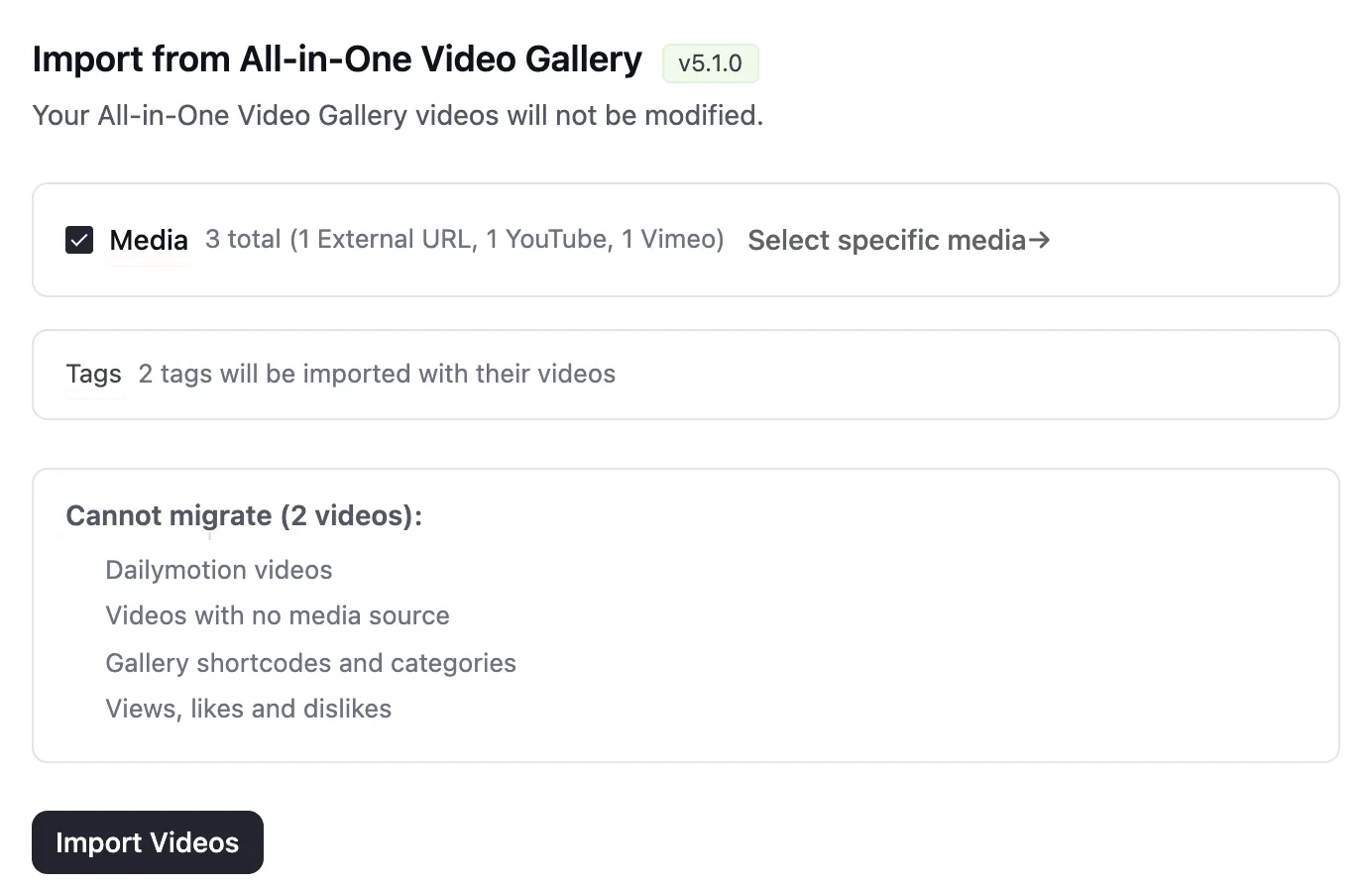
FluentPlayer detects your All-in-One Video Gallery videos and shows the Import from All-in-One Video Gallery screen, with the detected plugin version and the note "Your All-in-One Video Gallery videos will not be modified."
If you also use Presto Player, the screen shows one tab per plugin at the top. Click All-in-One Video Gallery to switch to it. See Migrate from Presto Player for the other tab.
Step 2: Choose Videos
The Media option is ticked by default and shows how many videos FluentPlayer found. If your videos have tags, a Tags row shows how many were found:
- With FluentPlayer Pro: "tags will be imported with their videos".
- On the free plugin: "tags found — importing them requires FluentPlayer Pro".
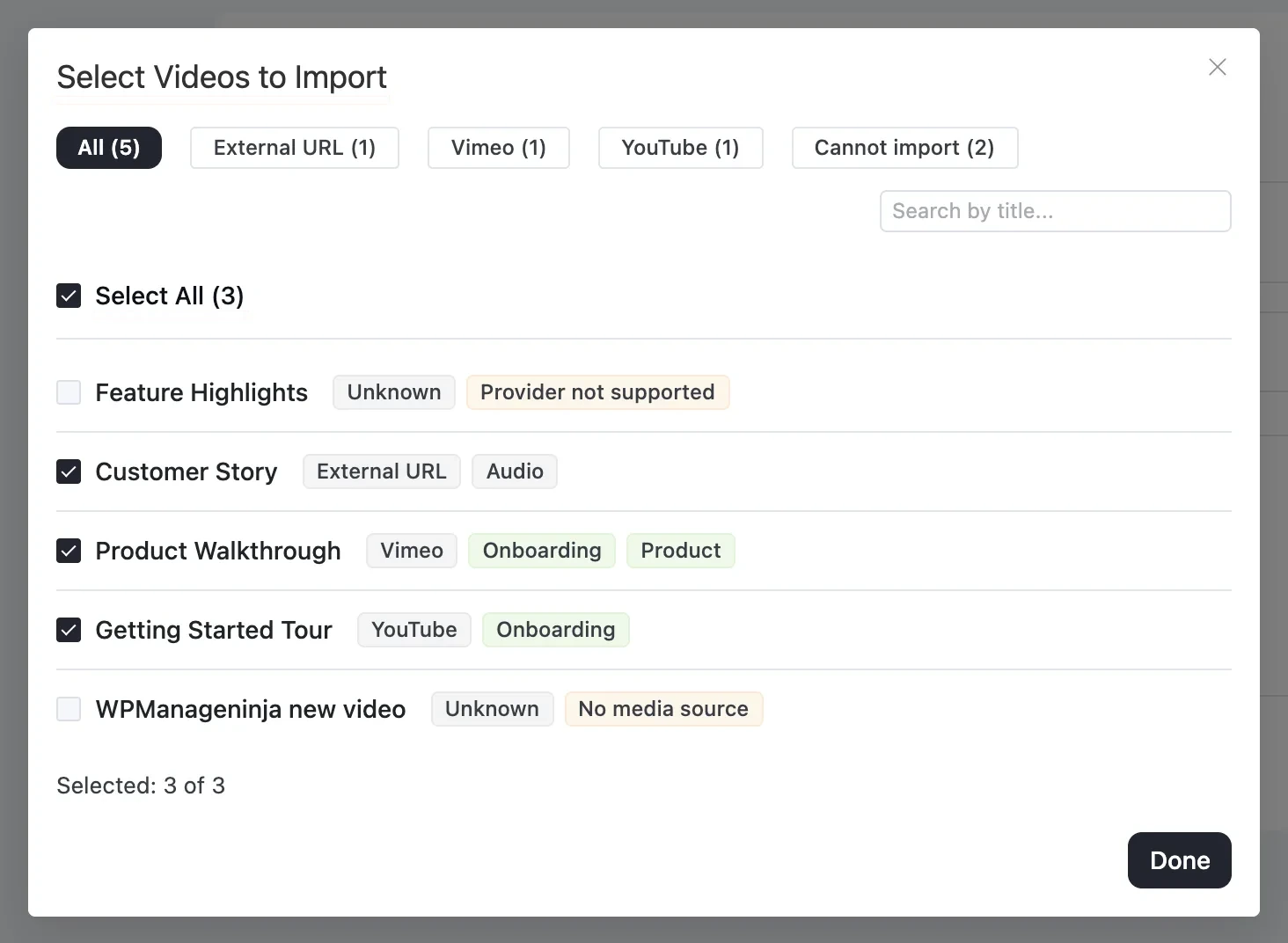
To import only some videos, click Select specific media →. The Select Videos to Import dialog lists every video. You can:
- Filter by source. The buttons show only the sources found in your library, each with a count (for example All, External URL, YouTube or Vimeo), plus Cannot import for videos that can't be brought across
- Search by title
- Use Select All, or tick individual videos
Videos that can't be imported are marked, for example Provider not supported or No media source. Videos you already imported are marked Imported. Click Done when your selection looks right.
Large libraries
The importer shows up to the 5,000 newest videos that are still to import. If you have more, import these first, then use Run Again to reach the older ones.
Step 3: Run the Import
- Click Import Videos.
- A confirmation asks Import N videos? and explains: "This creates N new FluentPlayer media. Your All-in-One Video Gallery videos are not modified."
- Click Import.
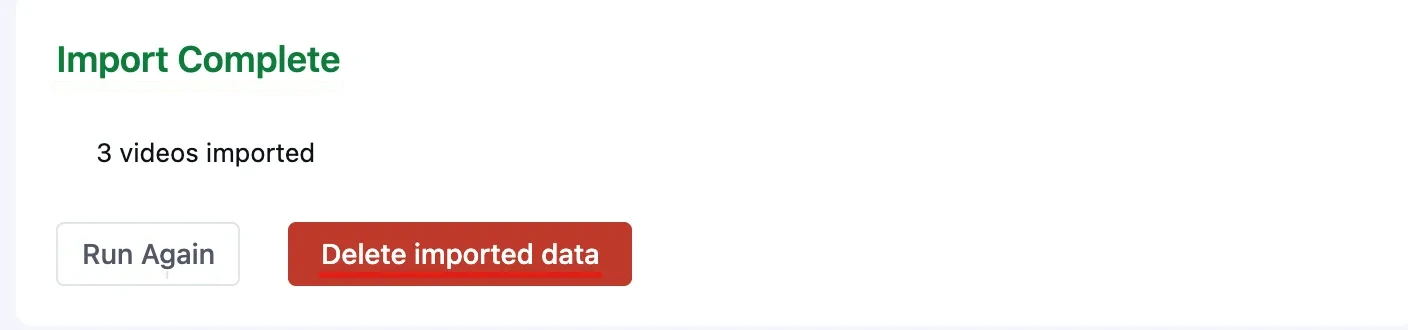
FluentPlayer shows a progress bar while it works. When it finishes, you'll see Import Complete with the number of videos imported and skipped. If some videos failed, the heading reads Import Finished With Errors and lists each skipped video with the reason.
Import Again
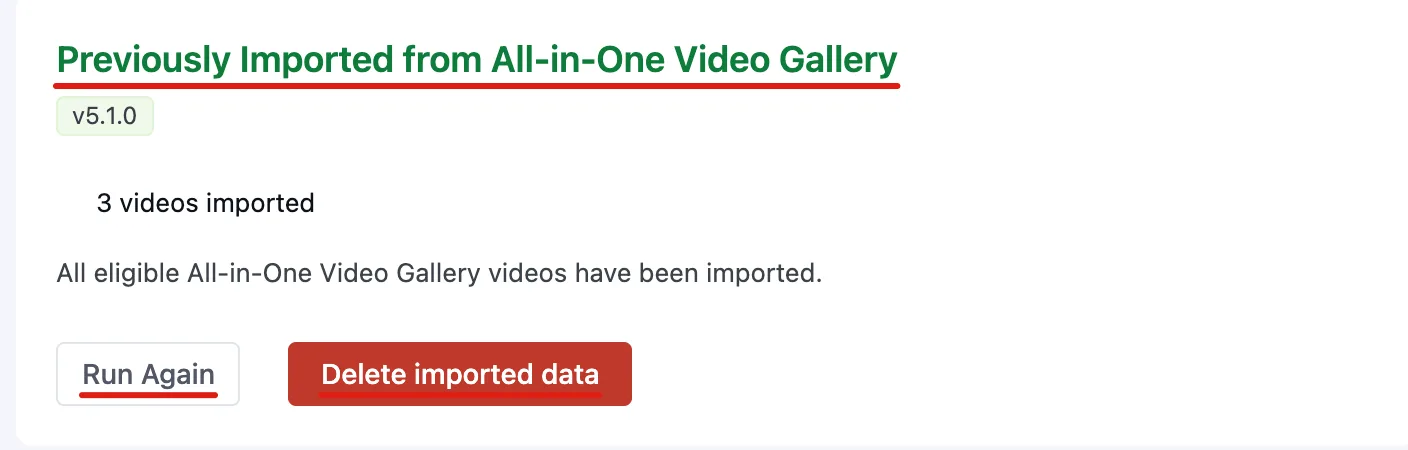
After an import, the Migration tab shows a Previously Imported from All-in-One Video Gallery summary with the number of videos imported. If new videos have been added since, it tells you how many are available to import.
- Run Again lets you import new or skipped videos — for example after you activate FluentPlayer Pro to bring your tags across.
- Re-import items already imported appears on the import screen when some videos were already imported. Tick it to refresh their source URL, poster and duration from All-in-One Video Gallery. Your own edits in FluentPlayer, such as branding, overlays and chapters, are kept.
FluentPlayer remembers which video each media item came from, so running the import again never creates duplicates.
Undo the Import
To remove everything the importer created, click Delete imported data. A confirmation explains: "This deletes every media imported from All-in-One Video Gallery. Your original videos are not touched." Click Delete to confirm.
WARNING
The imported media items are deleted permanently, not moved to the trash. This also removes any changes you made to those media items in FluentPlayer. Pages where you already embedded an imported media item will no longer show it.
Next Steps
- Review your imported videos under FluentPlayer → Media. See Adding and Editing Videos to fine-tune each one.
- If you imported Bunny Stream videos, add your Bunny API keys under Settings → Storage.
- Pick a different preset or add branding to give your imported videos a new look.
- Replace All-in-One Video Gallery shortcodes on your pages with FluentPlayer blocks or shortcodes.
Take your time
Because the importer never touches your All-in-One Video Gallery videos, there's no rush to remove the old plugin. Keep both active, check everything in FluentPlayer, and switch over on your own schedule.