

Appearance
Player Behaviors
Behaviors define how the player acts on its own autoplay, muted start, resume playback, loop or reset on end, inline mobile playback, and hiding control areas. Set them on a preset to apply the same rules across many videos, or override them on a single media item when one embed needs different rules.
Available Behaviors
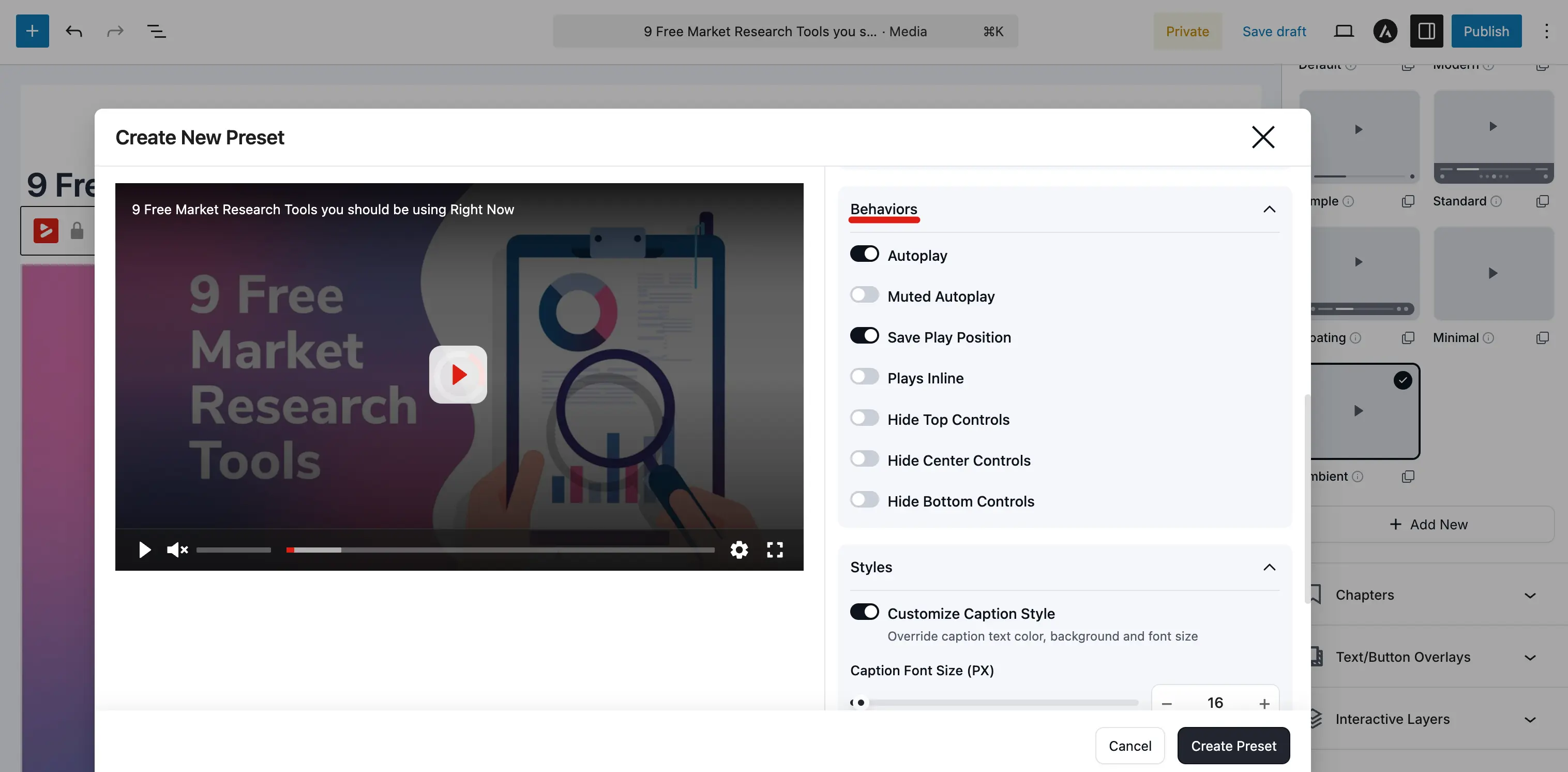
Autoplay
When enabled, the video starts playing as soon as the page loads.
Browser restrictions
Most modern browsers block autoplay with sound. If you enable autoplay but the browser blocks it, the video will not start. Use muted autoplay instead for reliable auto starting.
Muted Autoplay
The video starts playing automatically with the sound muted. This is allowed by nearly all browsers and is the recommended way to autoplay videos.
Common use case: Background or hero videos that play silently until the viewer interacts.
Save Play Position (Pro)
When enabled, FluentPlayer remembers where the viewer stopped watching. The next time they visit the page, the video resumes from where they left off.
Common use case: Online courses or training videos where viewers may watch in multiple sessions.
Pro feature
Resume playback requires FluentPlayer Pro. In the free plugin the toggle shows a Pro prompt and the player never restores the saved position, so resume does not work without Pro.
In Settings → General, the checkbox is labeled Enable Auto Resume Playback under Auto resume playback; turn it on so Pro can store playback position in the browser. In the block sidebar ( Block tab → General Settings ), the per embed toggle is Remember Playback Position. Use the preset’s Save play position behavior plus these toggles together so resume works as you expect.
TIP
This feature stores the position in the viewer's browser. If they switch to a different browser or device, the position will not carry over.
On Video End
This controls what happens when the video finishes playing. Common options include:
- Reset: The video goes back to the beginning (shows the poster image).
- Loop: The video starts again from the beginning immediately (useful for background or ambient clips). The Ambient preset uses loop style end behavior by default.
Pick Reset for one shot content; use Loop only when you intend continuous repetition (for example hero or ambient video).
Plays Inline
On mobile devices, videos often go fullscreen when they start playing. When plays inline is enabled, the video plays inside the page without going fullscreen.
Common use case: In content embeds where you want the video to stay within the article layout on mobile.
Hide Control Areas
You can hide entire control areas for a cleaner look:
- Hide top controls: Hides any controls at the top of the player.
- Hide center controls: Hides the center play/pause overlay.
- Hide bottom controls: Hides the bottom control bar entirely.
This is more aggressive than disabling individual controls: it removes the entire area.
Touch Gestures
On phones and tablets, viewers can use tap to play/pause and show or hide controls, double tap left/right to seek backward or forward by about 10 seconds, and double tap in some areas to toggle fullscreen.
Where to Configure Behaviors
| Location | Scope |
|---|---|
| Preset | Applies to all media using that preset |
| Media editor | Overrides the preset for that specific media |
Example: You use the "Modern" preset which has autoplay off. For one specific media item, you override autoplay to be on. Only that video autoplays; all other "Modern" videos do not.
Not every playback option is a behavior
A few playback options are site-wide switches rather than per-preset behaviors, so you won't find them here or in the preset editor. Single Playback — which pauses every other player on the page when a video starts — is one of them. It lives in General Settings.