

Appearance
Lightbox Embed (Pro)
A lightbox (or modal) embed keeps the video off the page until someone asks for it. Instead of a player sitting in your layout, you show a button, a link, or a thumbnail — and the video opens in a popup over the page when it's clicked.
This is useful when you want a clean landing page, a "Watch the demo" button in a hero section, or a video that shouldn't compete with the rest of your content.
Pro feature
The lightbox shortcode requires FluentPlayer Pro. In the free version, use the shortcode or Gutenberg block to place a player directly on the page.
Add a Lightbox in Three Steps
Step 1: Copy the lightbox shortcode
You don't have to write the shortcode yourself. FluentPlayer generates it for the media you're looking at, and there are two places to copy it from. Both give you exactly the same thing:
text
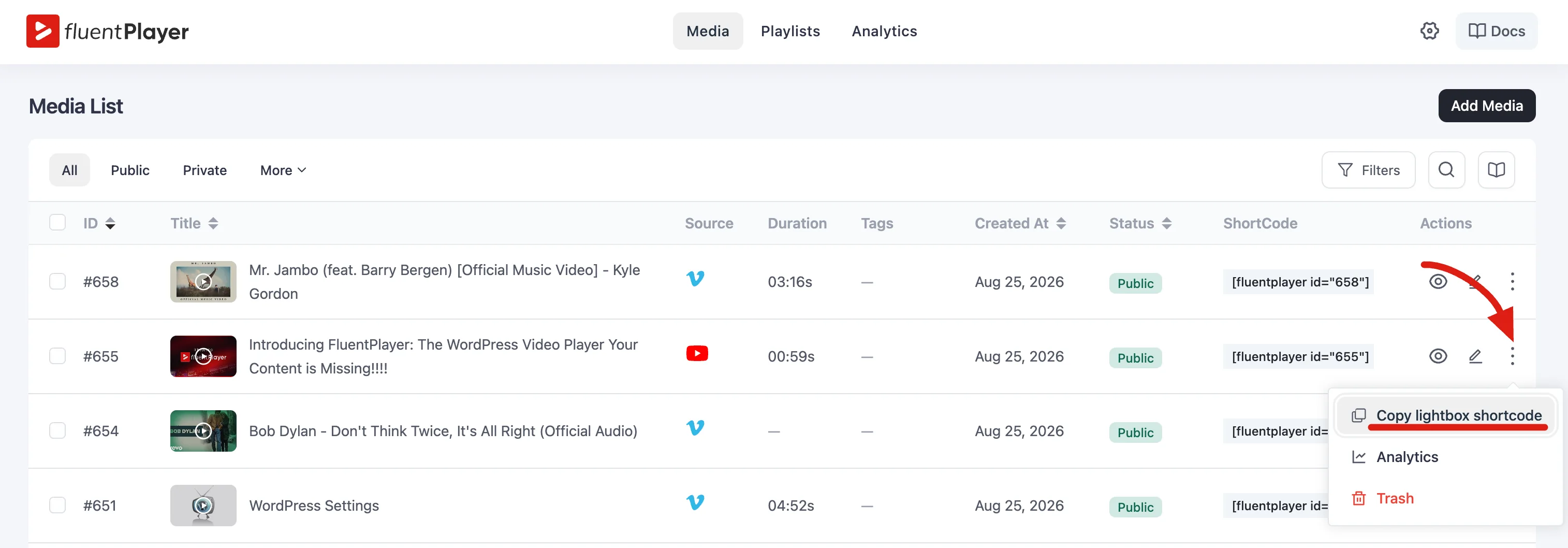
[fluentplayer_modal id="655"]Watch now[/fluentplayer_modal]From the Media list. Go to FluentPlayer → Media, open the ⋮ menu at the end of the video's row, and choose Copy lightbox shortcode.
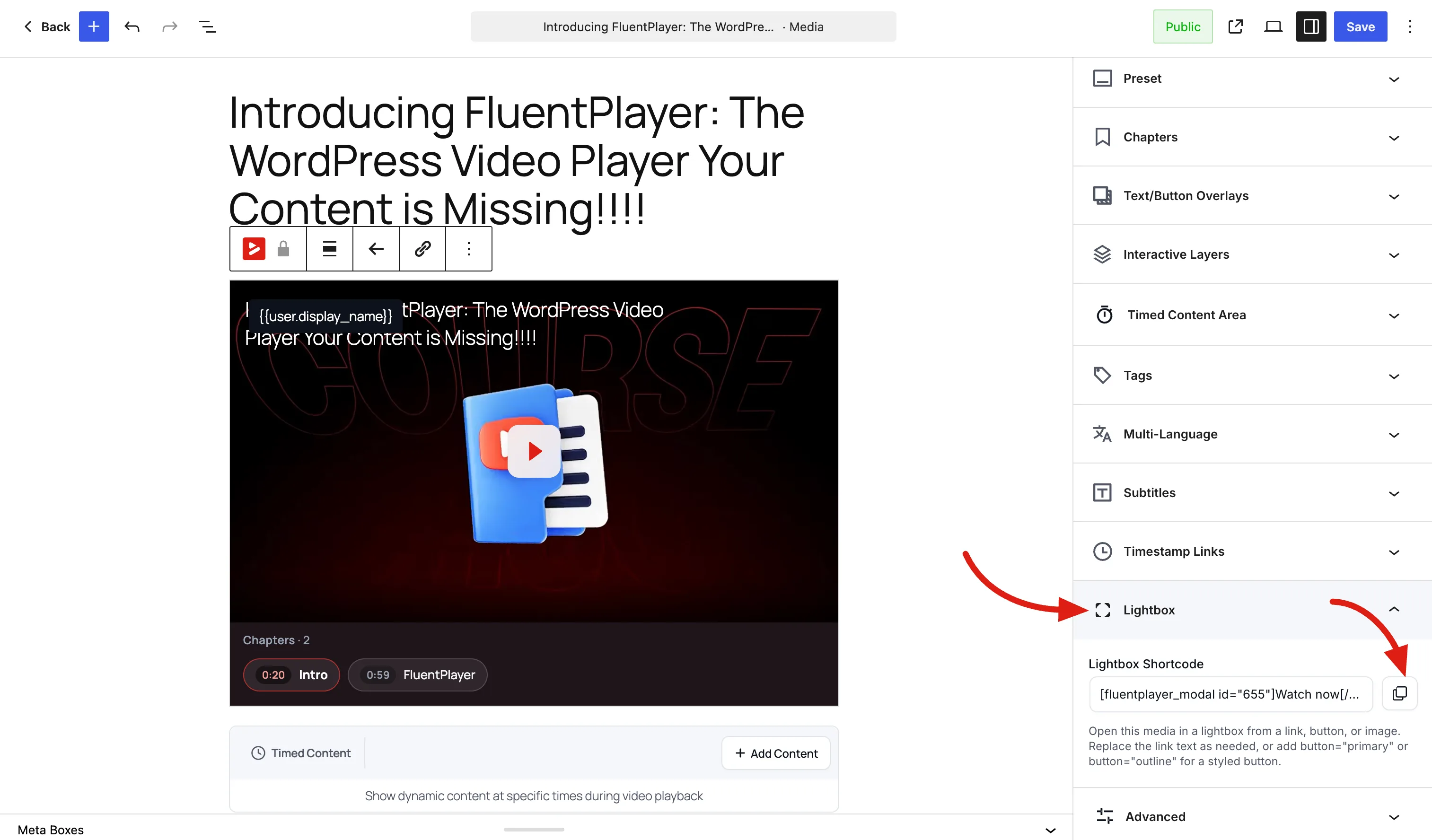
From the Player Editor. Open the media, and in the Block tab expand the Lightbox panel. The Lightbox Shortcode field holds the ready-made shortcode, with a copy button beside it.
Use whichever is closer to hand — the Media list when you're picking a video out of your library, the Player Editor when you're already editing one.
Replace the label
What you copy uses Watch now as the trigger text. Swap it for your own wording, or replace it with an image — see Using a Thumbnail or Custom Trigger.
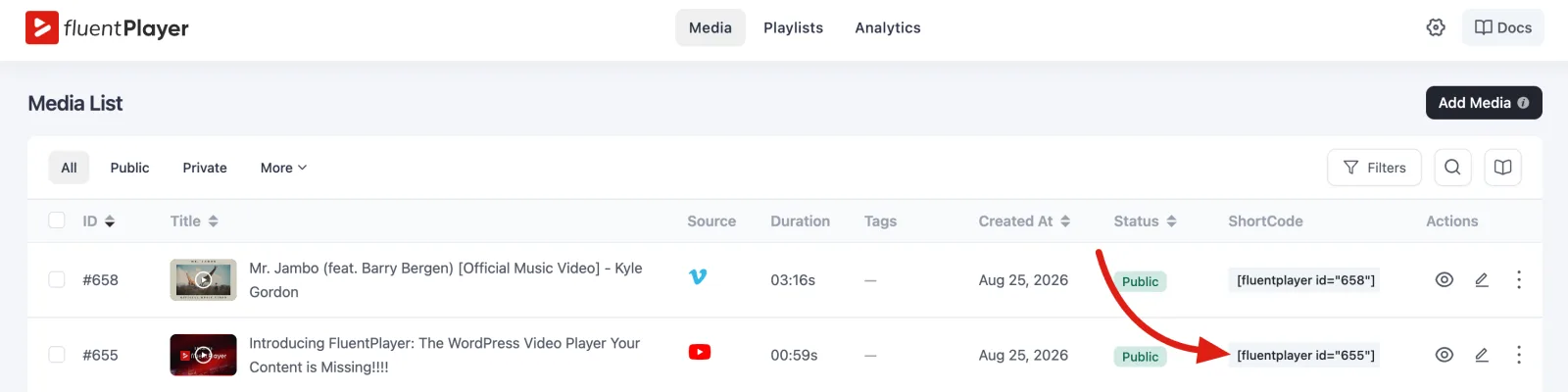
Building it by hand. The lightbox uses the same ID as the regular shortcode, so you're only swapping the shortcode name. The Media list shows each video's ID at the start of its row (like #655) and its regular shortcode in the ShortCode column, so [fluentplayer id="655"] becomes [fluentplayer_modal id="655"].
Step 2: Add the shortcode to your page
Edit the page where you want the video, add a Shortcode block, and paste your lightbox shortcode into it:
text
[fluentplayer_modal id="655" text="Watch the demo"]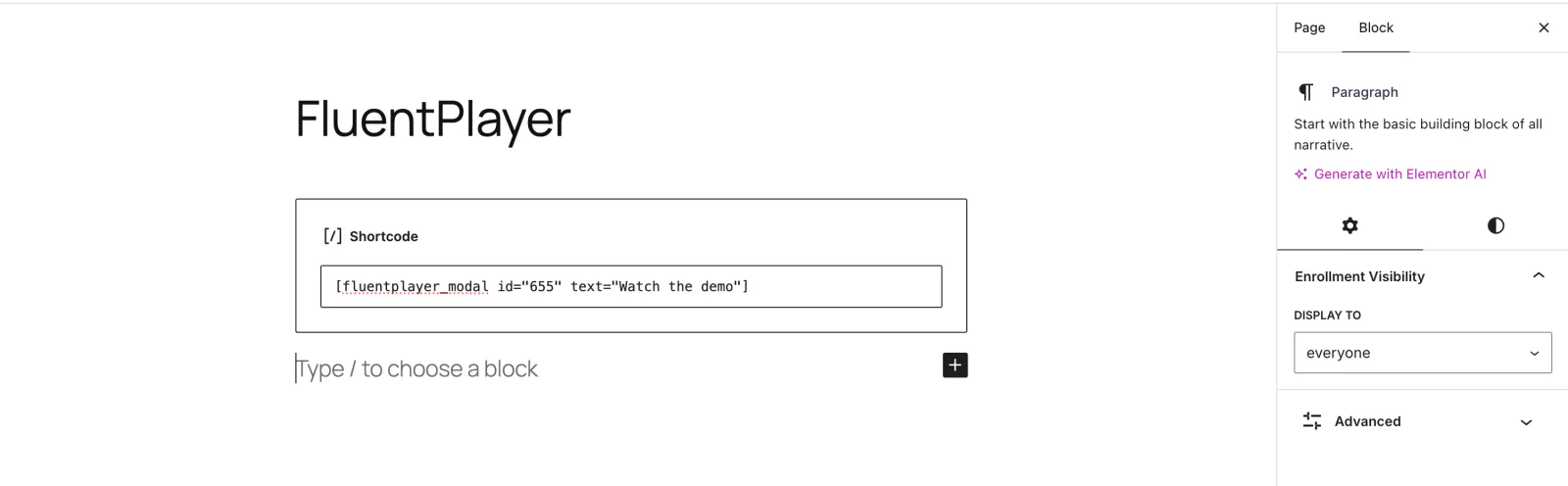
The text attribute is the label people will click. Update the page when you're done.
Step 3: Check it on the front end
Visit the page. You'll see your trigger where the shortcode was — and clicking it opens the video in a lightbox over the page.
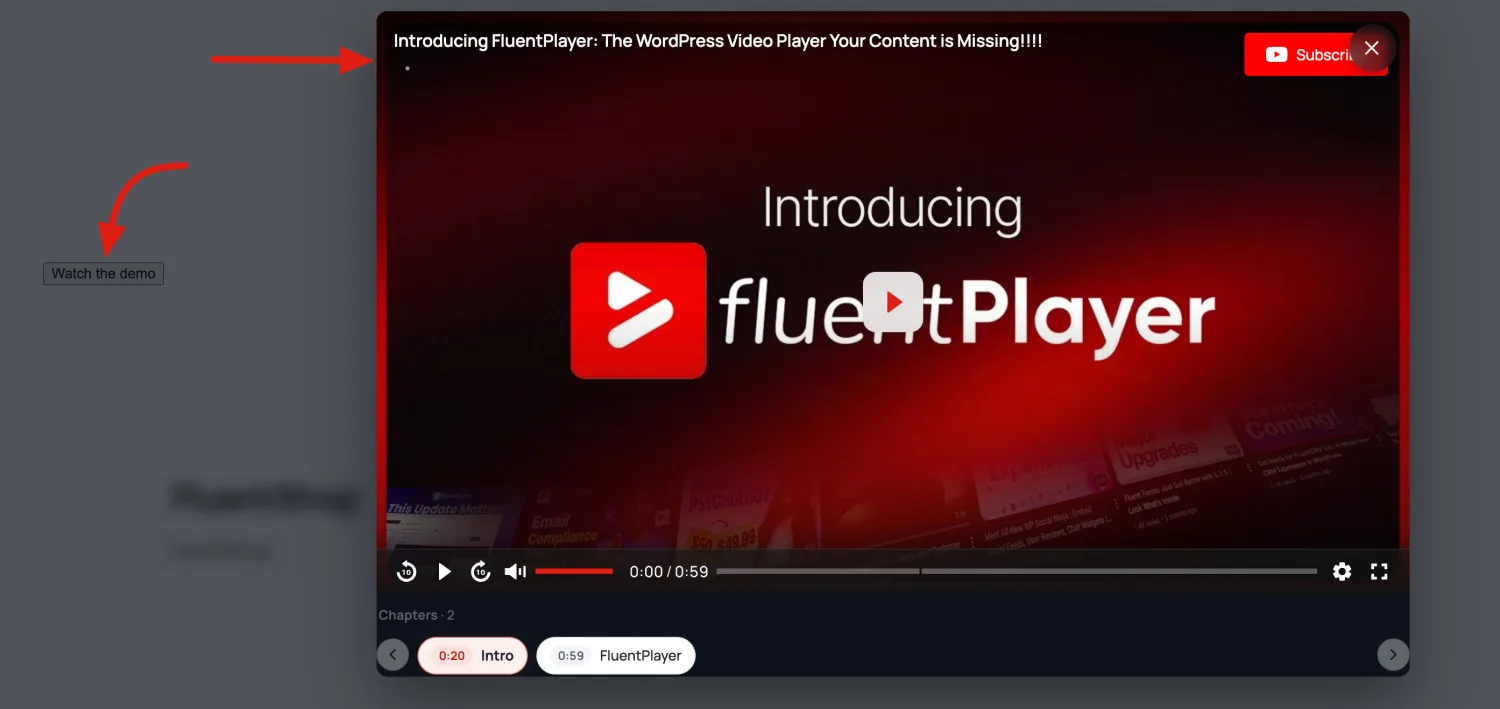
The rest of the page dims behind the video, and viewers close the lightbox with the ✕ in the top corner, by clicking outside it, or by pressing Esc.
Your player features come along
The lightbox shows the same player you'd get inline — the same preset, branding, and controls. Chapters, subtitles, and overlays all work inside it, as the chapter strip below the video in the screenshot shows.
No player is loaded on the page until the visitor clicks, so a lightbox embed does not slow down the initial page load.
The default trigger is deliberately plain
With no button attribute, the trigger renders as an unstyled button that inherits whatever your theme does — which can look very bare, as in the screenshot above. For anything meant to be a real call to action, add button="primary" or button="outline". See Button styles.
Using a Thumbnail or Custom Trigger
A text label isn't your only option. A video thumbnail with a play icon usually gets more clicks than a plain button, and the shortcode supports that through a second form.
Self-closing — what you used above. FluentPlayer builds the trigger from the text attribute:
text
[fluentplayer_modal id="655" text="Watch the demo"]Enclosing — you supply whatever the visitor should click:
text
[fluentplayer_modal id="655"]Watch the demo[/fluentplayer_modal]The enclosing form is the one to use when you want a thumbnail, an icon, or styled text as the trigger:
text
[fluentplayer_modal id="655"]
  <img src="/wp-content/uploads/2026/08/demo-thumb.jpg" alt="Watch the demo">
[/fluentplayer_modal]If you use neither text nor enclosed content, the trigger falls back to the label Play video.
What you can put inside
Basic presentational HTML works inside the enclosing form — images, icons, and simple text formatting. Links and form fields are removed, because the trigger is itself a button and nesting a link inside it would break keyboard and screen-reader behavior.
Shortcode Attributes
| Attribute | Required | Default | Description |
|---|---|---|---|
id | Yes | — | The media (post) ID to open in the lightbox. |
text | No | empty | The trigger label. Used only in the self-closing form — enclosed content wins if both are present. |
button | No | plain | Trigger style: plain, primary, or outline. See below. |
class | No | empty | Extra CSS classes on the trigger, for your own styling. |
Button styles
| Value | Result |
|---|---|
plain | No FluentPlayer styling. The trigger inherits your theme's appearance — best when you're supplying a thumbnail or want the link to match surrounding text. |
primary | A solid button in FluentPlayer's brand color. |
outline | A bordered button with a transparent background. |
text
[fluentplayer_modal id="655" text="Watch the demo" button="primary"]
[fluentplayer_modal id="655" text="See how it works" button="outline" class="my-hero-cta"]Private and Password-Protected Videos
The lightbox respects your visibility settings exactly as an inline player does:
- A private video opens in the lightbox for people allowed to see it, and the shortcode renders nothing for everyone else.
- A password-protected video asks for the password inside the lightbox before it plays.
There is no way to reach a video through the lightbox that a visitor couldn't already watch on the page.
Accessibility
The trigger renders as a real <button>, not a styled link, so it is reachable by keyboard, announced correctly by screen readers, and works with browser zoom and high-contrast modes without extra work from you.
If you supply an image as the trigger, give it meaningful alt text — that text is what a screen-reader user hears.