

Appearance
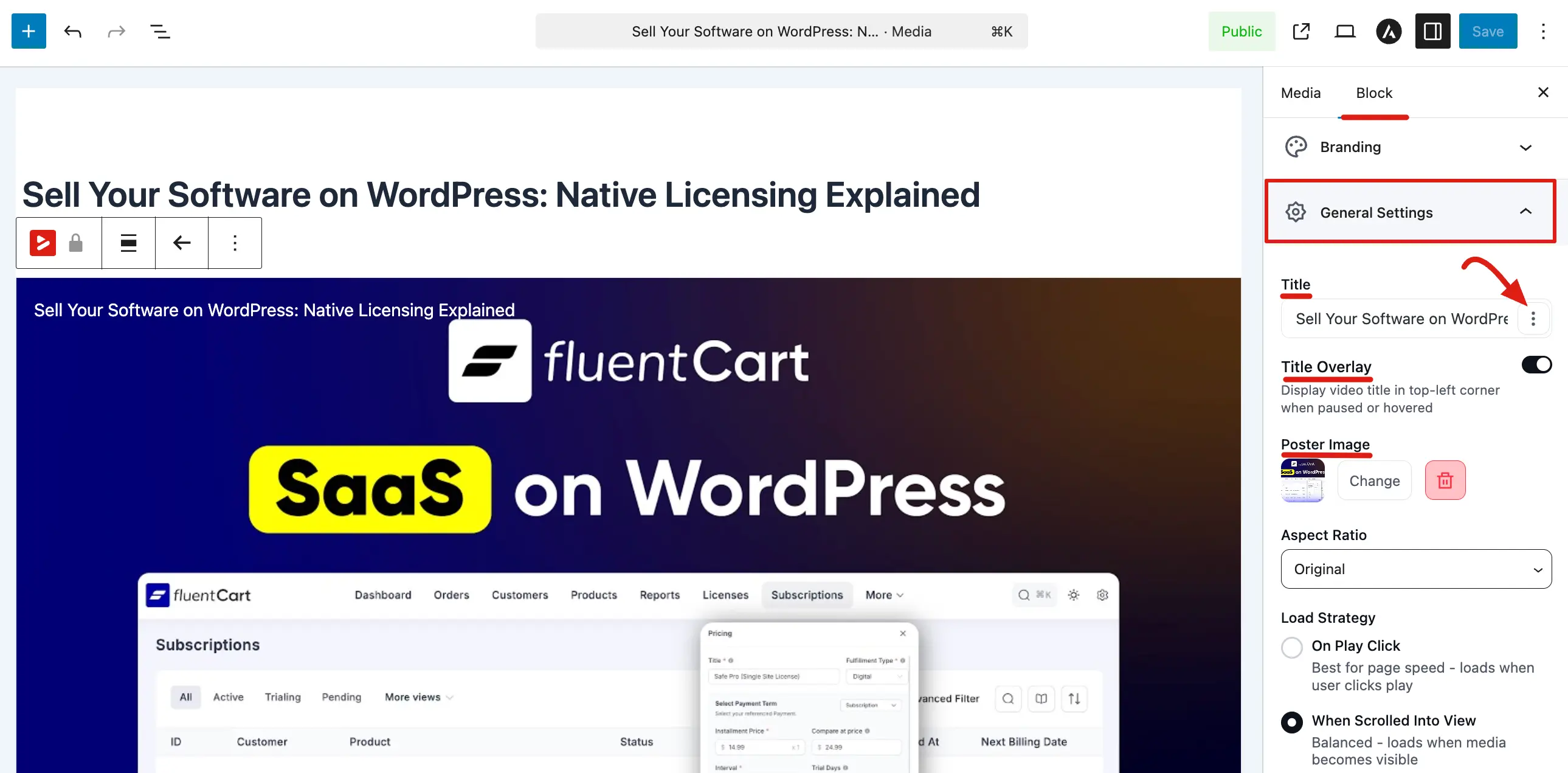
General Settings (Block sidebar)
The General Settings panel allows you to control the fundamental behavior and display options for your video. You can customize everything from how the video loads to its automatic playback rules.
Access the Global Settings
To access these settings, go to FluentPlayer → Media, and either click Add Media or select an existing media item. Once in the editor, ensure the Block tab is selected in the right sidebar to find the General Settings section.
Settings Overview
1. Title and Title Overlay
- Title: Enter the internal name for your video. This is used for organization within your Media List.
- Title Overlay: When enabled, the video title will appear in the top left corner of the player when the video is paused or hovered over. You can use the "tag" icon to insert dynamic Smartcodes for personalized titles.
2. Poster Image
The Poster Image is the thumbnail viewers see before the video starts.
- Click Change to select an image from your WordPress Media Library or upload a new one.
- A professional poster image makes your content more inviting and improves click through rates.
3. Aspect Ratio
Control the shape of your video player to match your content.
- Original: Matches the native dimensions of your video file.
- Presets: Choose from common ratios like Wide (16:9), Standard (4:3), Square (1:1), or Classic (2:3).
4. Load Strategy
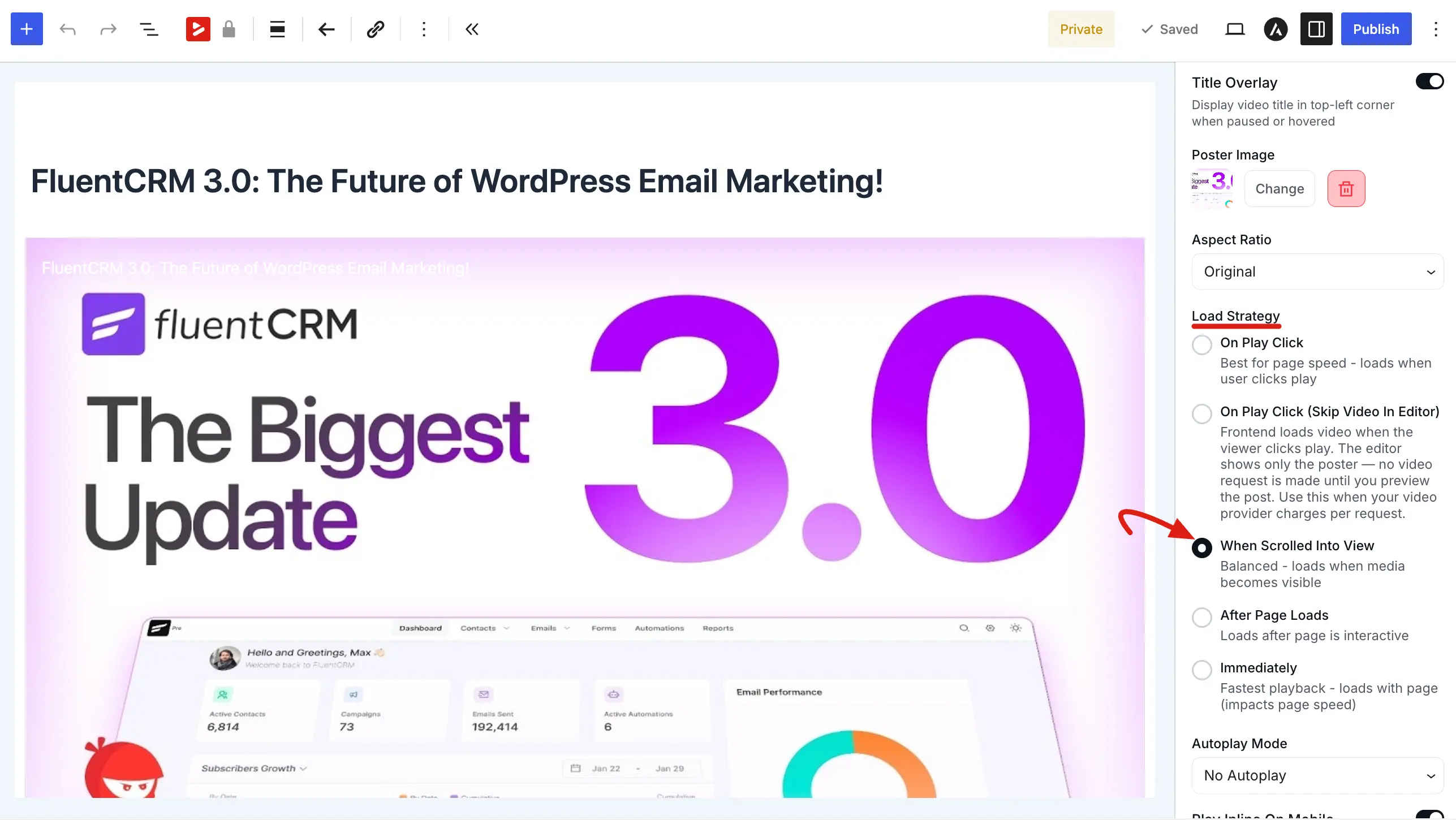
This determines when the video data starts loading, which can significantly impact your website's speed.
- On Play Click: The video only loads once a user clicks play. This is the best option for page speed.
- On Play Click (Skip Video In Editor): Best for page speed and cost efficiency. The frontend loads the video only when the viewer clicks play. The backend editor shows only the poster image with no video requests made until you preview the post. Use this option if your video provider charges per request.
- When Scrolled Into View: The video begins loading only when the player becomes visible on the user's screen.
- After Page Loads: The video starts loading once the rest of the website content is finished.
- Immediately: The video loads as soon as the page is opened. Use this sparingly as it can slow down your site.
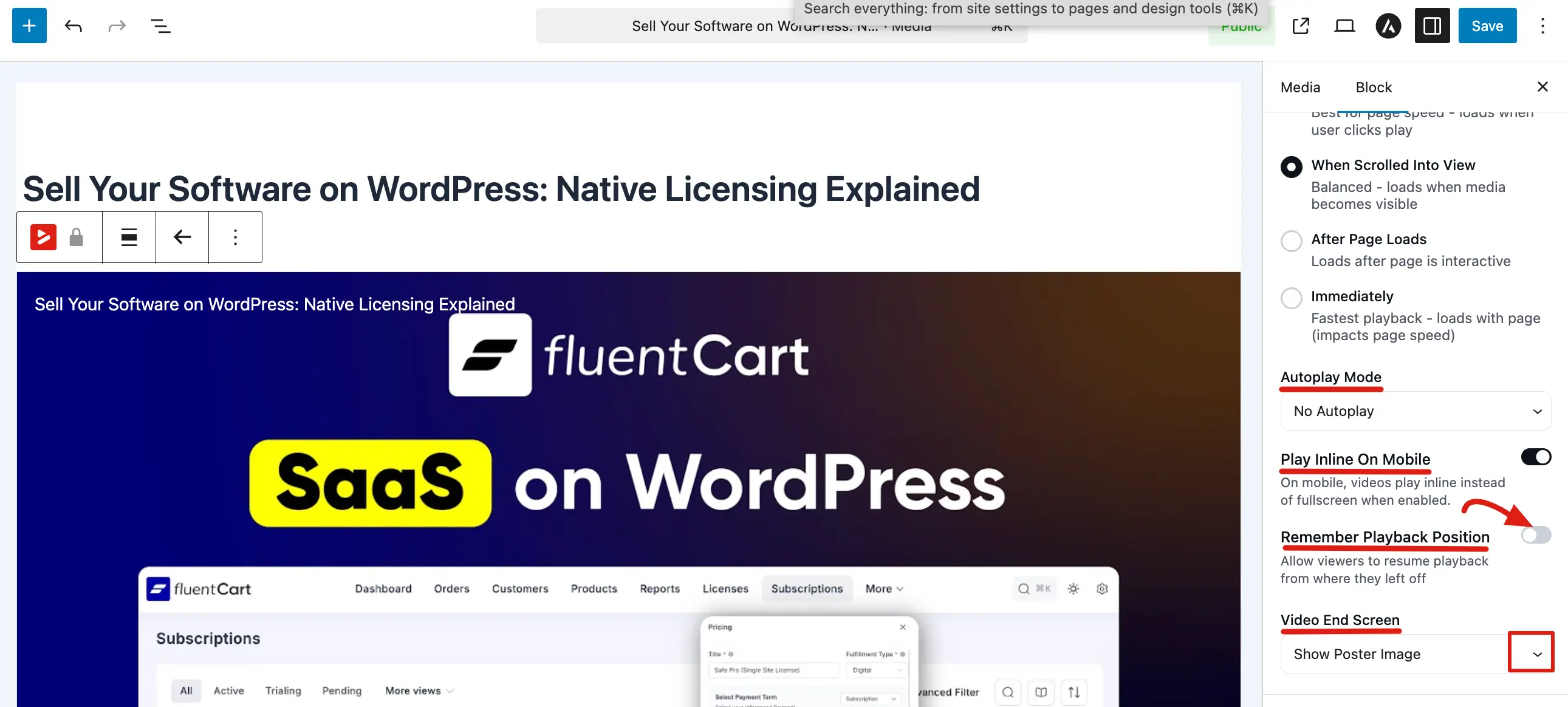
5. Autoplay Mode
Set the player to start automatically when the page loads.
- No Autoplay: The video stays still until the user clicks play.
- Autoplay with Sound: The video starts playing with audio enabled (Note: many browsers block this by default).
- Muted Autoplay: The video starts playing silently. This is the most reliable way to use autoplay across all devices.
- Muted Preview: The video loops silently as its own thumbnail, then plays with sound when the viewer clicks. Click Customize preview below the dropdown to set the volume, the looped range, and what appears over the preview — see Muted Preview. Not applied inside playlists.
6. Play Inline On Mobile
When enabled, this allows the video to play directly within the webpage on mobile devices rather than forcing it into a full screen system player.
7. Remember Playback Position
This user friendly feature allows viewers to resume the video exactly where they left off if they return to the page later.
8. Video End Screen
Decide what viewers see once the video finishes playing.
- Show Poster Image: Displays your thumbnail again at the end.
- Loop Video: Automatically restarts the video from the beginning for continuous playback.
The General Settings panel provides the essential building blocks for your video player. By carefully choosing your Load Strategy and Autoplay rules, you can create a high performance viewing experience that doesn't sacrifice your website's loading speed.