

Appearance
Subtitles (Block sidebar)
Subtitles (also known as captions) help make your videos easier to understand for a wider audience. They are useful for people who are deaf or hard of hearing, those watching in noisy environments, or viewers who speak different languages.
FluentPlayer allows you to easily add and manage subtitle tracks for your videos directly from the block editor.
Free vs Pro
Captions embedded in HLS streams play in both versions. Uploading your own .vtt/.srt tracks and importing captions from YouTube or Vimeo require FluentPlayer Pro. See Subtitles & Captions for details and limits.
Why Use Subtitles?
- Accessibility: Required by many regulations and digital best practices.
- Better Engagement: Videos with subtitles often receive more watch time.
- Multilingual Reach: Offer subtitles in multiple languages without needing to create separate video files.
- SEO: Search engines can read your subtitle text to better understand and index your video content.
How to Add Subtitles
Follow these steps to upload a caption track to your video:
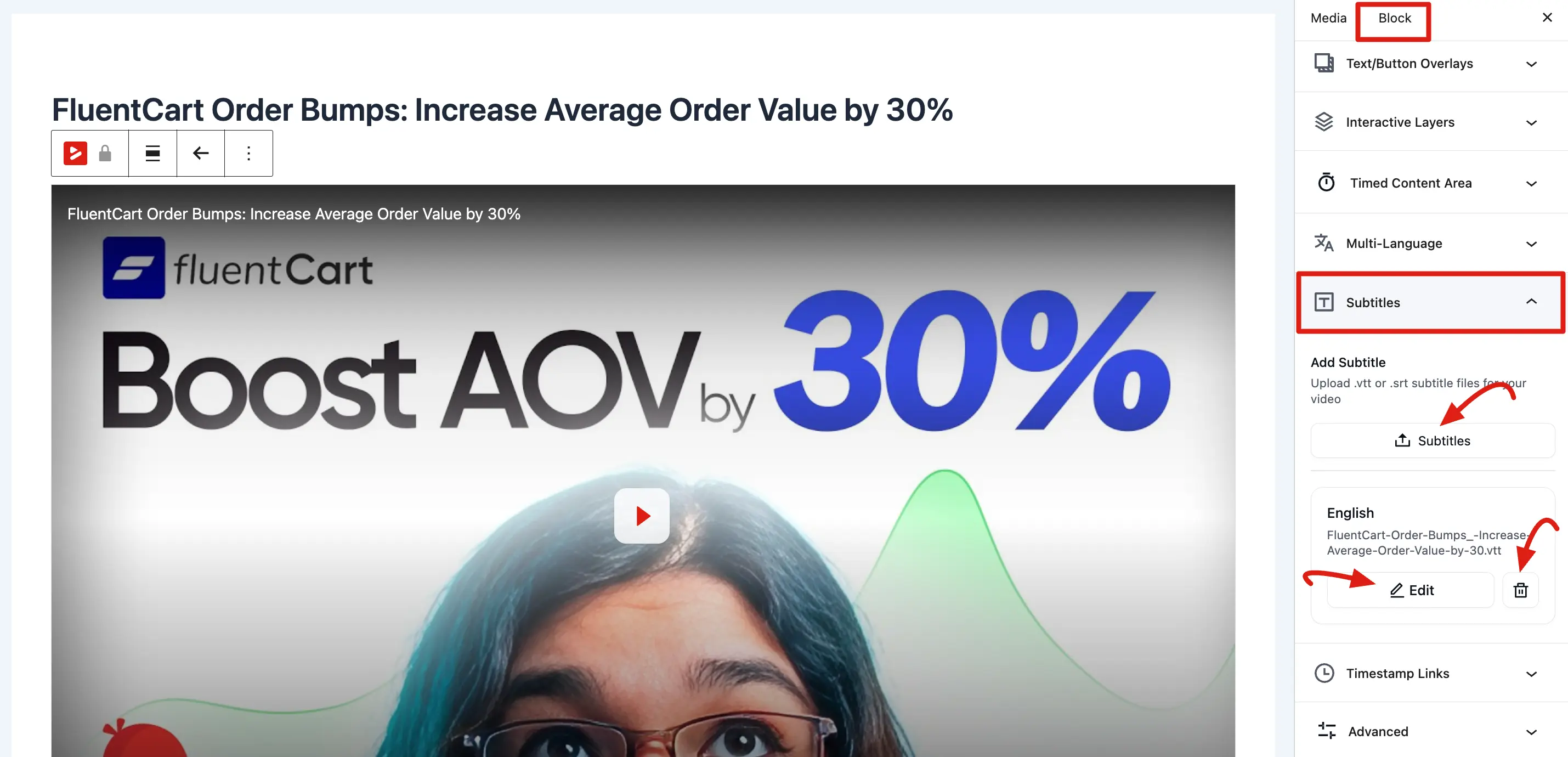
- Select the FluentPlayer block and navigate to the Block tab in the right hand sidebar.
- Expand the Subtitles panel.
- Click the Subtitles button (with the upload icon) to open your WordPress Media Library.
- Upload or Select: Drag and drop your .vtt or .srt subtitle file, or select one you have already uploaded.
- Click Select to confirm.
After adding the file, you will see the subtitle track listed with its language (for example, English) and file name.
Importing captions instead of uploading (Pro)
If your video is hosted on YouTube or Vimeo and already has captions there, you don't need a file at all. The Subtitles panel shows an import section for that provider — click Fetch, tick the tracks you want, and click Import Selected. They arrive as regular subtitle tracks you can manage exactly like uploaded ones.
Full steps are on Subtitles & Captions.
Managing and Removing Tracks
- Multiple Tracks: You can repeat the upload process to add subtitle files for different languages. If you want to know more about Multi-Language, read this Documentation.
- Edit: Click the pencil/edit icon next to a track if you need to replace the file.
- Remove: Click the trash/delete icon to instantly remove a subtitle track from your video.
- Save: Always remember to click Save or Update at the top of the editor to apply your changes to the live player.
TIP
For the best compatibility on the web, we recommend using the WebVTT (.vtt) format. If you only have .srt files, many free online converters can change them to .vtt in seconds.
Styling
The appearance of your captions such as font size, color, and overall style is not controlled only in the subtitle upload panel. You can customize these settings from the Presets or the Branding & Appearance section to match your video player design.
Adding subtitles is a quick way to make your content more professional and inclusive. By using the Subtitles panel, you can ensure that every viewer regardless of their environment or hearing ability can fully engage with your message.