

Appearance
Multiple Languages
If your audience speaks different languages, FluentPlayer allows you to offer alternate versions of the same video. This is perfect for videos with different voiceovers or narrations.
Unlike subtitles, which just add text over the screen, the Multi-Language feature swaps the entire video file so the viewer hears the audio in their preferred language.
How It Works for Viewers
- Automatic Switching: When a person visits your site, FluentPlayer detects their browser language. If you have a matching video version, it can load that version automatically.
- Manual Choice: Viewers can also use the language selector in the player controls to pick their preferred language at any time.
NOTE
Make sure you have already uploaded your translated videos as separate media items before trying to link them in the Multi-Language settings.
How to Enable Multiple Languages
To set up different language versions, follow these simple steps:
- Go to FluentPlayer → Media and open the video you want to edit.
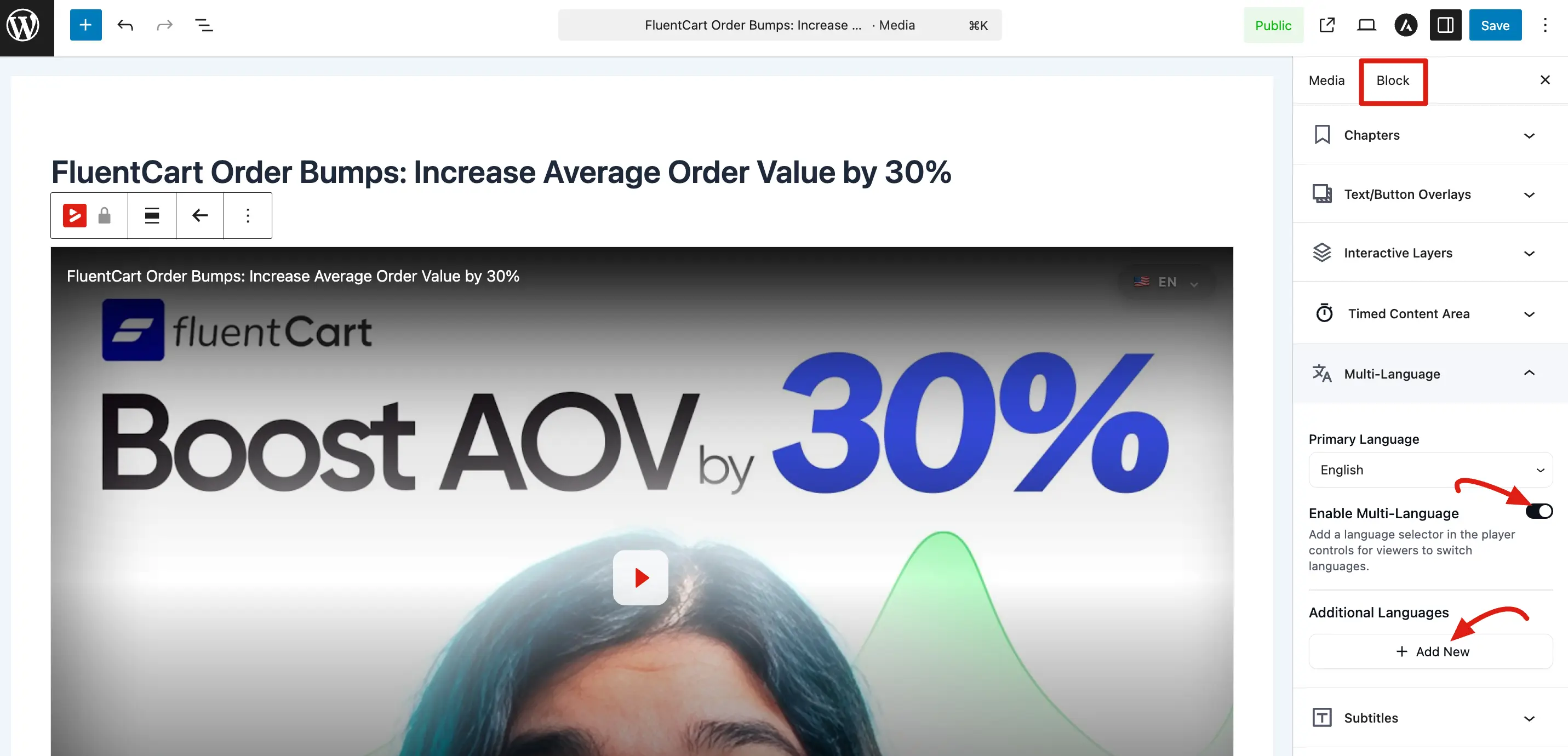
- In the right-hand sidebar, click on the Multi-Language tab to expand it.
- Set the Primary Language: Choose the main language of your video (e.g., English) from the Primary Language dropdown menu.
- Turn on the Feature: Switch the toggle for Enable Multi-Language to the "on" position. This adds a language selector to the player so viewers can switch manually.
Adding and Managing Additional Languages
Once the feature is enabled, you can link and manage your translated video versions:
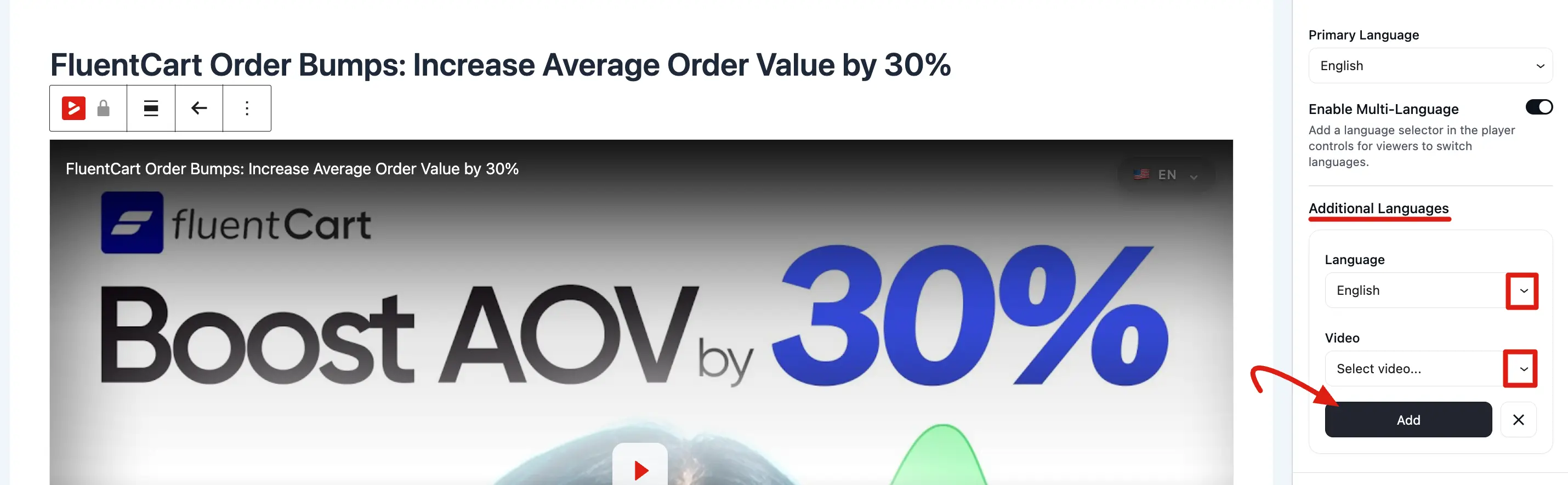
- Adding a Language: Click the + Add New button. Select the language code and choose the corresponding media file from the dropdown, then click Add.
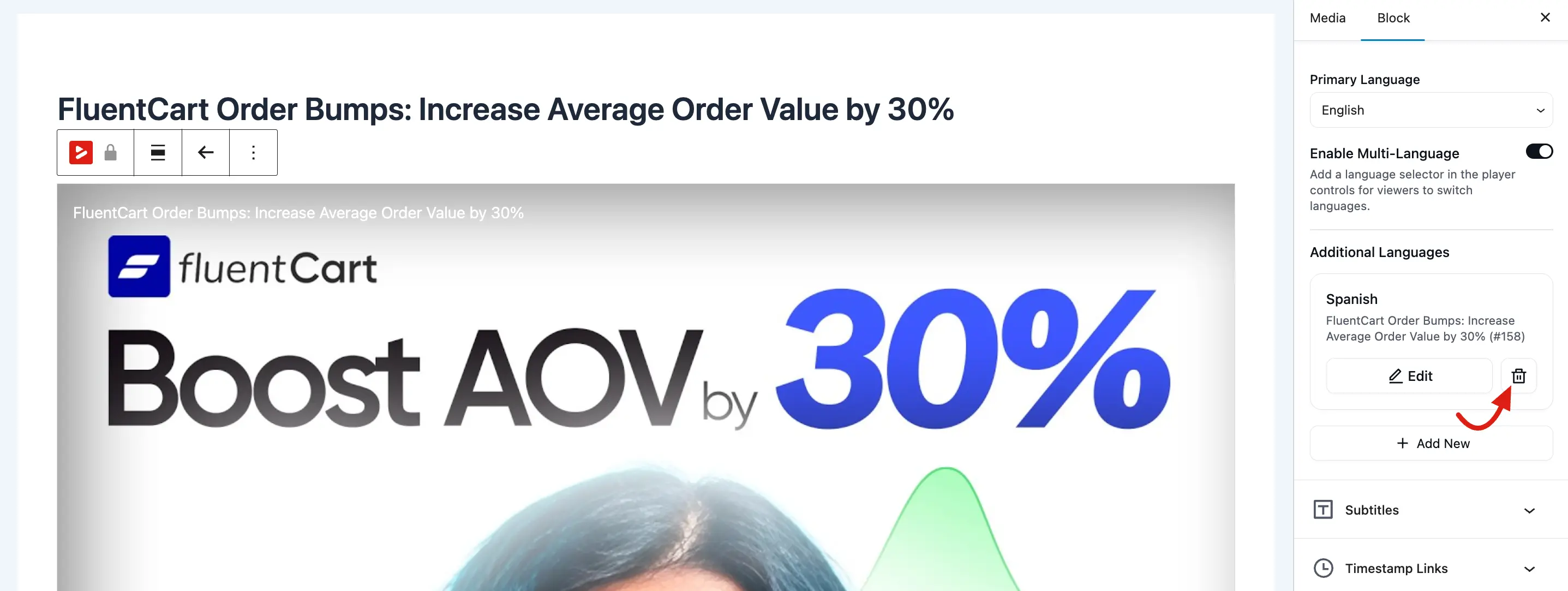
- Editing a Language: If you need to change the video file linked to a language, click the Edit button on the specific language card.
- Removing a Language: To delete a language option, click the Trash/Delete icon on the right side of the language card.
Automatic Language Switching
When the player loads on the front end, it reads the viewer's browser language in the page itself. If a mapping exists for that language, the player selects the matching video source automatically. The viewer does not need to do anything.
If no mapping exists for the viewer's language, the primary video plays as usual.
Manual Switching
All linked language sources are sent to the player when the page loads, so switching happens in the browser with no extra page request. When a viewer picks a language from the selector in the player controls, the player swaps to that source instantly and resumes playback.
Because the mappings are already loaded with the player, there is no separate API call or login required to change languages.
TIP
Automatic switching is great for international audiences, but make sure you actually create the alternate media items and set up the mappings. Without mappings, the primary video always plays.
When to Use Multiple Languages vs Subtitles
| Approach | Best for |
|---|---|
| Multiple languages | Videos with voiceover or narration in different languages (different audio tracks) |
| Subtitles | Same video with translated text overlays |
You can use both at the same time for example, a Spanish narrated video with French subtitles.