

Appearance
Migrate from Presto Player (Pro)
Already using Presto Player? FluentPlayer Pro includes a built-in migration tool that brings your existing settings, presets, and media into FluentPlayer in a few clicks — so you can switch without rebuilding everything by hand.
The migration is a one-way import: it copies data from Presto Player into FluentPlayer. Your Presto Player content is only read, never changed, so you can keep both plugins active and take your time reviewing the result.
Pro feature
The Presto Player migration tool is available only in FluentPlayer Pro. You will not see the Migration tab on the free plugin.
Before You Start
Make sure both of these are true before you begin:
- FluentPlayer Pro is installed and active. The Migration tab lives inside the Pro settings. See Installation if you still need to set up Pro.
- Presto Player is still installed and active on the same site. FluentPlayer reads directly from Presto Player's data, so the plugin has to be active for the tool to find anything to import.
Keep Presto Player active during migration
If Presto Player is deactivated or deleted, FluentPlayer has nothing to read from and the migration will find no data. Keep it active until your import is finished and you have confirmed everything came across correctly.
What Can (and Can't) Be Migrated
The tool imports three types of data. You choose which ones to bring over:
| Import option | What it includes |
|---|---|
| Global Settings | Branding and Google Analytics configuration |
| Presets | Your saved Presto Player presets (player skins and control layouts) |
| Media | Your Presto Player media items, including YouTube videos |
A few Presto Player features cannot be migrated, because FluentPlayer handles them differently or they have no direct equivalent:
- Popup blocks
- Private media
- Watermark settings
These are listed right on the migration screen so you always know what will be left behind. You can recreate them in FluentPlayer after the import.
How to Migrate
Step 1: Open the Migration Screen
- In your WordPress admin, go to FluentPlayer Pro and open Settings (the gear icon).
- In the settings sidebar, click Migration.
FluentPlayer detects your Presto Player installation and shows the Import from Presto Player screen, along with the detected Presto Player version.
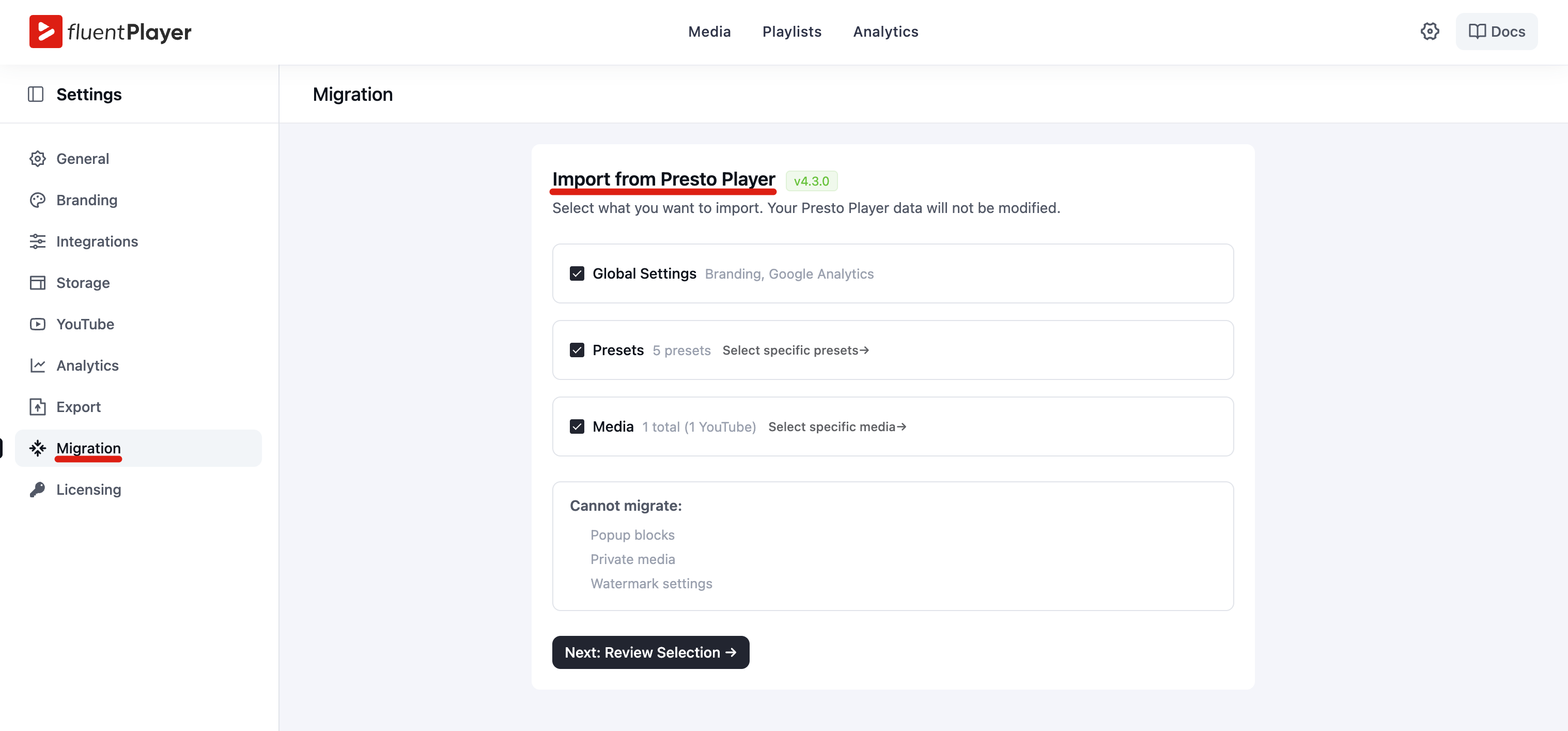
Each item is ticked by default, and the counts (for example, 5 presets or 1 media) reflect what FluentPlayer found in Presto Player. Untick anything you don't want to import.
Step 2: Choose Specific Presets (Optional)
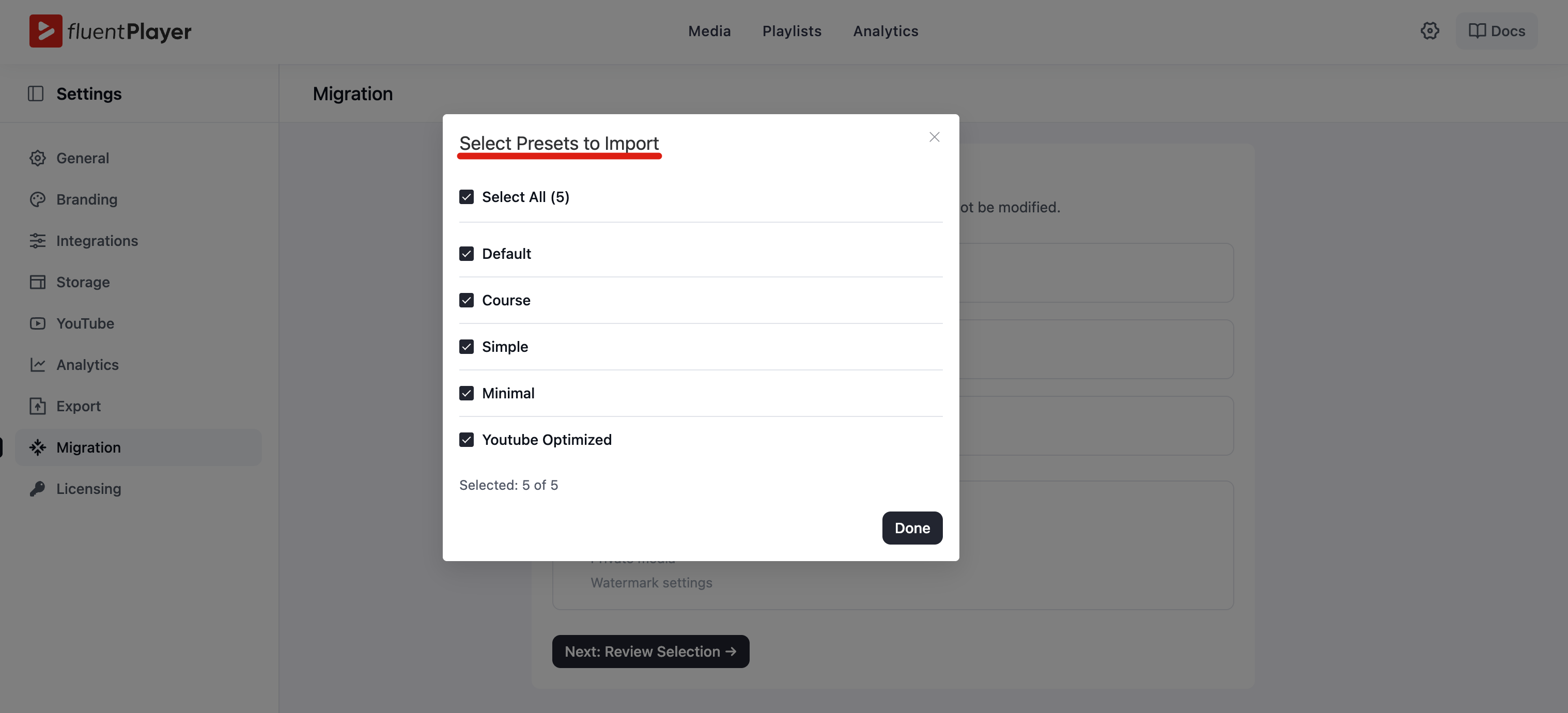
To import only some of your presets instead of all of them, click Select specific presets → next to the Presets option.
A dialog lists every preset FluentPlayer found. Tick the ones you want, or use Select All to grab them all, then click Done.
Step 3: Choose Specific Media (Optional)
Similarly, click Select specific media → next to the Media option to pick individual videos.
You can filter by source (for example, All or YouTube), search by title, or use Select All. Choose what you need and click Done.
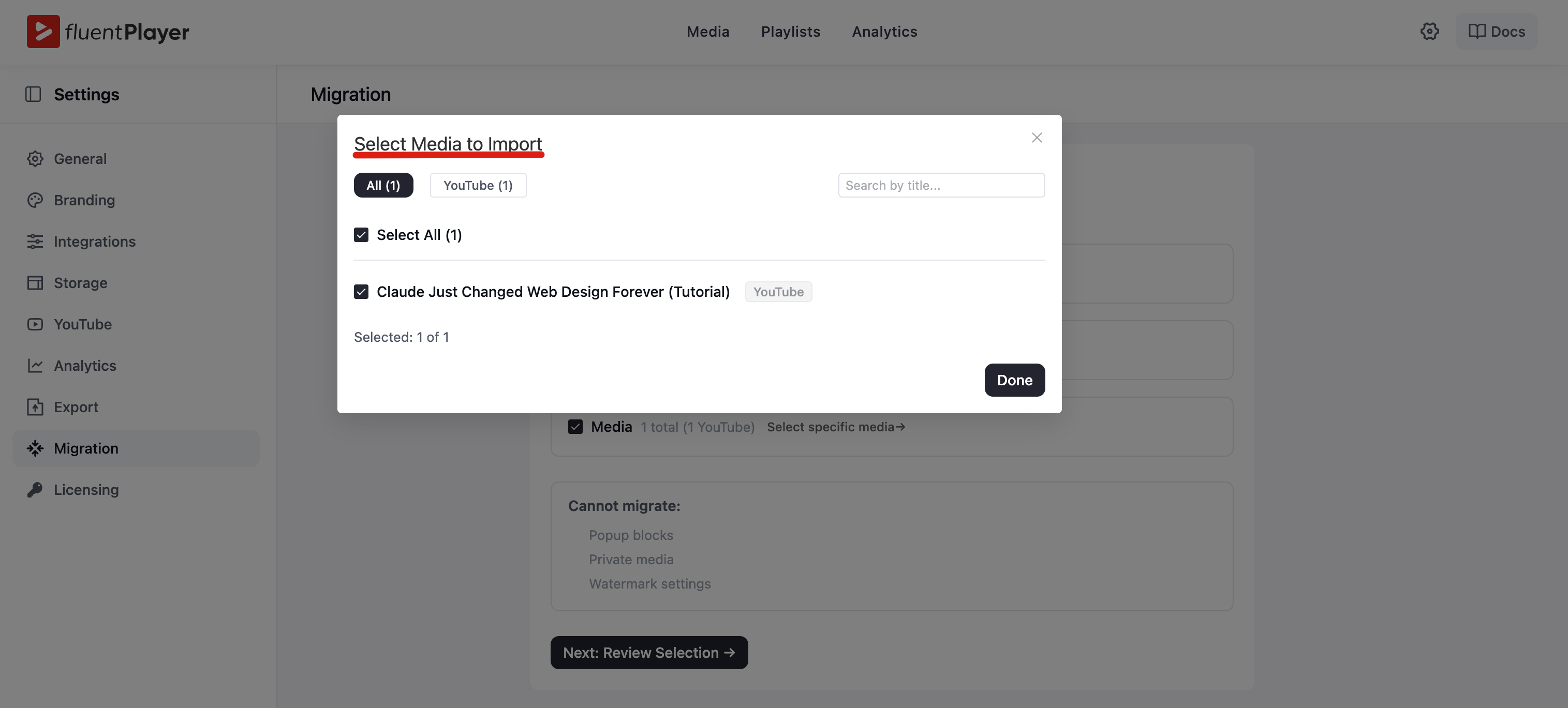
When your selection looks right, click Next: Review Selection →.
Step 4: Review and Start the Import
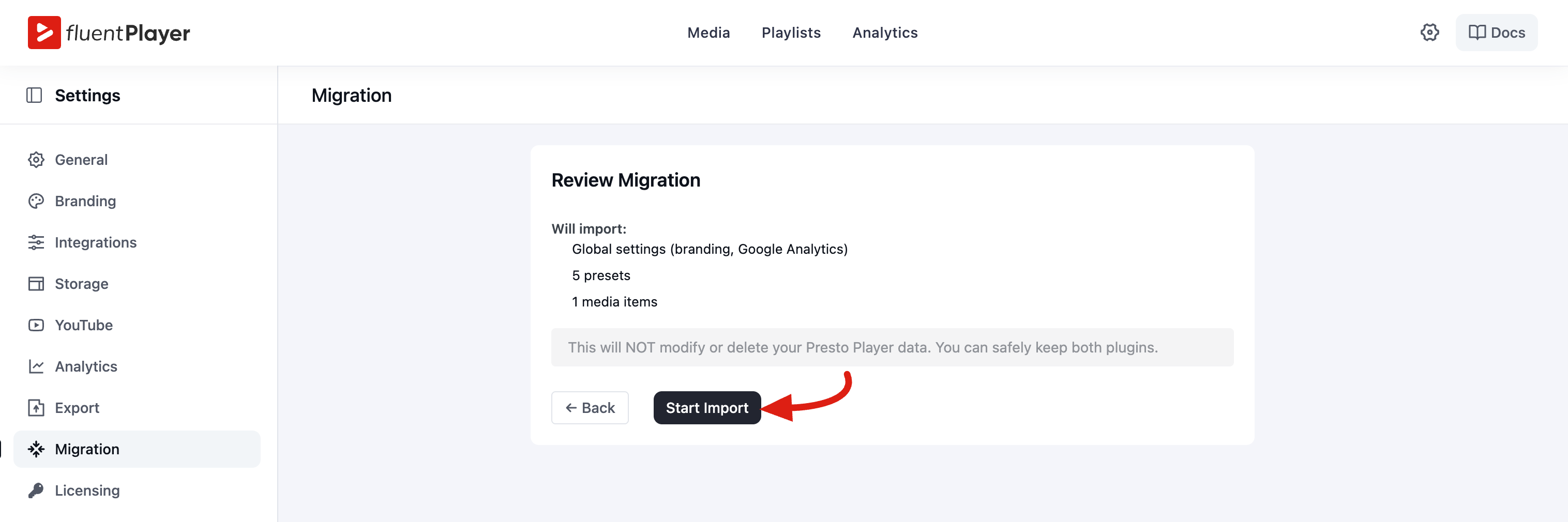
The Review Migration screen summarizes exactly what will be imported — your global settings, the number of presets, and the number of media items.
Your Presto Player data is safe
As the screen reminds you, importing will not modify or delete your Presto Player data. You can safely keep both plugins installed side by side.
If you want to change your selection, click ← Back. Otherwise, click Start Import to run the migration.
Step 5: Done
When the import finishes, you'll see a Migration Complete! confirmation with a count of everything that came across.
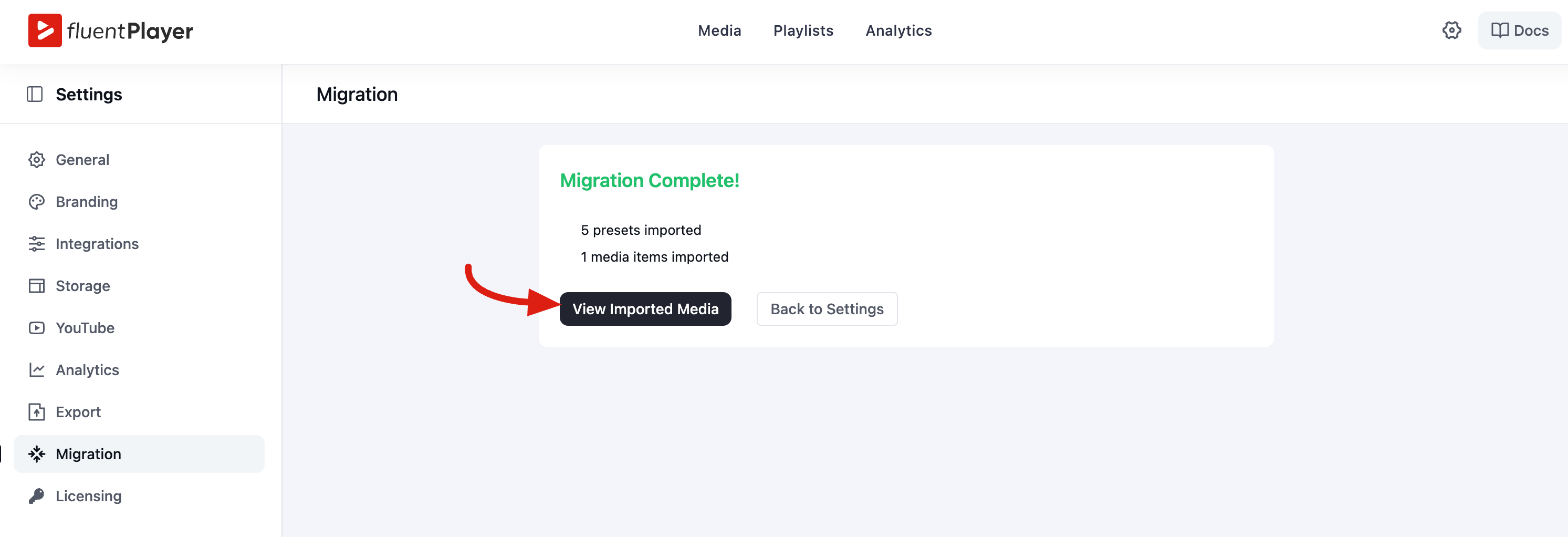
From here you can:
- View Imported Media — jump straight to your FluentPlayer media library to see the videos you just brought over.
- Back to Settings — return to the settings screen to keep configuring FluentPlayer.
After You Migrate
Your imported content now lives in FluentPlayer, ready to use:
- Review your migrated videos under FluentPlayer → Media. See Adding and Editing Videos to fine-tune each one.
- Check your imported presets in Presets, or build on them with custom presets.
- Confirm your Branding and Analytics settings carried over as expected.
- Recreate anything that couldn't be migrated — such as private media or watermarks — directly in FluentPlayer.
Once you're happy with the result, you can update your posts and pages to use FluentPlayer. When you no longer need Presto Player, it's safe to deactivate it.
Take your time
Because migration never touches your Presto Player data, there's no rush to remove the old plugin. Keep both active, verify everything looks right in FluentPlayer, and switch over on your own schedule.